
Loading
Ship pallet and freight forwarder orders – print the delivery note, record tracking and mark orders as shipped.
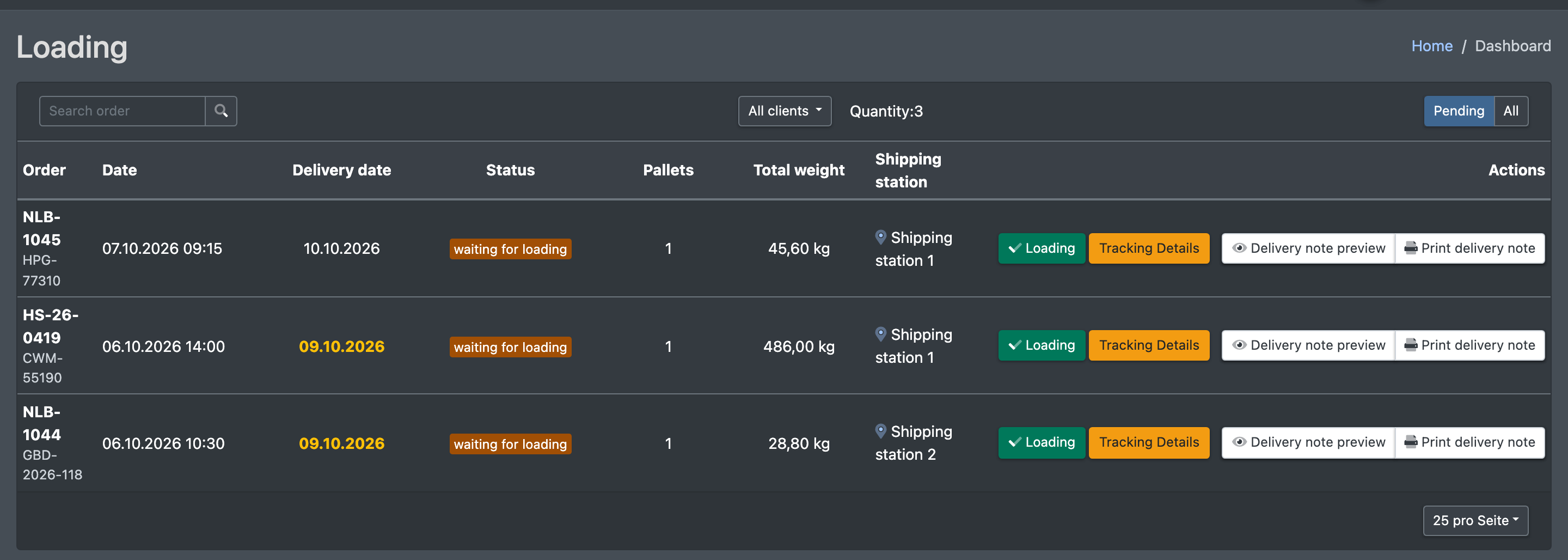
Orders with pallets or with a freight forwarder / own delivery do not get a parcel label at the packing table. Instead they wait in the status Waiting for loading (wartet auf Verladung). In Loading your shipping team sees these orders with shipping station, pallets and total weight, prints the delivery note, records the shipping method and tracking number per position and marks the order as shipped. The goods are then booked out of the shipping station.
Before you start
- Your user needs the permission Loading (Verladung) – ask your administrator.
- Orders in the status Waiting for loading. They are created when pallet positions are picked or pallet orders are packed – see Picking and Packing. Pallets are brought to the shipping station (deposit location) by a pallet ride – see Deposit locations. Pallets from the transit warehouse are booked onto the shipping station without scanning.
- Freight carriers as shipping methods.
- For the delivery note: a matching PDF template, a configured delivery note storage and a selected workstation – see PDF documents and Warehouse settings.
Step by step
- Open WMS › Loading (WMS › Verladung). The default filter is Pending (Wartend); choose All (Alle) to include shipped orders. Narrow down with All clients (Alle Mandanten) or a single client, and with Search for a job (Suche Auftrag – search for an order).
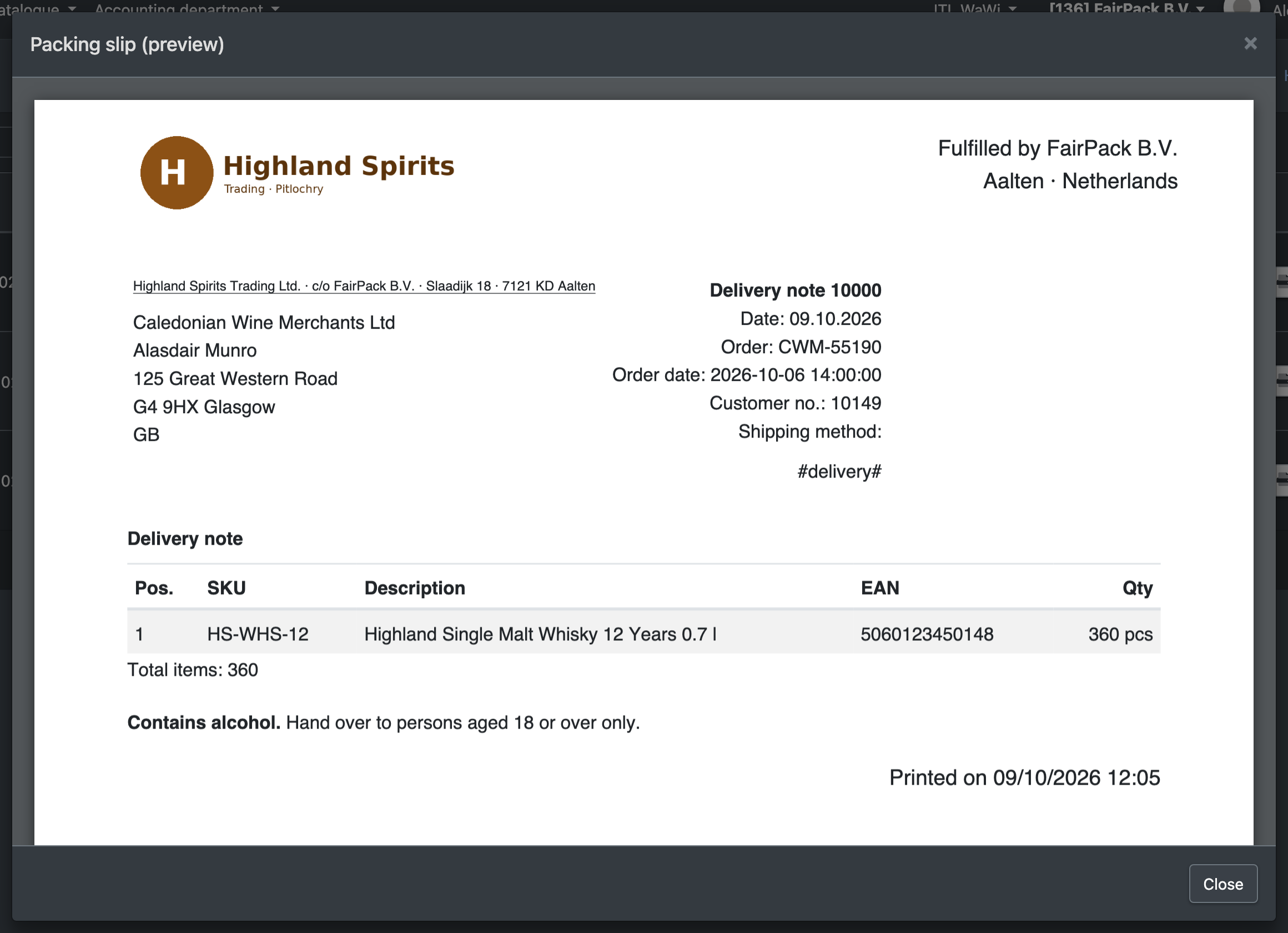
- In the list (order, date, shipping station, pallets, total weight, status) check the delivery note with the preview button (Packing slip (preview) – Lieferschein Vorschau) and print it with Print delivery note (LS Drucken) or Save and Print PDF (PDF speichern und Drucken).
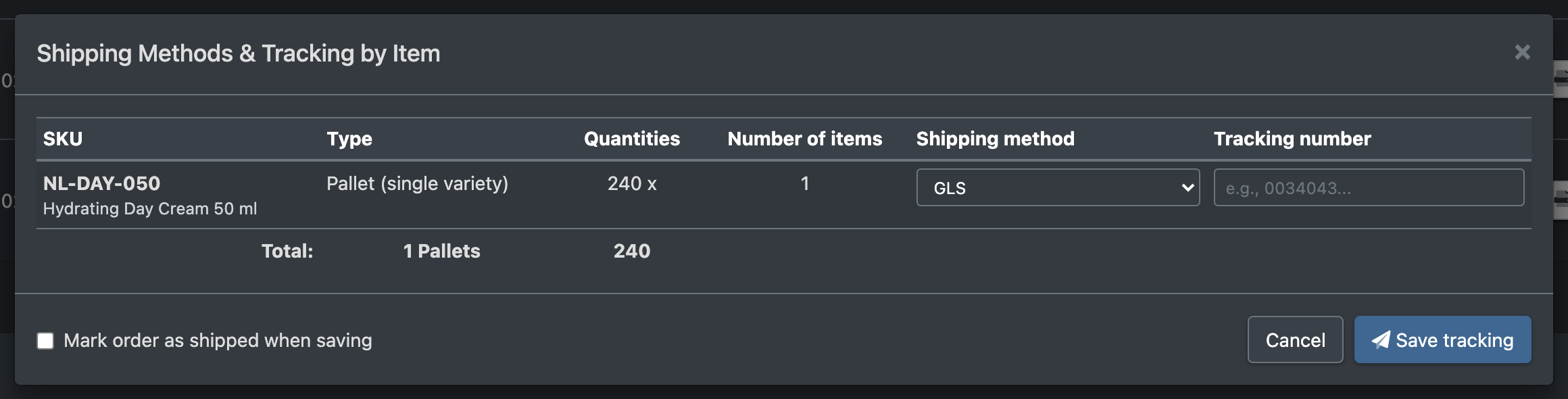
- Open Tracking Details (Tracking-Details). The dialog Shipping Methods & Tracking by Item (Versandarten & Tracking je Position) lists each position with type (pallet single-SKU / mixed, or item), SKU, quantities, shipping method and tracking number.
- Enter the shipping method and Tracking number (Tracking-Nummer) per position.
- Optionally tick Mark order as shipped when saving (Beim Speichern Auftrag als versendet markieren).
- Click Save tracking (Tracking speichern). You see "Tracking data has been saved" or "The order has been marked as shipped".
Columns
Statuses
Tracking number and shipping method (name of the freight carrier) are stored on the positions and on the order – see Packages and tracking.
Good to know
- When the order is marked as shipped, the stock is booked out of the shipping station. The history says that the order was marked as shipped and the item was loaded from the shipping station.
- The delivery note number is stored on the order.