
Unloading
When a truck or container arrives, your warehouse team records how many pallets and boxes per item were actually unloaded. The expected values come from the advance notice. After saving, the advance notice gets the status Unloaded (Entladen), and the unloaded quantities flow into the client's unloading costs.
Unloading is optional. You can also start the putaway right away.
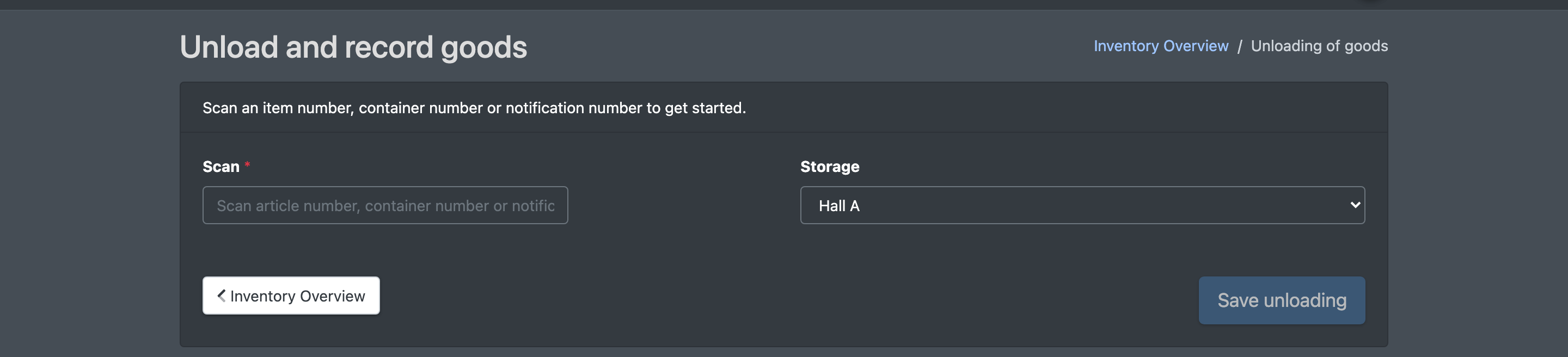
Before you start
- Your user needs the permissions for Unloading of goods (Warenentladung) and the putaway scanner. Ask your administrator if the menu entry is missing.
- An advance notice with the status Open and at least one item exists, see Advance notices. Without a notice you can still record goods by container number or item number.
- The warehouse exists, see Warehouses.
- For the suggested number of expected pallets, the article needs the attribute "units per pallet", see Edit an article.
- For the cost booking, unloading costs are set up for the client, see Unloading costs.
Step by step
- Open WMS › Storage › Unloading of goods (WMS › Lager › Warenentladung).
- In the Scan (Scannen) field, scan or type the delivery note, order or container number of the advance notice.
- Choose the Storage (Lager) where you unload.
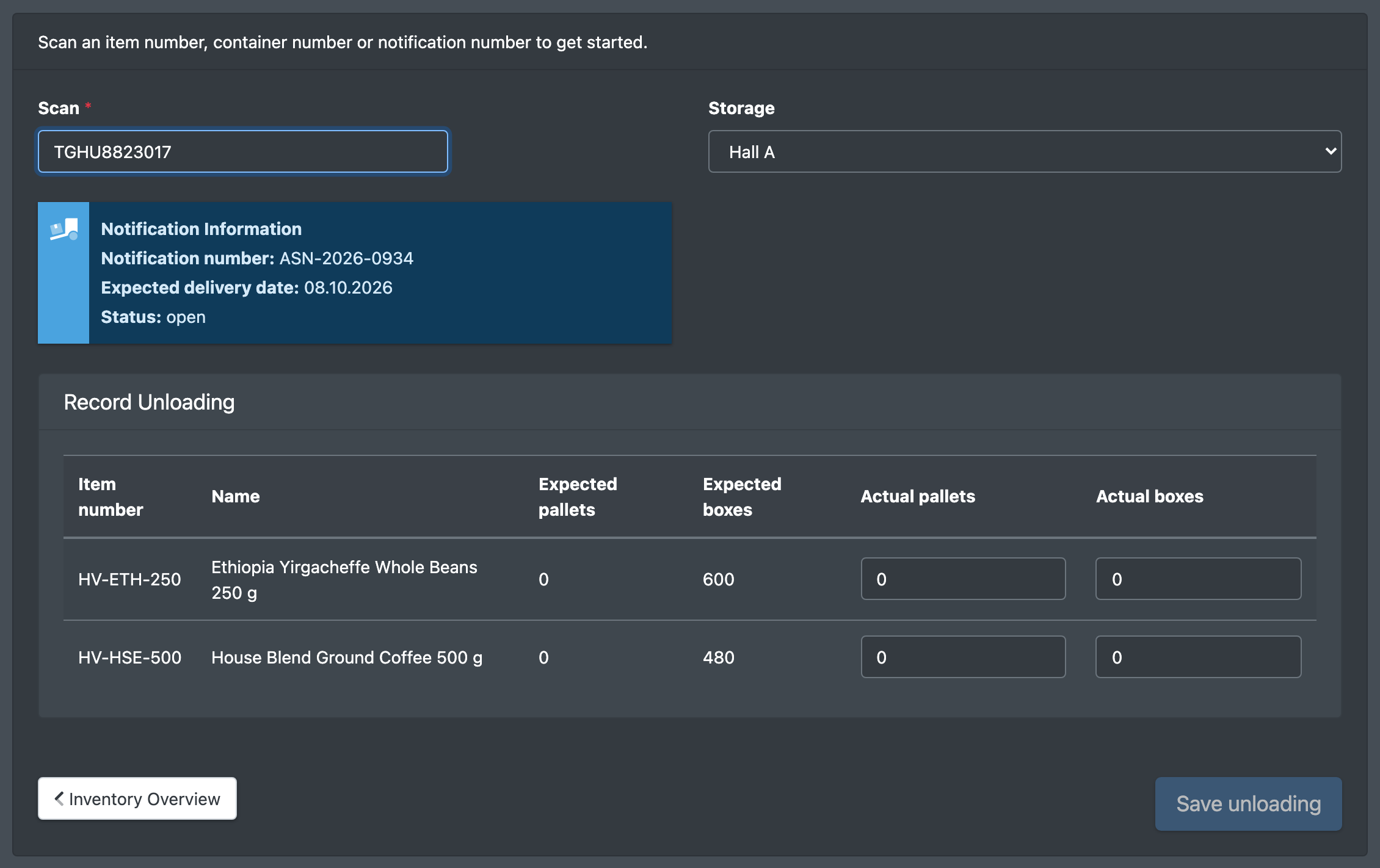
- Under Notification Information (Avisierung Information) you see the notice number, the expected delivery date and the status.
-
Under Record Unloading (Entladung erfassen), enter for each item:
- Actual pallets (Tatsächliche Paletten)
- Actual boxes (Tatsächliche Kartons)
Expected pallets (Erwartete Paletten) and Expected boxes (Erwartete Kartons) are filled in for you.
- Click Save unloading (Entladung speichern). The button becomes active as soon as at least one actual quantity is greater than 0.
X-Sitter confirms with "The data has been saved" (Die Daten wurden gespeichert).
Unloading without an advance notice
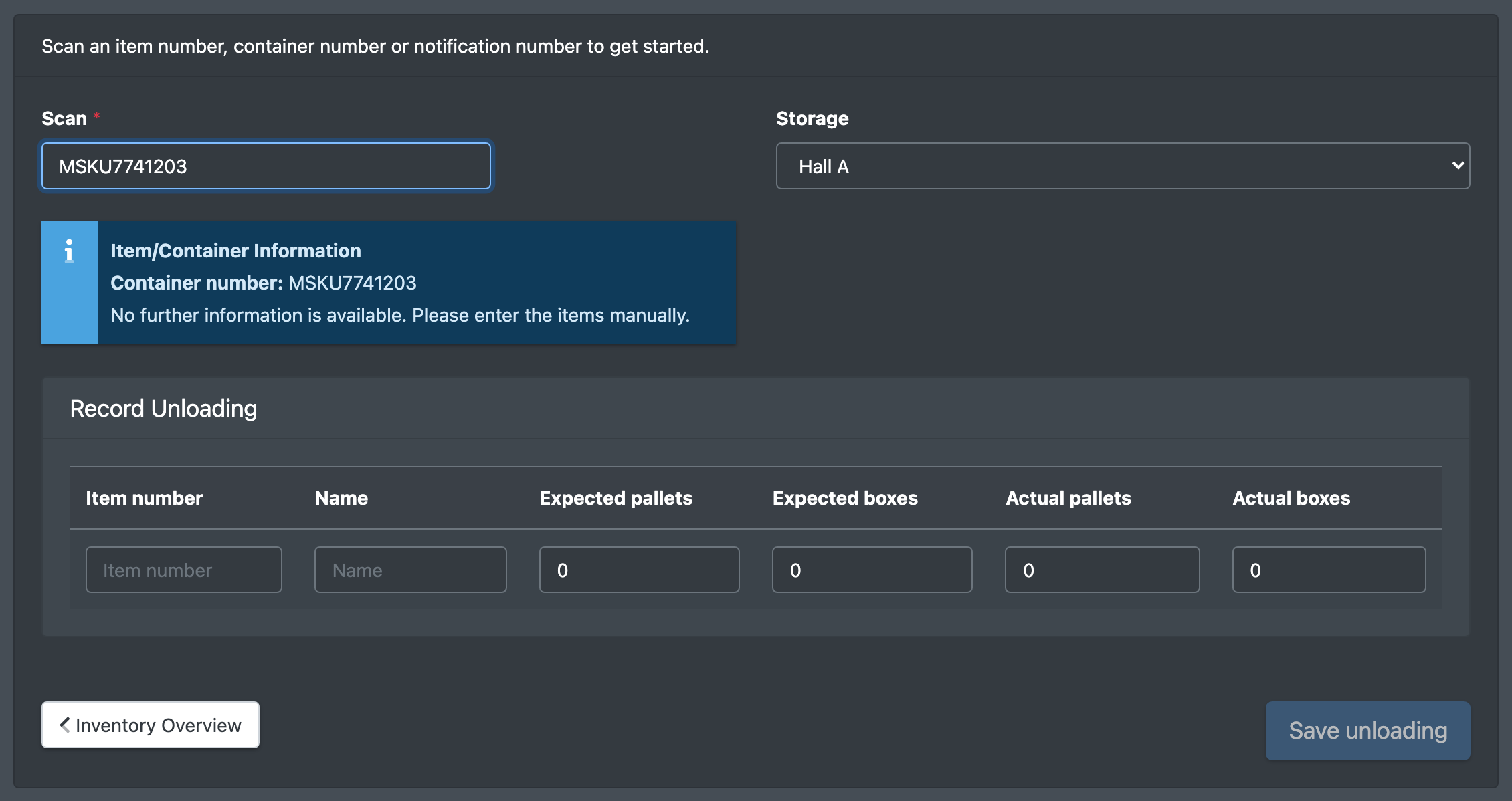
If you scan a container number for which no advance notice exists, X-Sitter keeps the container number and offers an empty row. Enter the item number and the quantities yourself ("No further information is available. Please enter the items manually." – Keine weiteren Informationen verfügbar. Bitte gib die Artikel manuell ein.).
Fields and options
What happens after saving
- The unloading is saved per item together with warehouse, employee, advance notice and container number.
- The advance notice switches to Unloaded (Entladen).
- For actual pallets and actual boxes, X-Sitter books the matching unloading costs of the client, see Unloading costs.
- Next step: Putaway.
Good to know
- The notice is found, but no input table opens? The notice is no longer Open – it has already been unloaded or putaway has started.
- Do I have to unload before putaway? No. Putaway without unloading sets the notice directly from Open to In progress.