
Advance notices
An advance notice announces a delivery for one of your clients: delivery note, order number, container, expected date and the items with quantity and batch. It is the starting point of every goods receipt. When the goods arrive, the warehouse team finds the notice by its delivery note, order or container number at unloading and at the putaway scanner. X-Sitter counts the stored quantity per item and closes the notice automatically as soon as everything is in stock.
In the menu the advance notices are called Notifications (Avisierungen).
Before you start
- Your user needs the permissions for the Notifications menu. Creating, editing and closing notices are separate permissions – ask your administrator if a button is missing.
- The client who owns the goods exists as a client of your company, see Clients.
- The articles exist in the article master, so you can add them as items, see Create an article.
Step by step
Find advance notices
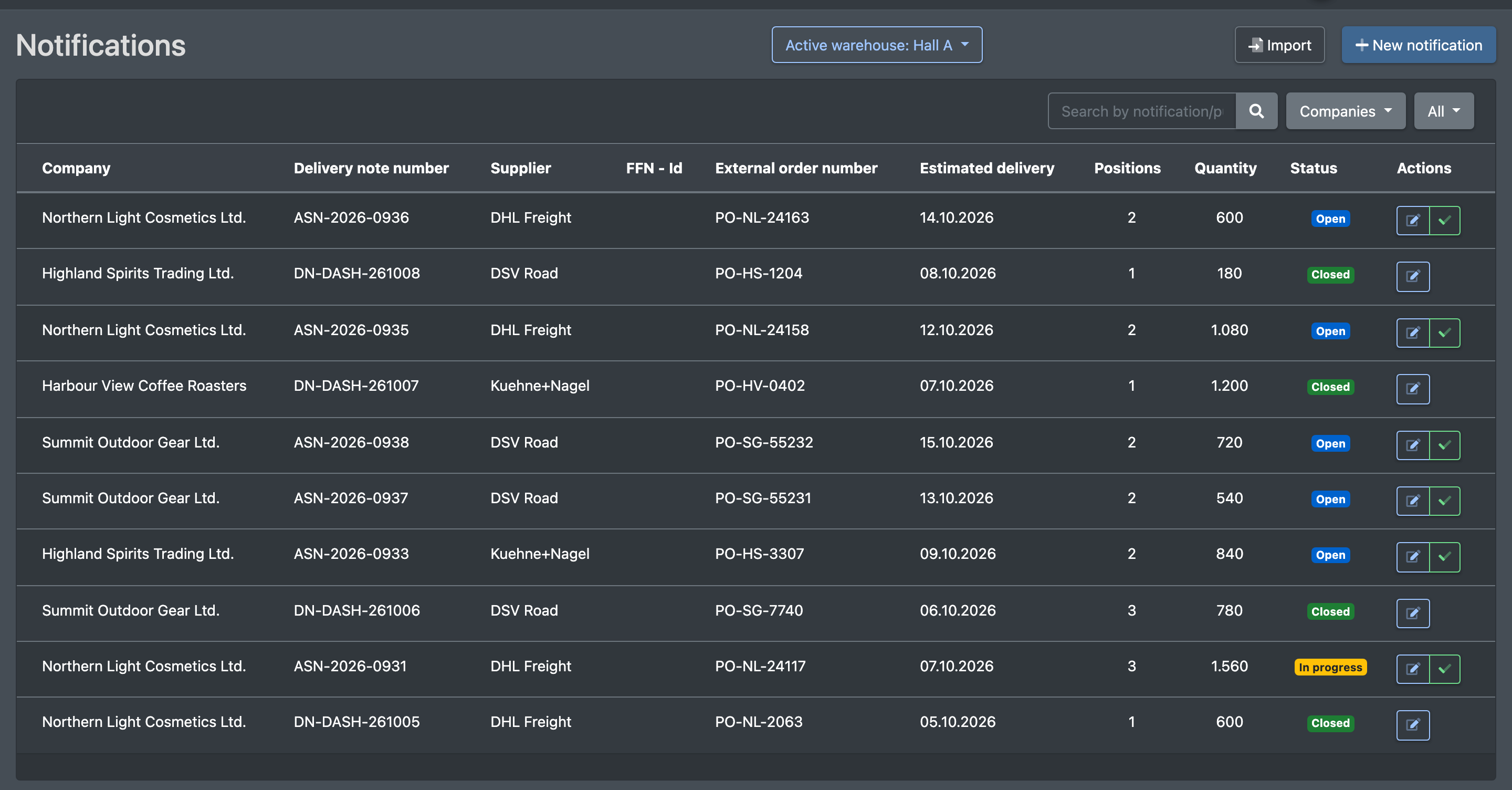
- Open WMS › Notifications (WMS › Avisierungen).
- Narrow the list down if needed:
- Status filter: All (Alle), Open (Offen), In progress (In Arbeit), Closed (Geschlossen).
- Filter by Company (Firma).
- Search field Search by notification/purchase order number... (Suche nach Avisierung/Bestellnummer...).
The list shows company, delivery note number, supplier, order number, estimated delivery, number of items, quantity and status.
Create an advance notice
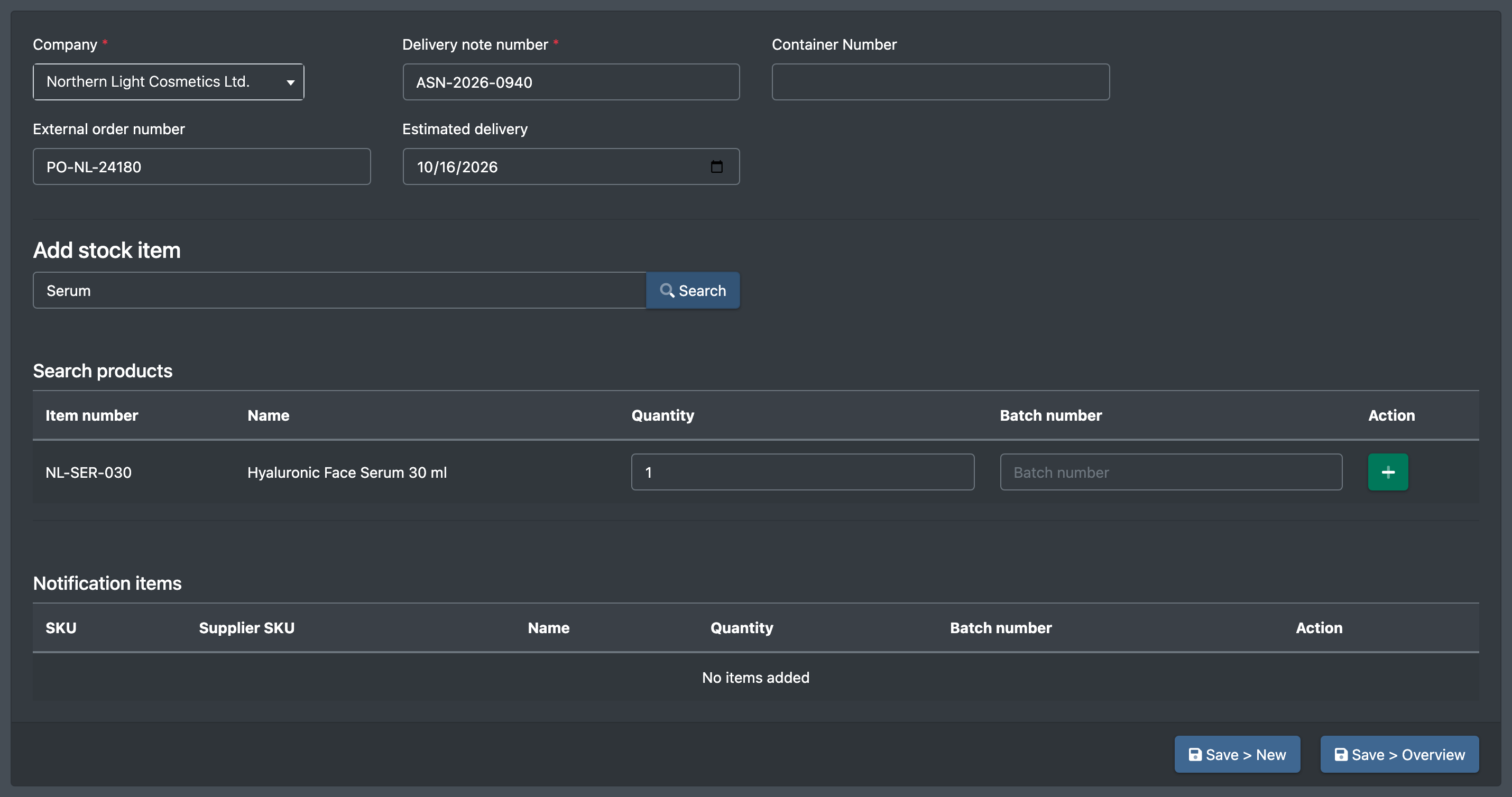
- Click New notification (Neue Avisierung).
- Fill in the header data (see
Fields and options ). Estimated delivery is preset to today. - Under Add stock item (Artikel hinzufügen), type into Enter the item number or name... (Artikelnummer oder Name eingeben...) and pick the article from the search result.
- Enter the Quantity (Menge) and, if known, the Batch number (Chargennummer). The item appears under Notification items (Avisierungspositionen).
- Repeat for all articles of the delivery.
- Save:
- Save > New (Speichern > Neu) saves and opens an empty form for the next notice.
- Save > Overview (Speichern > Übersicht) saves and returns to the list.
X-Sitter confirms with "Notification successfully created." (Avisierung erfolgreich erstellt.). The new notice has the status Open.

Edit an advance notice
- In the overview, open the notice to get to Edit notification (Avisierung bearbeiten).
- Change header data or quantities, add items, then save.
X-Sitter confirms with "Notification successfully updated." (Avisierung erfolgreich aktualisiert.). Quantities that are already stored, best-before dates and putaway times stay untouched.
Close an advance notice manually
Normally X-Sitter closes a notice on its own. If a delivery will never be complete (for example because the supplier sent less), click the check-mark button in the overview. The notice switches to Closed.

Import advance notices from a file
If your clients or suppliers send their delivery advice as a CSV or Excel file, use Import (Import). See Import advance notices.
Fields and options
If you add the same article with the same batch number twice, X-Sitter merges both lines into one item and adds up the quantities. Lines with different batches stay separate.
Statuses

Unloading is optional. If you start putaway right away, the notice goes from Open directly to In progress.
When you edit a notice that is already in progress or closed, X-Sitter recalculates the status: raising a quantity reopens a closed notice (In progress), lowering it to the stored quantity closes it.
Good to know
- Advance notices can also come in automatically, for example from JTL-FFN, see JTL-FFN order processing.
- Closed notices are included in the client's unloading cost billing, see Unloading costs.
- The time from creating a notice until it is fully stored is shown as Dock-to-Stock on the warehouse dashboard.
- Why is "New notification" missing? Your user lacks the permission to create notices. Ask your administrator.
- Why does my notice not close? At least one item is not fully stored yet. Check the progress at the putaway scanner or close it by hand.