Picklist templates

Define which open orders end up on a picklist automatically and how they are picked.

A picklist template decides which open orders go onto a picklist (filters) and how they are picked (normal, rolling or collective picking, pick route, order of forklift tasks). In the picking process your pickers simply tap a template – X-Sitter then creates a picklist with all matching orders right away. Templates are the standard way to create picklists in series, for example "Single-item orders" or "Morning picklist".
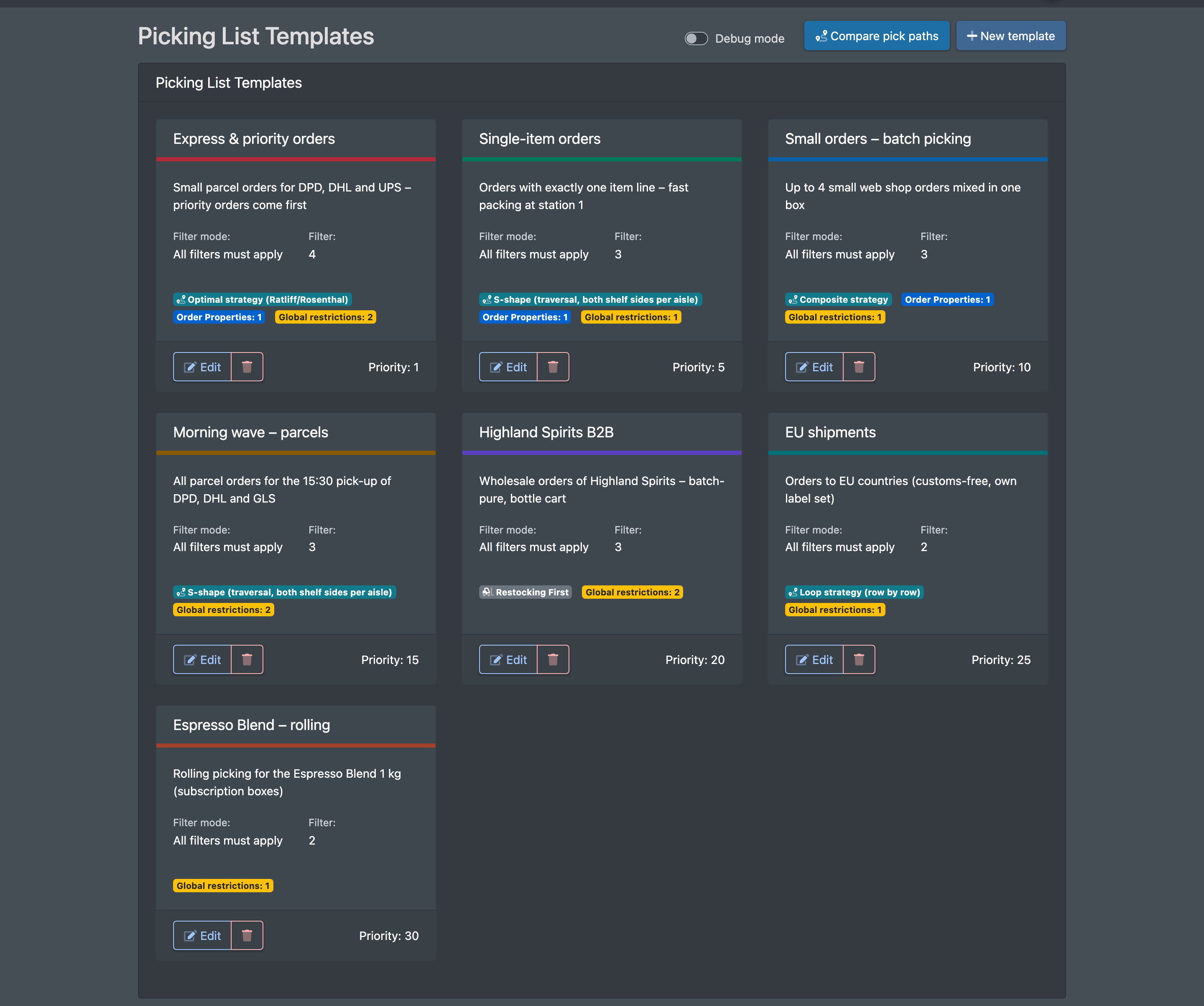
Screenshot: Picklist templates overview with several templates, their colours and priorities

Before you start

  • Your user needs the permission for Picking List Templates (Picklisten Vorlagen). Creating, editing and deleting templates are separate permissions – ask your administrator.
  • Optional: packing tables (workstations), if the template should only be shown at certain stations – see Packing tables.
  • To use a template later you need a picking cart with boxes – see Picking carts.

Create a template

  1. Open WMS › Settings › Picking List Templates (WMS › Einstellungen › Picklisten Vorlagen).
  2. Click New template (Neue Vorlage).
  3. Enter a Name (Name), optionally a Description (Beschreibung) and a Color (Farbe), and set the Priority (Priorität) – "The smaller, the more important".
  4. Choose the Filter mode (Filter-Modus): All filters must apply (Alle Filter müssen zutreffen) or "at least one filter must apply" (Mindestens ein Filter muss zutreffen).
  5. Choose the Picking type (Kommissionierungstyp): Normal, Rolling (Rollend) or Collective (several orders per cart) (Sammel (mehrere Aufträge je Wagen)). The extra fields for rolling and collective picking are described below.
  6. Optionally choose a Picking Route Strategy (Pickwege-Strategie), the Order of Forklift Tasks (Reihenfolge der Stapler-Aufgaben) and the packing stations.
  7. Click Add filter (Filter hinzufügen) and add at least one filter (see Filter types). Without filters you see "No filters found. Add filters to create the template."
  8. Click Save (Speichern). You see "Template successfully created" or "Template successfully updated".
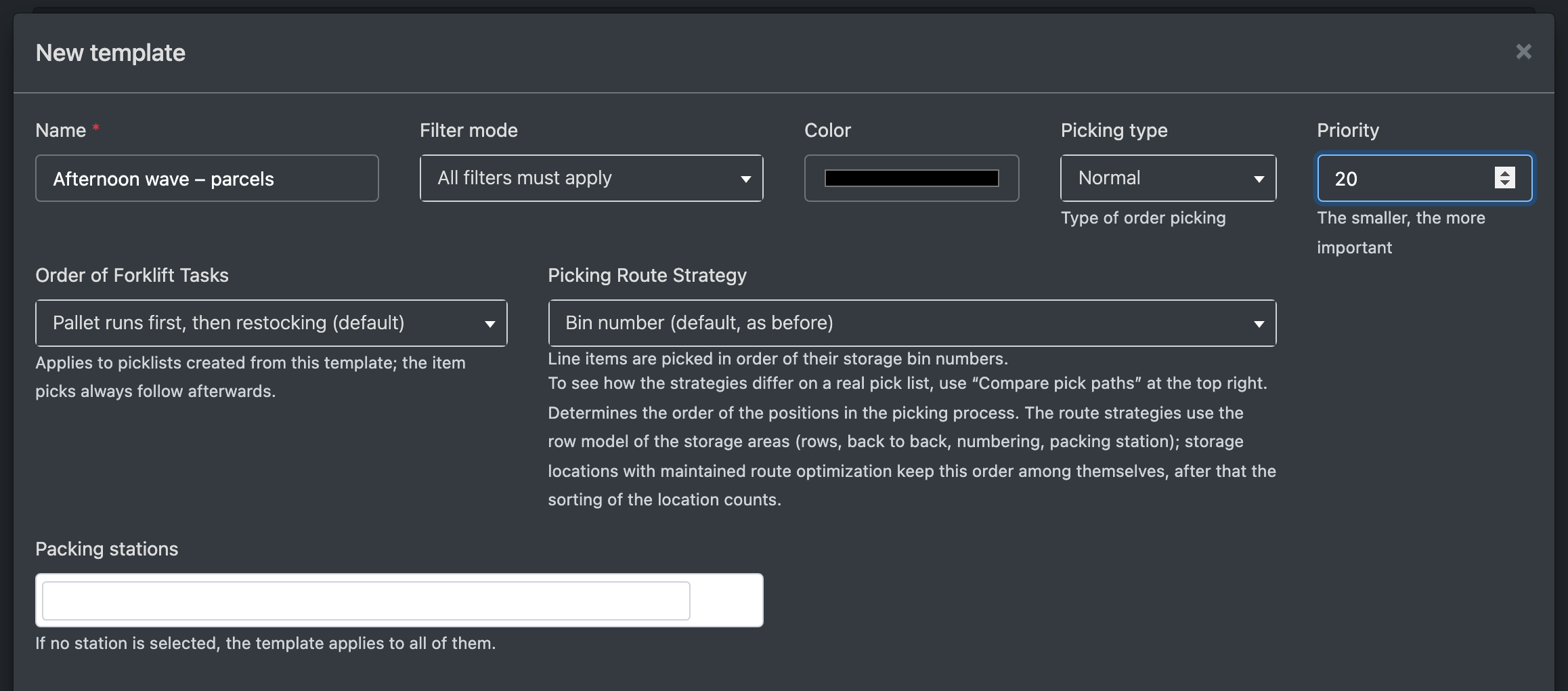
Screenshot: New template form with name, priority, filter mode and picking type filled in

Fields and options

Field Meaning
Name (Name) Name of the template. It appears as a tile in the picking process. Required.
Description / Color (Beschreibung / Farbe) For display only.
Priority (Priorität) Sort order of the tiles – the smaller the number, the higher up. Default 20.
Filter mode (Filter-Modus) Whether all filters or at least one filter must match.
Picking type (Kommissionierungstyp) Normal: every order gets its own box on the cart. Rolling: boxes per item (see below). Collective: several orders are picked mixed into one box (see below).
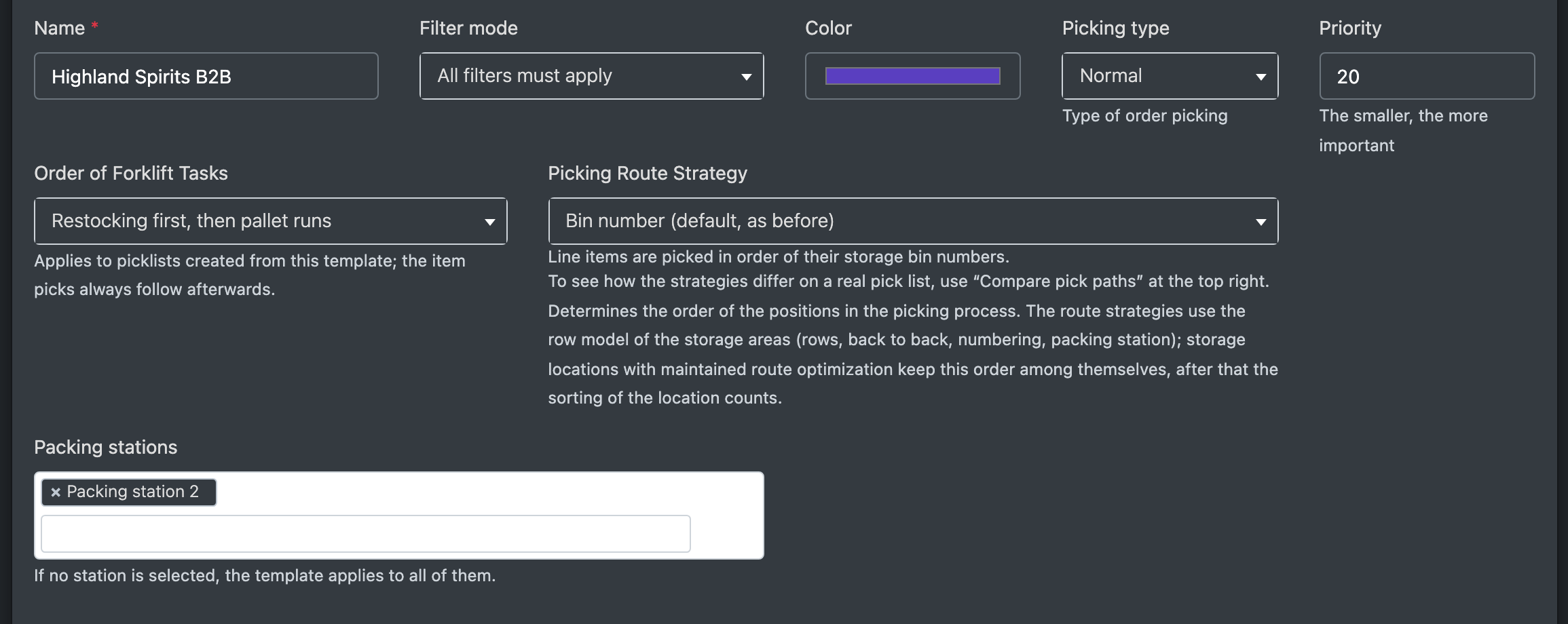
Picking Route Strategy (Pickwege-Strategie) The order in which pickers walk to the storage places (see Pick route strategies). It is copied onto the picklist when the list is created; changing the template later does not re-sort running picklists.
Order of Forklift Tasks (Reihenfolge der Stapler-Aufgaben) Pallet runs first, then restocking (default) (Palettenfahrten zuerst, dann Nachbevorratungen (Standard)) or Restocking first, then pallet runs (Nachbevorratungen zuerst, dann Palettenfahrten). Item picks always follow afterwards. A fixed setting on the picking cart takes precedence.
Packing stations (Packstationen) The packing stations (workstations) where this template is offered. "If no station is selected, the template applies to all of them."
Debug mode (Debug-Modus) For testing your filters: all orders are used for filtering, not only open ones. Needs the edit permission. Switch it off again before your team works with the template.
Screenshot: Template form showing the pick route strategy, forklift task order and packing station fields

Rolling picking

With Rolling (Rollend) the boxes are assigned per item rather than per order – ideal for many orders with the same item.

Field Meaning
Item (SKU) (Artikel (SKU)) Only orders with this item. Leave empty and choose Automatically determine the most common item (Häufigster Artikel automatisch ermitteln) to let X-Sitter find it. If that option is active, the picking type is automatically set to "Rolling".
Max. additional items in order (Max. weitere Artikel im Auftrag) How many other items an order may contain. "0 = only this exact item in the order".
Number of identical item SKUs (Anzahl gleicher Artikel-SKUs) How many orders with the same SKU are picked together.

Collective picking

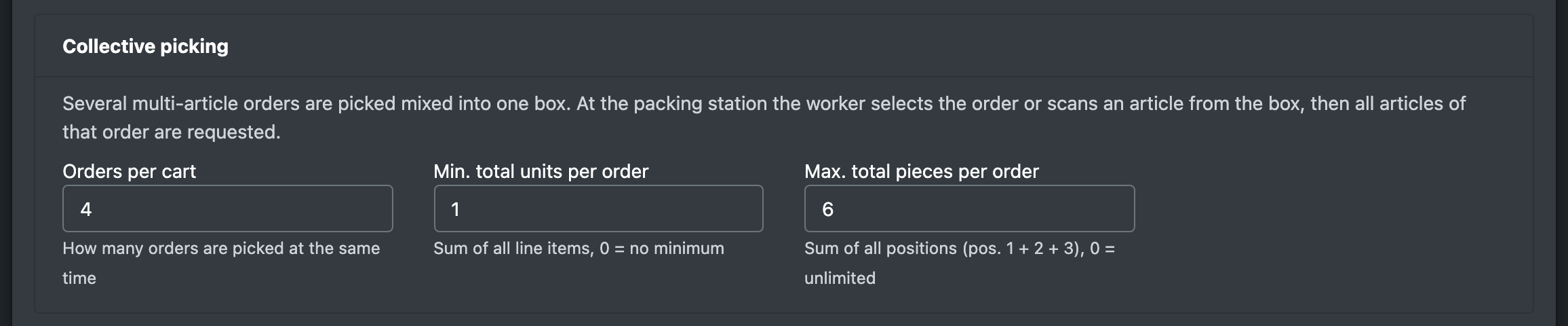
With Collective (several orders per cart) (Sammel (mehrere Aufträge je Wagen)) several orders with several items are picked mixed into one box. At the packing table the packer selects the order or scans an item from the box, and all items of that order are then requested – see Packing.
Field Meaning
Orders per cart (Aufträge je Wagen) How many orders are picked at the same time (default 4).
Min. total units per order (Min. Gesamtstück je Auftrag) Sum of all line items of an order; 0 = no minimum.
Max. total pieces per order (Max. Gesamtstück je Auftrag) Sum of all line items of an order; 0 = unlimited.
Screenshot: Collective picking box with orders per cart and min/max pieces per order

Filter types

Choose a Filter type (Filtertyp) for every filter you add:

Filter type What you can filter on
Order Properties (Auftragseigenschaften) Number of items, weight, volume, total price (minimum/maximum), Different addresses (Unterschiedliche Adressen), Delivery Type (Lieferungstyp) partial or complete delivery.
Product Features (Artikeleigenschaften) Dimensions (dimension type, in cm), gross price, Best before (days) (Mindesthaltbarkeit (Tage)), reservation type (bill of materials).
Product labels (Artikellabels) Labels (separated by comma), a matching type and the option All items must meet the filter criteria (Alle Artikel müssen den Filter erfüllen).
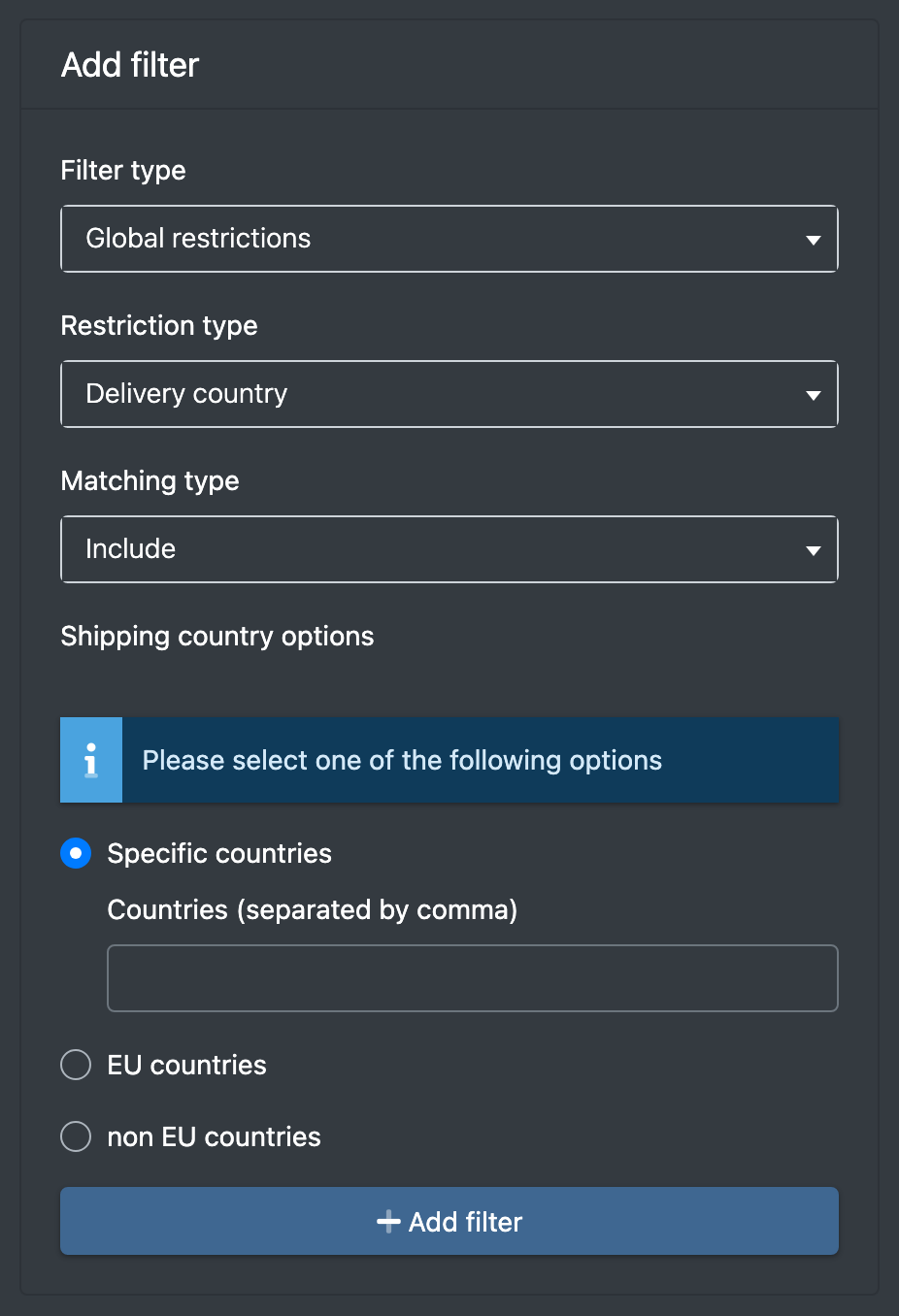
Global restrictions (Globale Einschränkungen) Choose a Restriction type (Einschränkungstyp): shipping methods, platforms, companies (clients), shipping country (EU countries / non-EU countries / same country / specific countries), customer groups, order status, storage place types, activity types, user IDs, start or destination warehouse, order modules, order date or delivery date with an offset in days, or a custom field name.
Screenshot: Add filter dialog with the filter type "Global restrictions" and restriction type "Shipping country options" selected

Pick route strategies

Strategy How the picker walks
Bin number (default, as before) (Platznummer (Standard, wie bisher)) In the order of the storage place numbers.
Bin route optimization (manually maintained) (Wegeoptimierung der Plätze (manuell gepflegt)) By the route number maintained on each storage place, then sorting, then place number. No row model needed.
Loop strategy (row by row) (Schleifen-Strategie (Reihe für Reihe)) Each row with positions is walked separately, alternating forward and back.
S-shape (traversal, both shelf sides per aisle) (S-Form (Durchgang, beide Regalseiten je Gang)) Each aisle with positions is walked through completely, picking left and right at the same time.
Return strategy (Stichgang-Strategie (Return)) Each aisle is entered up to the last position and left the same way.
Midpoint strategy (Mittelpunkt-Strategie (Midpoint)) Front half of an aisle from the front cross aisle, back half from the back cross aisle.
Largest gap strategy (Größte-Lücke-Strategie (Largest Gap)) Like midpoint, but the split is at the largest gap between positions.
Composite strategy (Zusammengesetzte Strategie (Composite)) Per aisle, walk-through or return – whichever shortens the way to the next aisle.
Optimal strategy (Ratliff/Rosenthal) (Optimal-Strategie (Ratliff/Rosenthal)) Shortest round trip over all positions.

All strategies except the first two use the row model of your storage areas (rows, back-to-back, numbering, packing table) – see Storage areas. Storage places with a maintained route number keep that order among themselves.

Compare pick paths (Pickwege vergleichen, top right): enter the number of an existing picklist and click Compare (Vergleichen). X-Sitter shows the walking length of every strategy for this list (1 unit = one storage place, aisle change = 4 units; green = shortest per area) and a diagram per strategy. You can download each diagram as SVG.
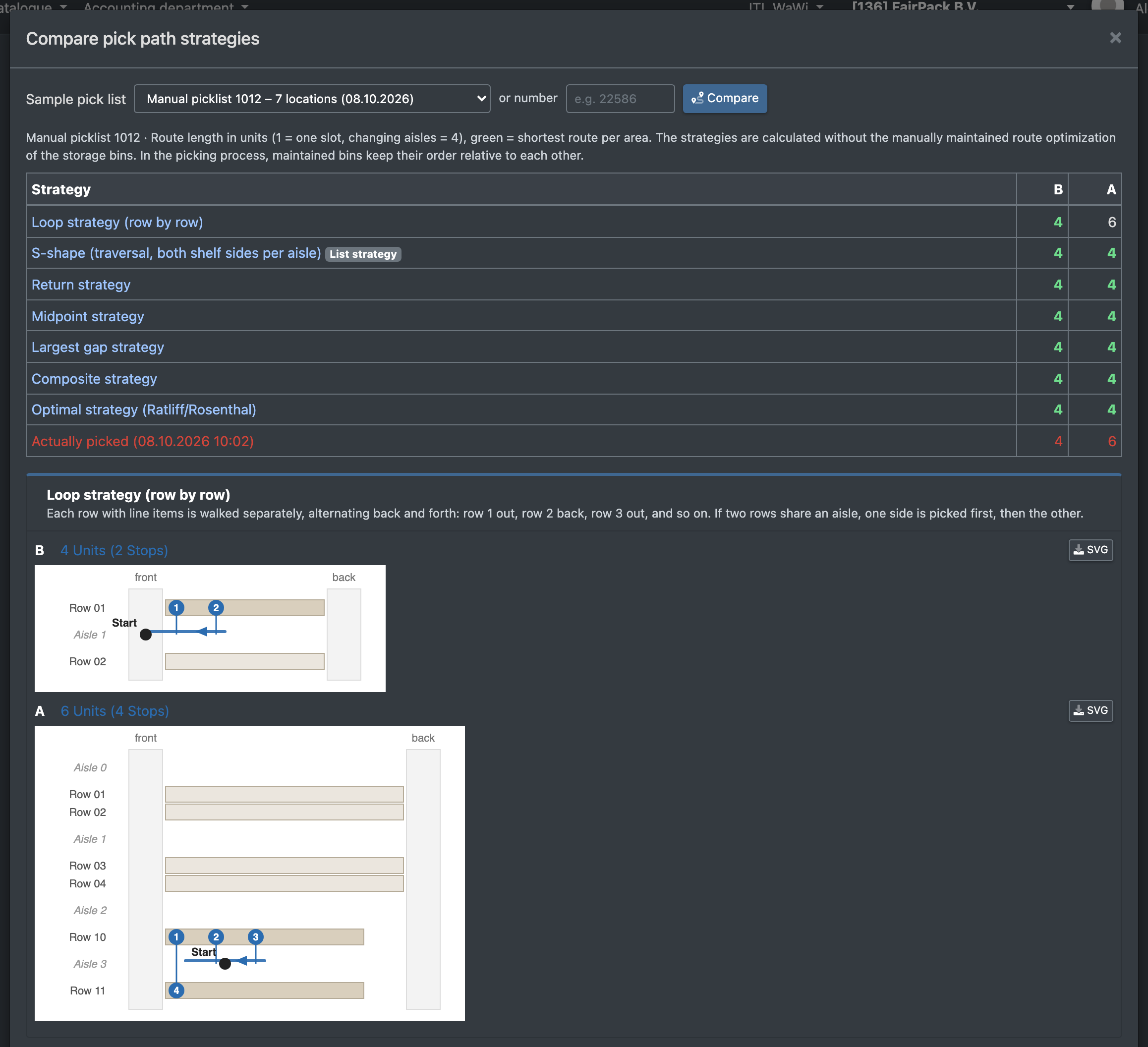
Screenshot: Compare pick paths dialog with walking lengths per strategy and route diagrams

How templates appear in the picking process

  • In the picking process all templates of your company are shown, filtered by the current station, each with its number of matching orders in brackets after the template name.
  • Every template is checked against all open orders. An order that matches several templates counts in each of them. As soon as it is on a picklist, it disappears from all templates.
  • The number shown is exactly what a click puts on the picklist (limited by the boxes of the cart).
  • Below the name, chips show which other templates are completely contained in this one, and a chip "partially from n more" lists partial overlaps in its tooltip. This helps you see which tile would also collect "the rest".
  • Templates with 0 matches are greyed out and cannot be selected.
  • The priority only controls the order of the tiles, not which template "gets" an order.
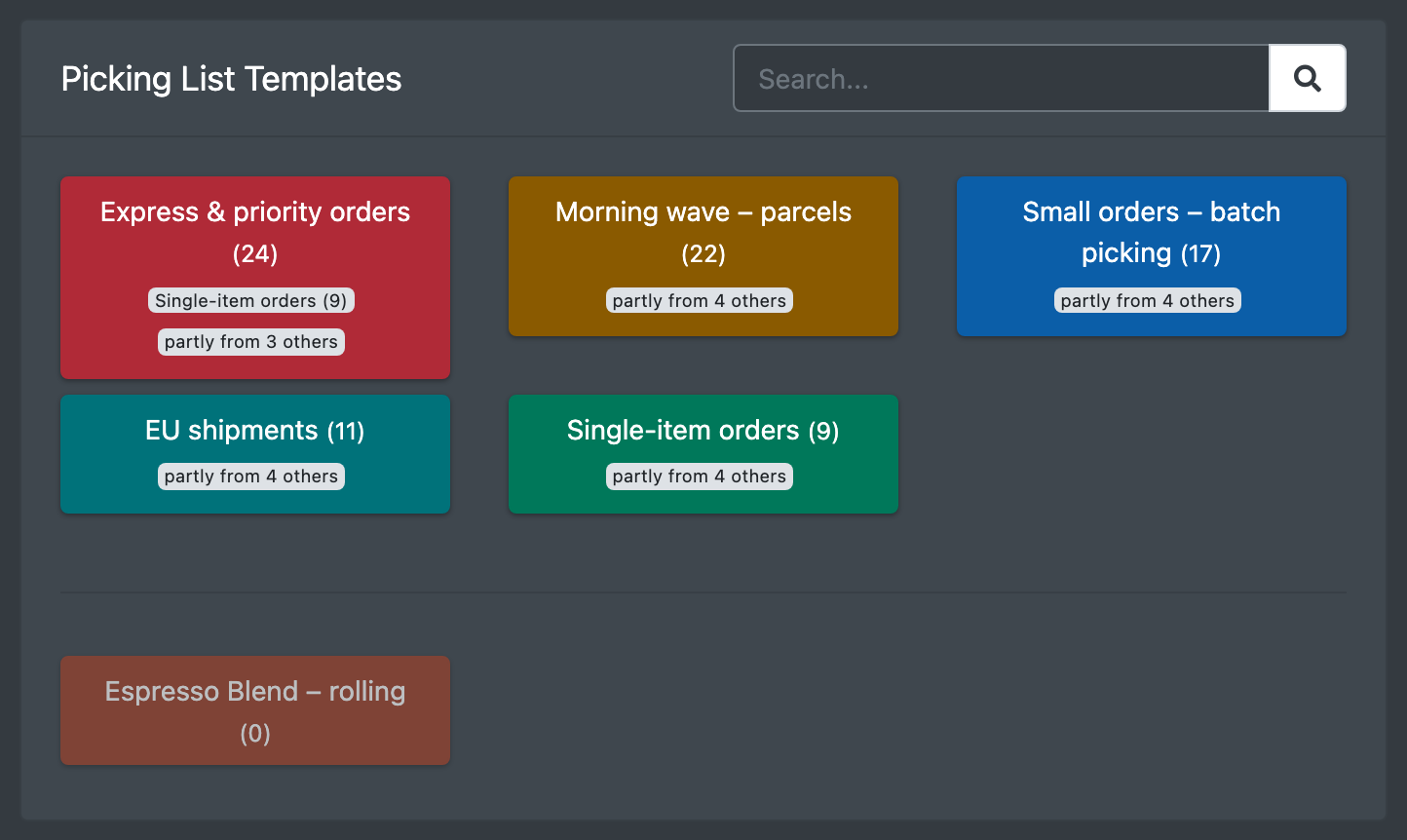
Screenshot: Template tiles in the picking process with match counts and overlap chips

See Create a picklist for the next step.

Troubleshooting

Message Cause Solution
The template name is required (Der Name der Vorlage ist erforderlich) Name is empty. Enter a name.
You do not have permission to edit this template (Keine Berechtigung zum Bearbeiten dieser Vorlage) Missing permission or the template belongs to another company. Ask your administrator for the edit or delete permission.
Template not found (Vorlage nicht gefunden) The template has been deleted. Reload the page.
No picklist templates available (Keine Picklisten-Vorlagen verfügbar) No template for your company or this station. Create a template or check its packing stations.
Template greyed out with 0 matches No open order meets the filters. Check the filters and whether orders are released.
The same order counts in several templates Intended – templates are not exclusive. Make filters narrower if you need distinct counts.