
Dashboard
The Dashboard (Dashboard Übersicht) is the page you see after logging in. It shows your key figures as widgets: orders, revenue, a map of countries, top products and many warehouse figures such as picklists, goods receipt, returns or employee performance. You decide which widgets you see and where they are. Your layout is saved per user and per company.
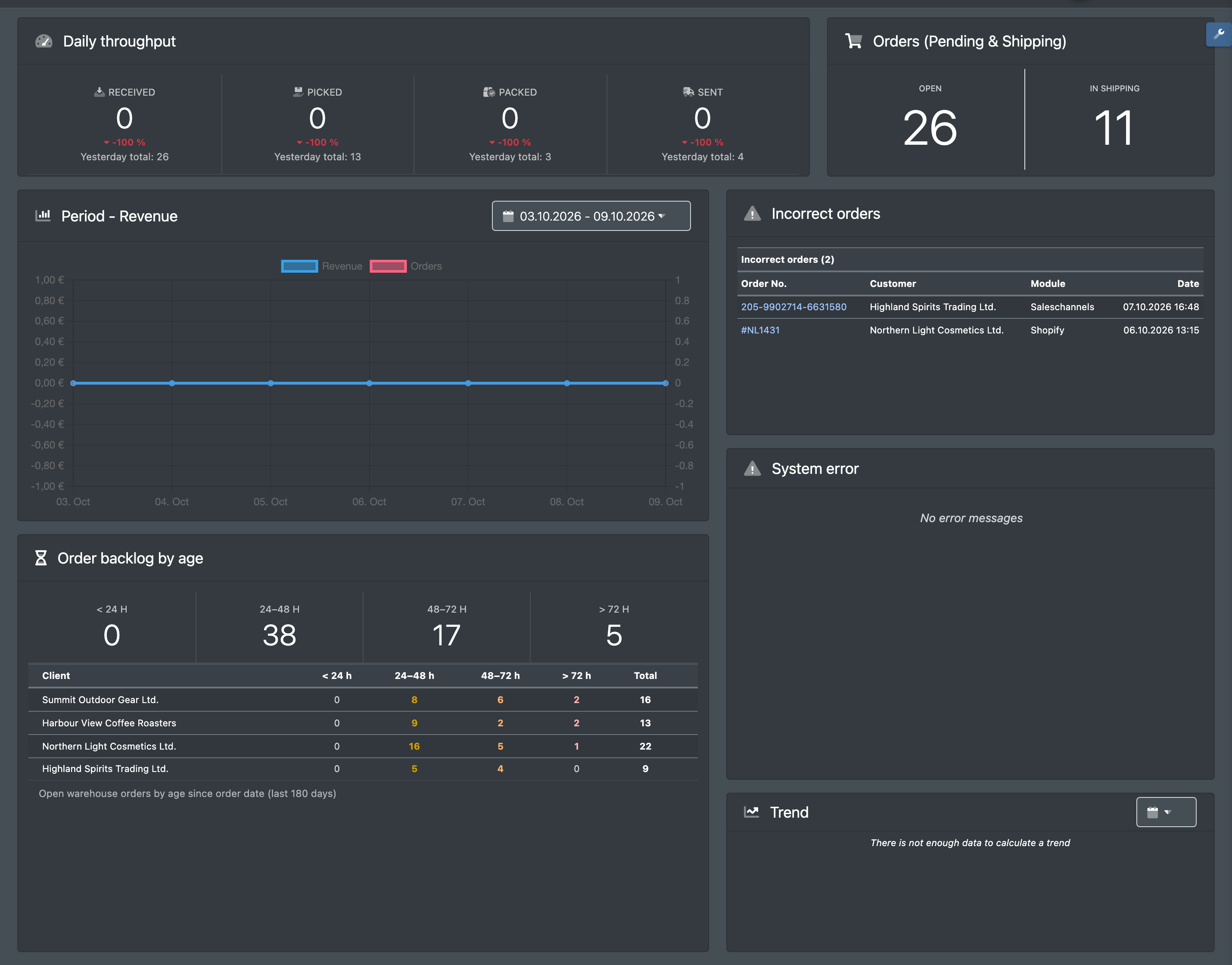
Before you start
- Your user needs the permission to see the dashboard (rights tree: Dashboard › Overview). Ask your administrator if you see an empty page.
- Some widgets need additional permissions. Widgets you have no permission for appear neither on the dashboard nor in the list of available widgets:
- Revenue widgets (Last 3 days, Trend, Period - Revenue, Top 15 products, Sales by module) need the sales permission of the dashboard.
- Warehouse widgets need access to the warehouse (WMS).
- Figures per employee (Pick performance today, Packing performance today, Forklift rides today) need Be able to see employee performance (Mitarbeiter-Leistung sehen können) under Dashboard › Overview in the rights tree.
- Pick time per box and Packing time need Be able to see process times (pick and packing times) (Prozesszeiten (Pick- und Packzeiten) sehen können).
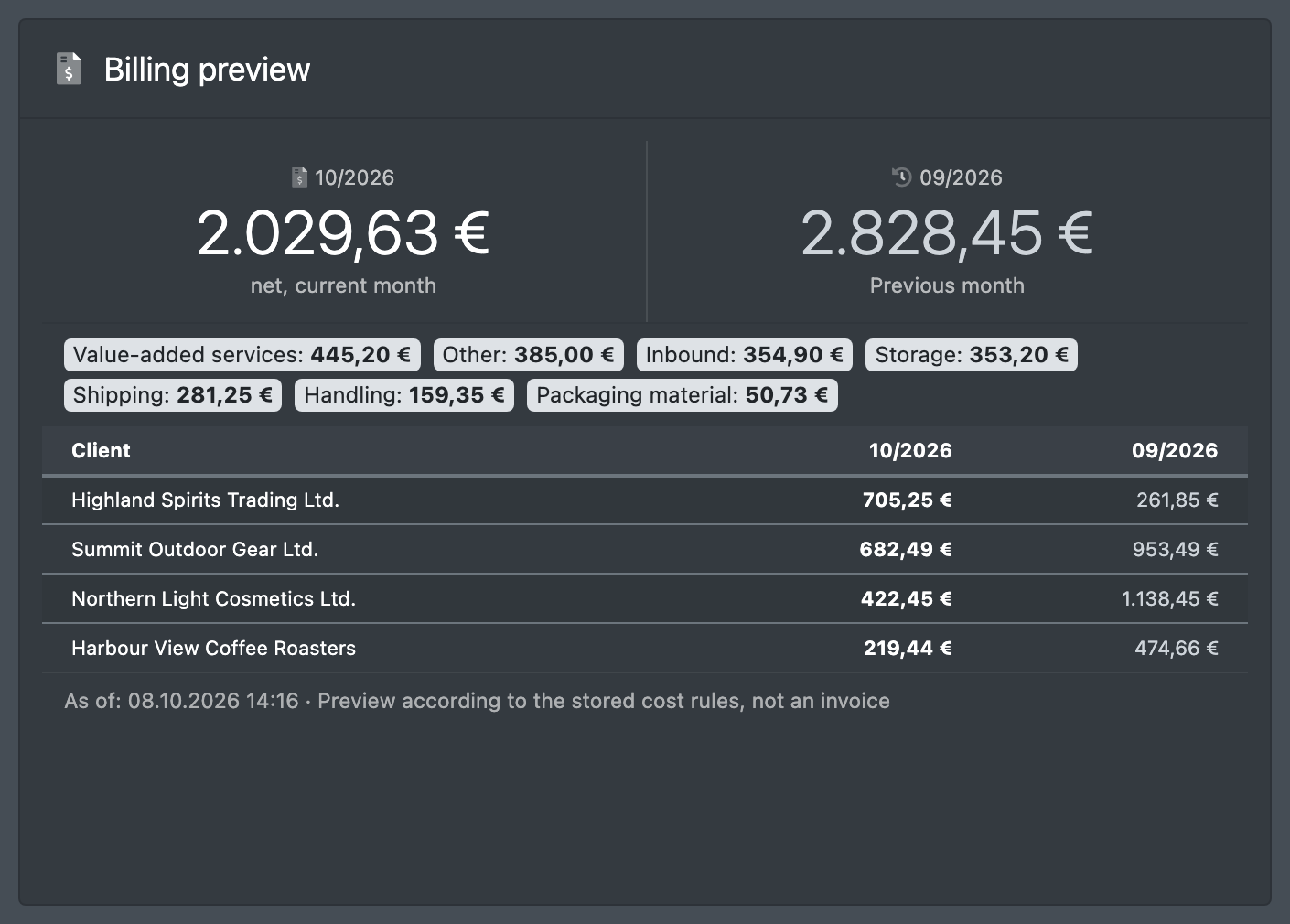
- Billing preview needs Be able to see billing preview (Abrechnungs-Vorschau sehen können).
- Saving your own templates needs Manage dashboard templates (Dashboard-Vorlagen verwalten).
- See Roles for how permissions are assigned.
The buttons
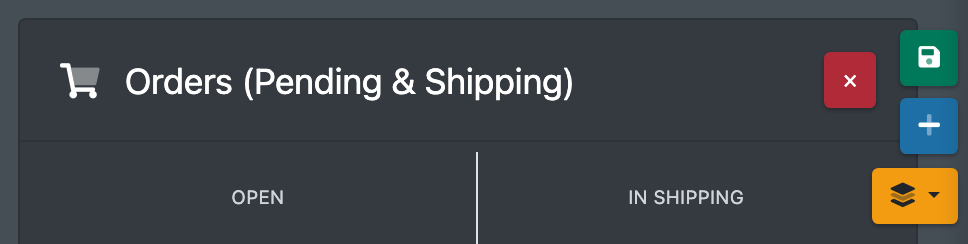
At the top right of the dashboard you find these buttons:
Step by step
Arrange widgets
- Click the wrench button to start the edit mode.
- Drag widgets to a new position. Drag the corner of a widget to change its size.
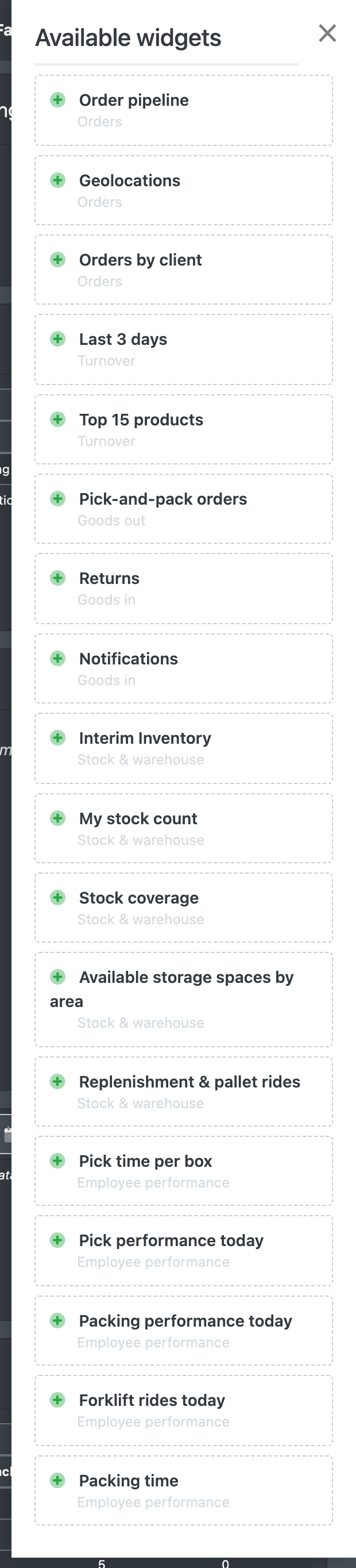
- To add a widget, click the plus button. Available widgets lists all widgets you may use, sorted by area: Orders, Turnover, Goods out, Goods in, Stock & warehouse, Billing, Employee performance, System. Click a widget to add it.
- Click Save to keep your layout.
Apply a template
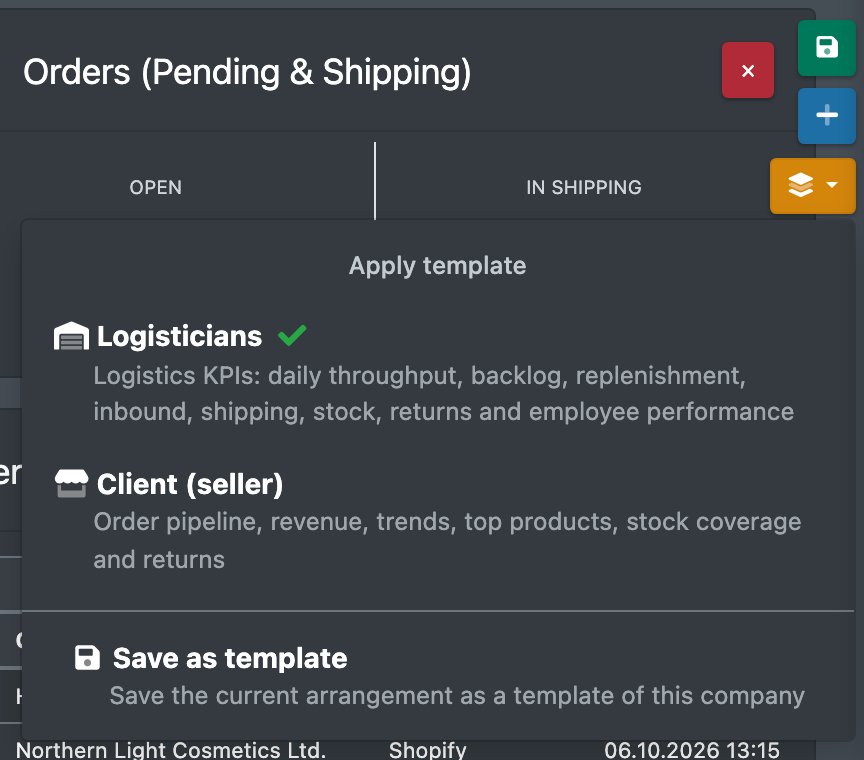
A template is a ready-made set of widgets with a layout. When you open the dashboard for the first time, X-Sitter uses the template stored for your user (set by your administrator in Employees) or the template of your role: Logisticians (Logistiker) for logisticians, Client (seller) (Mandant (Verkäufer)) for everybody else.
- Click the layers button and choose a template under Apply template.
- In the dialog, choose Only for the current company (Nur für die aktuelle Firma, default) or For all my companies (Für alle meine Firmen).
- Click Apply (Anwenden). All widgets of the template are switched on and arranged, all others are switched off. The page reloads.
With For all my companies the template is also remembered for your user, and your layouts in your other companies are reset – they are rebuilt from the template the next time you open the dashboard there.
Logisticians can choose Logistics and Client (seller); clients see Client (seller) and the template assigned to them, plus the own templates of their company.
Save your own template
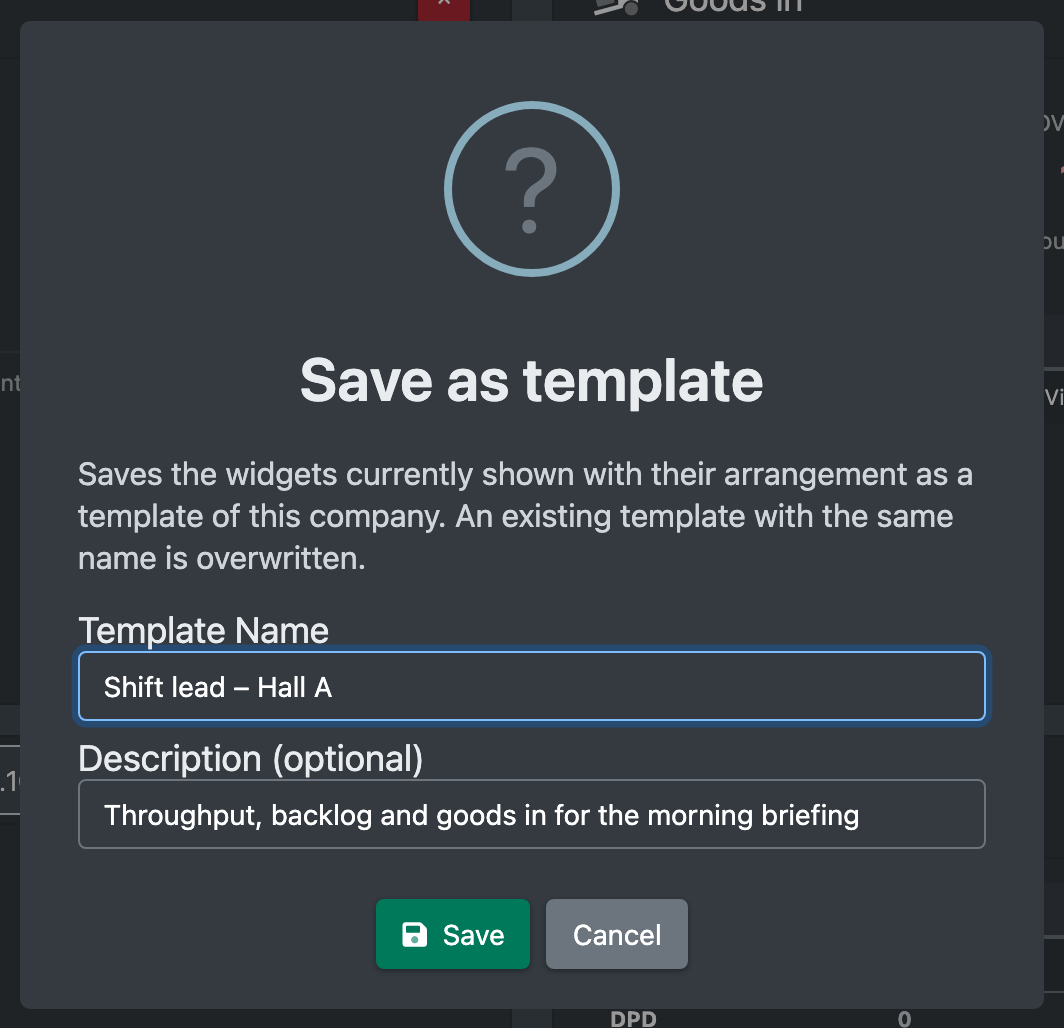
With the permission Manage dashboard templates you can save the current layout as a template for your company:
- Arrange the widgets as you want them.
- Click the layers button and choose Save as template (Als Vorlage speichern).
- Enter the Template Name (Name der Vorlage) and optionally a Description (Beschreibung), then save.
The template contains the widgets currently shown with their layout. It appears under Own templates for all users of your company. A template with the same name is overwritten. Each company can have at most 20 own templates. To delete one, click the trash icon next to it (Delete template, Vorlage löschen). Users who had the deleted template assigned get the template of their role again; layouts that were already applied stay as they are.
JTL configuration
If JTL figures are switched on for your company (contact X-Sitter support to activate), revenue widgets read their data from your JTL connection. The gear button opens the JTL configuration:
- Time (Zeitpunkt): count revenue by Order date (Bestelldatum) or Shipment Date (Auslieferdatum).
- Platforms (Plattformen): which sales platforms are included.
Cancellations are never counted. See JTL connection.
Available widgets
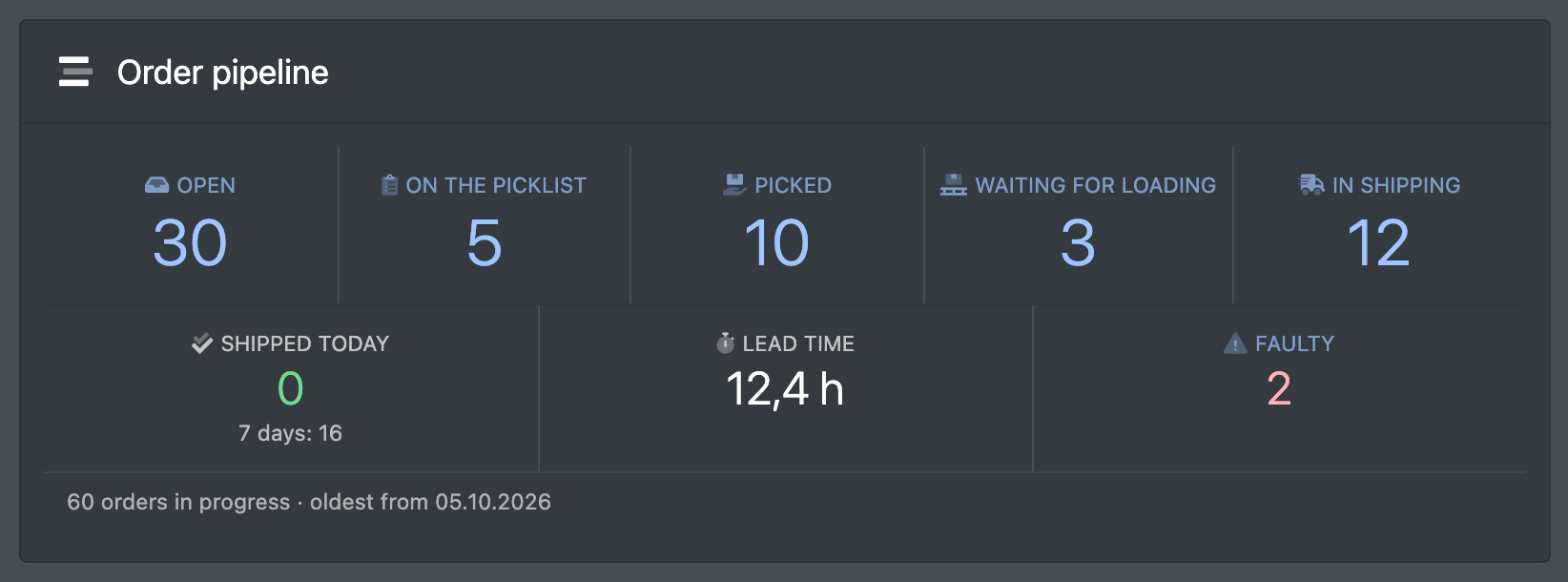
Column "Template": C = Client (seller), L = Logistics. Widgets without a letter are not part of a template but can be added.
Orders and revenue
Goods out, goods in and stock
Billing, employee performance and system
How the figures are calculated
- Logisticians see the warehouse figures of all active clients; a client only sees its own share. Client widgets include the client's own company and its active sub-companies.
- "… per hour" in the performance widgets = quantity divided by the hours of the day in which the employee had at least one booking. Pick time per box ignores gaps of more than 30 minutes; packing time ignores more than 30 minutes per order ("box stayed open – not counted").
- Pallet rides are counted once per ride.
- Most figures are cached for about 2 minutes, some for up to 2 hours. Reload the page for fresh values.
- New widgets that X-Sitter adds later appear in Available widgets first.