
Telegram notifications
X-Sitter can send you important events straight to your phone via the messenger Telegram – for example faulty orders, failed shipping labels, shortages during picking or new returns. You connect your X-Sitter user to the X-Sitter bot once and then choose which notifications you want to receive.
Before you start
- Your user has the permission for the Telegram settings. If the entry Telegram Settings (Telegram Einstellungen) is missing in your personal settings, ask your administrator.
- You have the Telegram app on your phone and a Telegram username (in Telegram under Settings; it is the name that can start with @).
Step by step
1. Enter your Telegram username
- Click your name in the top right corner, then Settings (Einstellungen).
- Choose Telegram Settings (Telegram Einstellungen) in the menu on the left.
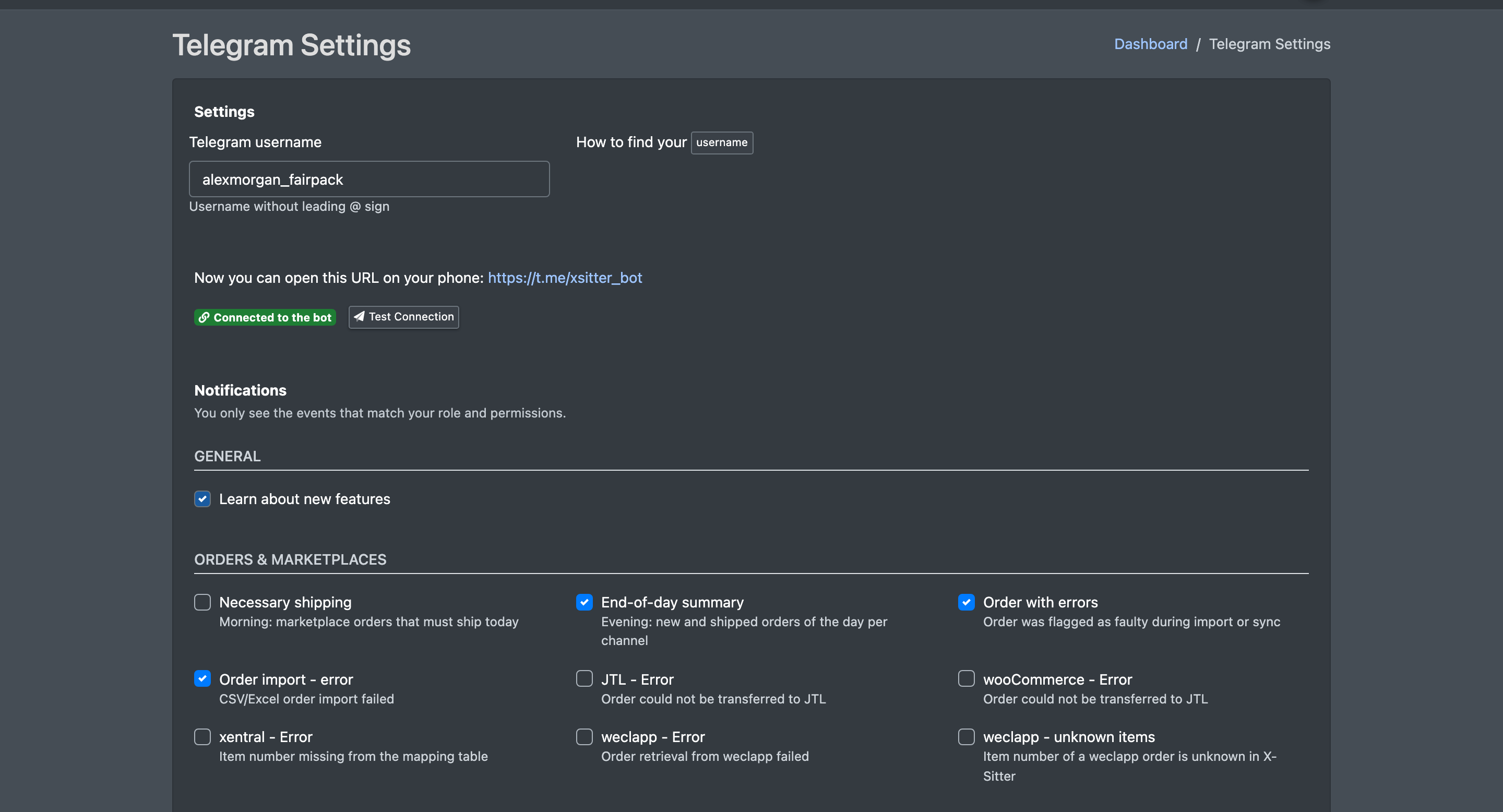
- Enter your Telegram username (Telegram-Benutzername) without the leading @ (Username ohne führendes @ Zeichen). Not sure where to find it? Next to "How to find your" (So findest Du Deinen), click username (Benutzernamen) for a short picture guide.
- Click Save (Speichern).

warning Username cannot be changed later
After saving, the username field is locked. If you change your Telegram username later or entered a wrong one, contact X-Sitter support.
2. Start the bot
- Below the username, X-Sitter shows the link to the bot: Now you can open this URL on your phone: (Nun kannst Du diese URL auf deinem Handy öffnen:). Open it on your phone – it opens the X-Sitter bot in Telegram.
- Tap Start or send the message
/start. - The bot welcomes you. From now on, your Telegram chat is connected to your X-Sitter user.
- Reload the settings page in X-Sitter. The status changes to Connected to the bot (Mit dem Bot verbunden).
3. Choose your notifications
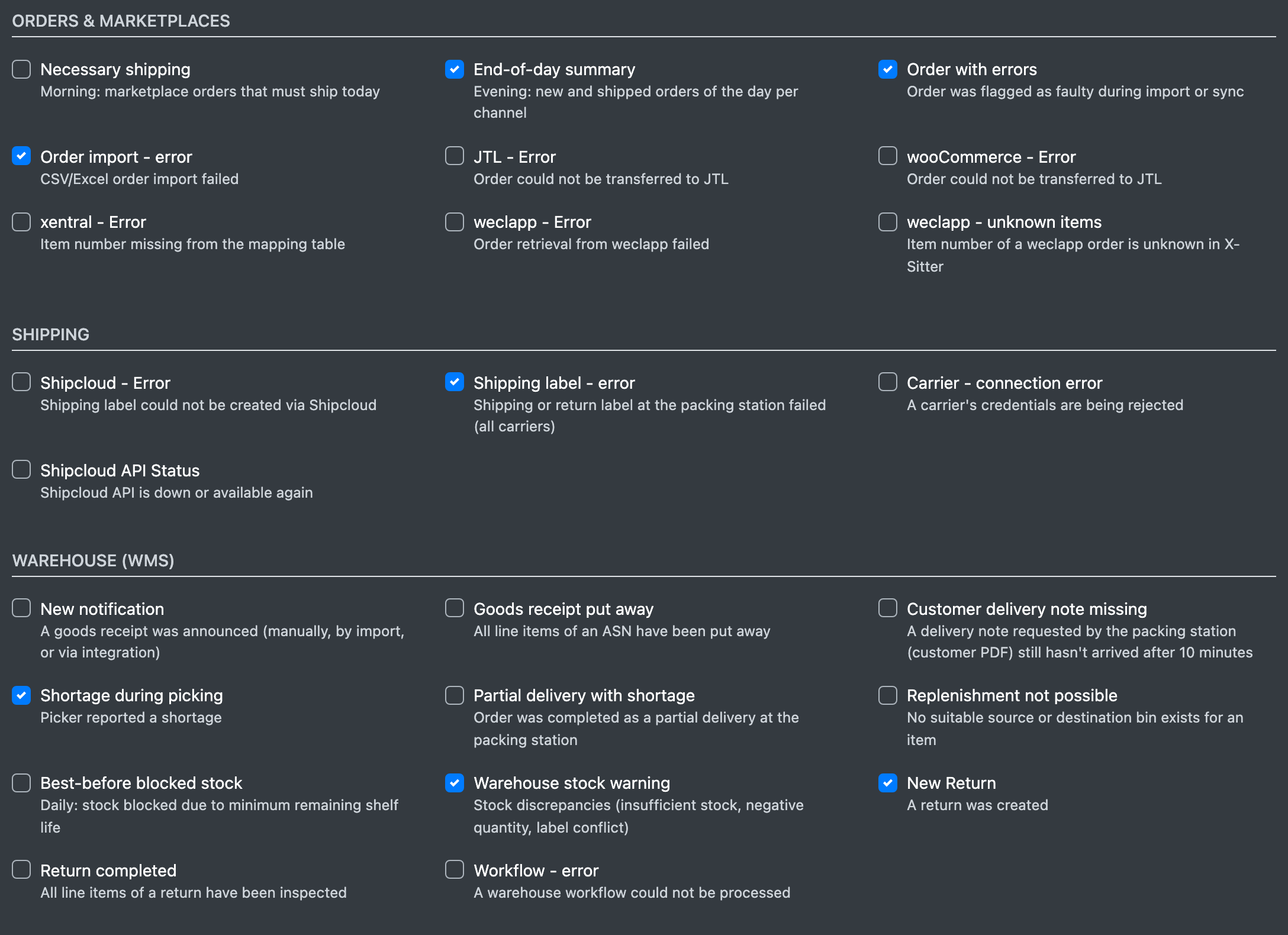
- Under Notifications (Benachrichtigungen) tick every event you want to receive. The events are grouped by topic (see the table below).
- Click Save (Speichern). X-Sitter confirms with All settings have been saved (Alle Einstellungen wurden gespeichert).
You only see the events that match your role and your permissions (Du siehst nur die Ereignisse, die zu Deiner Rolle und Deinen Rechten passen.). If you lose a permission later, the matching notifications stop automatically.
4. Test the connection
- Click Test Connection (Verbindung testen) next to the connection status.
- Confirm with Send test message (Testnachricht senden).
- X-Sitter sends a test message to all your connected chats and shows the result (see the troubleshooting table).
Bot commands
Send these commands to the X-Sitter bot in Telegram:
Available notifications
Who can choose a notification: All = every user; Business = clients (sellers) and logisticians; Warehouse = logisticians and warehouse staff. Some notifications also need the permission for the matching area (e.g. returns, packing, JTL).
Repeated identical messages are throttled, so a recurring error does not flood your phone.