
SnelStart
SnelStart is a Dutch accounting software. X-Sitter transfers your orders to your SnelStart administration as sales orders (verkooporders). The customers (relaties) and items (artikelen) of these orders are created in SnelStart as well, if they do not exist there yet.
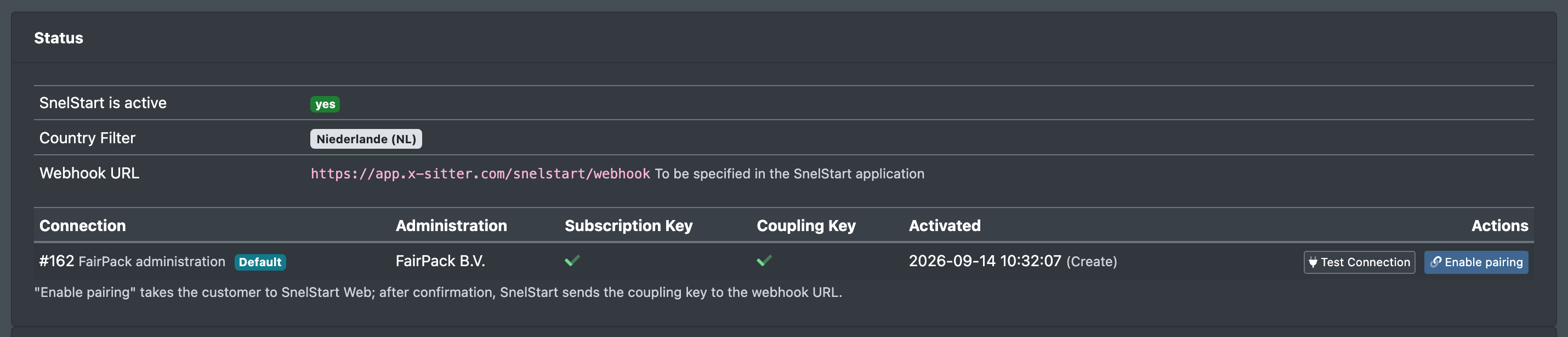
The page Accounting › SnelStart (Buchhaltung › SnelStart) shows whether the connection works, how many records have been transferred and which transfers failed.
Before you start
- Your user needs the permission SnelStart in the area Accounting (Buchhaltung) of the permissions tree. Ask your administrator.
- You need a SnelStart administration and access to the SnelStart B2B API: a Subscription Key from the SnelStart developer portal and – depending on the kind of coupling – a pairing key or the AppShortName from the registration email of SnelStart.
- X-Sitter support switches SnelStart on for your company and sets the country filter. Only orders whose delivery country is in the filter are transferred. As long as SnelStart is active (SnelStart aktiv) shows no (nein), nothing is transferred.
- The transfer runs as two jobs, Bestellungen zu SnelStart senden (send orders to SnelStart) and Artikel zu SnelStart senden (send items to SnelStart). You create them yourself under Administration › Jobs & connections (Administration › Jobs & Verbindungen) › New job (Neuer Job), group SnelStart – see Jobs & connections. Without the permission for jobs & connections, ask your administrator; sub-clients additionally need the release of their main client.
Step by step
1. Create the SnelStart connection
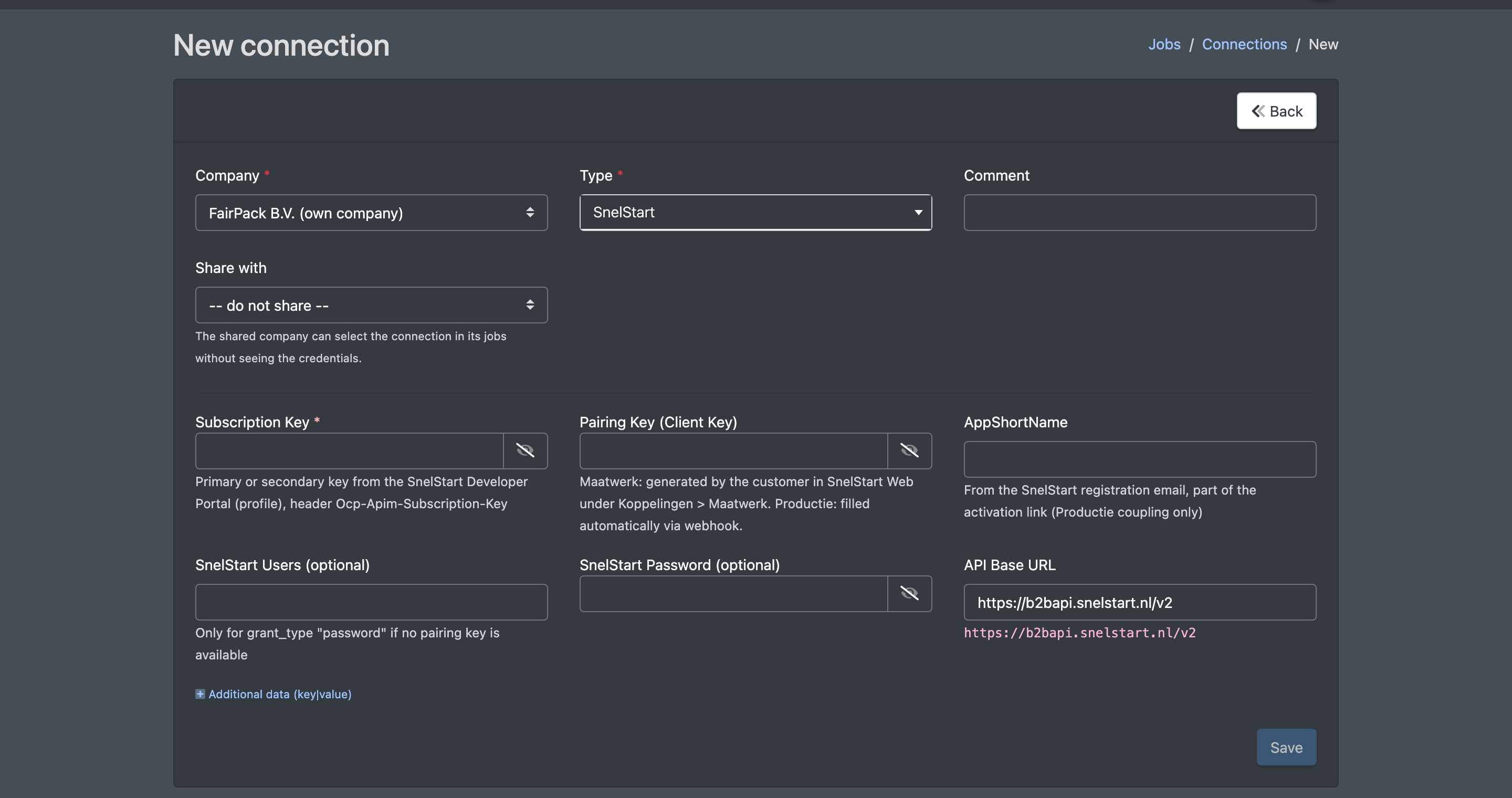
- Open Administration › Jobs & connections (Administration › Jobs & Verbindungen), click Connections (Verbindungen) and then New connection (Neue Verbindung) – see Jobs & connections.
- Choose the type SnelStart and enter a Comment (Bemerkung), e.g. the name of your administration.
- Enter the Subscription Key – the primary or secondary key from your profile in the SnelStart developer portal.
- Depending on the kind of coupling:
- Maatwerk: create a key in SnelStart Web under Koppelingen › Maatwerk and enter it as Pairing Key (Client Key) (Kopplungsschlüssel (Client Key)).
- Productie: enter the AppShortName from the registration email of SnelStart and leave the pairing key empty – SnelStart fills it in step 2.
- Click Save (Speichern).
2. Pair the connection with SnelStart (Productie only)
- Open Accounting › SnelStart (Buchhaltung › SnelStart).
- Click Enable pairing (Kopplung aktivieren) in the row of the connection. The button only appears when an AppShortName is stored.
- X-Sitter takes you to SnelStart Web. Confirm the coupling there.
- SnelStart sends you back to X-Sitter. You see "The pairing has been confirmed in SnelStart. As soon as SnelStart has transmitted the key, the connection is active." (Die Kopplung wurde in SnelStart bestätigt. …)
- SnelStart sends the pairing key to the Webhook URL shown on the page. Afterwards the column Pairing Key (Kopplungsschlüssel) shows a check mark and Activated (Aktiviert) shows the date.
3. Test the connection
Click Test Connection (Verbindung testen). X-Sitter sends a test request to SnelStart and reads the details of your administration. If it works, you see "Connection to "…" successful" (Verbindung zu "…" erfolgreich) and the column Administration shows the name of your SnelStart administration.
4. Watch the transfers
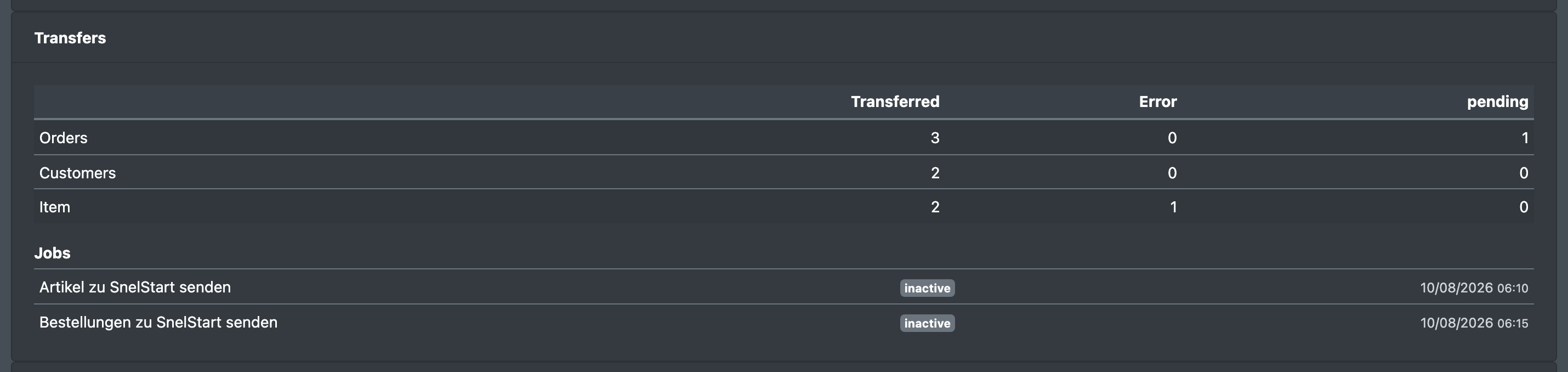
The card Transfers (Übertragungen) counts per kind of record – Orders (Bestellungen), Customers (Kunden), Items (Artikel) – how many have been transferred (übertragen), how many failed (Error, Fehler) and how many are still pending (offen). Below, you see the SnelStart jobs of your company with their state (active / inactive) and the time of the last run.
5. Retry failed transfers
Failed transfers are listed under Recent Errors (Letzte Fehler) with type, key (order, customer or SKU), number of attempts, the error message of SnelStart and the time.
- Fix the cause in SnelStart or in X-Sitter (see the error message).
- Click again (erneut) in the row. You see "The entry will be resubmitted the next time the system runs." (Der Eintrag wird beim nächsten Lauf erneut übertragen) and the row disappears.
- The next run of the job transfers the record again.

Fields and options
Status
Connection
The column Connection (Verbindung) of the page marks the connection your company uses by default with Default (Standard). A job uses this connection unless another one is chosen in the job.
What the jobs transfer
You set these values in the job.
Good to know / Troubleshooting
- Every transfer error can also be reported to you via Telegram (notification SnelStart - error, SnelStart - Fehler), see Telegram notifications.
- An order that has been transferred once is not transferred again. A failed record is retried with every run until the maximum number of attempts is reached; again resets the attempts.