
Physical inventory
With the physical inventory (Inventur) you count your warehouse row by row. As site manager you give one row of a storage area to an employee as a count task (Zählauftrag). The employee counts blind on the counting screen – they never see the stock. You see the count next to the stock and decide on every discrepancy: accept it (X-Sitter sets the stock of the place to the counted quantity) or discard it (the stock stays as it is).
This is not the cycle count during picking: the cycle count is a spot check in the picking process and corrects the stock immediately, batch by batch, without anyone deciding.
Before you start
- Your user needs the permission Manage physical inventory (Inventur leiten). The employees who count need Count inventory (Inventur zählen). Both are in the permission tree under WMS › Warehouse › Physical inventory (WMS › Lager › Inventur), see Employees and Roles.
- A warehouse is selected. The page always works on the warehouse you are currently working in.
- The storage areas have rows: X-Sitter reads the row of each place from its place number with the segment assignment of the area, see Storage areas. Areas without numbered rows cannot be counted row by row.
- Only logisticians run an inventory. Clients cannot create, count or decide count tasks.
- Plan the inventory so that nothing moves in the rows being counted (no picking, putaway or relocation) until you have decided – see
Good to know .
Step by step
Create a count task for one row
- Open WMS › Warehouse › Physical inventory (WMS › Lager › Inventur).
- In the box New count task (Neuer Zählauftrag), choose the Area (Bereich). X-Sitter loads the rows of this area.
- Choose the Row (Reihe).
- If the row is divided into several compartments, the line Compartments (Fächer) appears. All compartments are selected. Click a compartment to leave it out, or All (Alle) to select all again. Without all compartments, the employee only counts the selected compartments of the row.
- Choose the Employee (Mitarbeiter) who counts. Employees without the counting permission are marked "without permission "Physical inventory (count)"" (ohne Recht „Inventur (zählen)“).
- Optionally enter a Note (Notiz), e.g. "Annual inventory 2026". The employee sees it on the counting screen.
- Click Add (Anlegen). X-Sitter confirms with "Count task for row 1 with 18 bins created" (Zählauftrag für Reihe 1 mit 18 Plätzen angelegt). The task appears in the list with the status Open (Offen), and the employee finds it on their counting screen and on the dashboard widget My stock count (Meine Inventur).
If the employee does not have the counting permission, the task is created anyway, but X-Sitter warns you: they cannot open the counting screen until you grant the permission under Company Settings › Employees (Firmen Einstellungen › Mitarbeiter).
Assign several rows at once
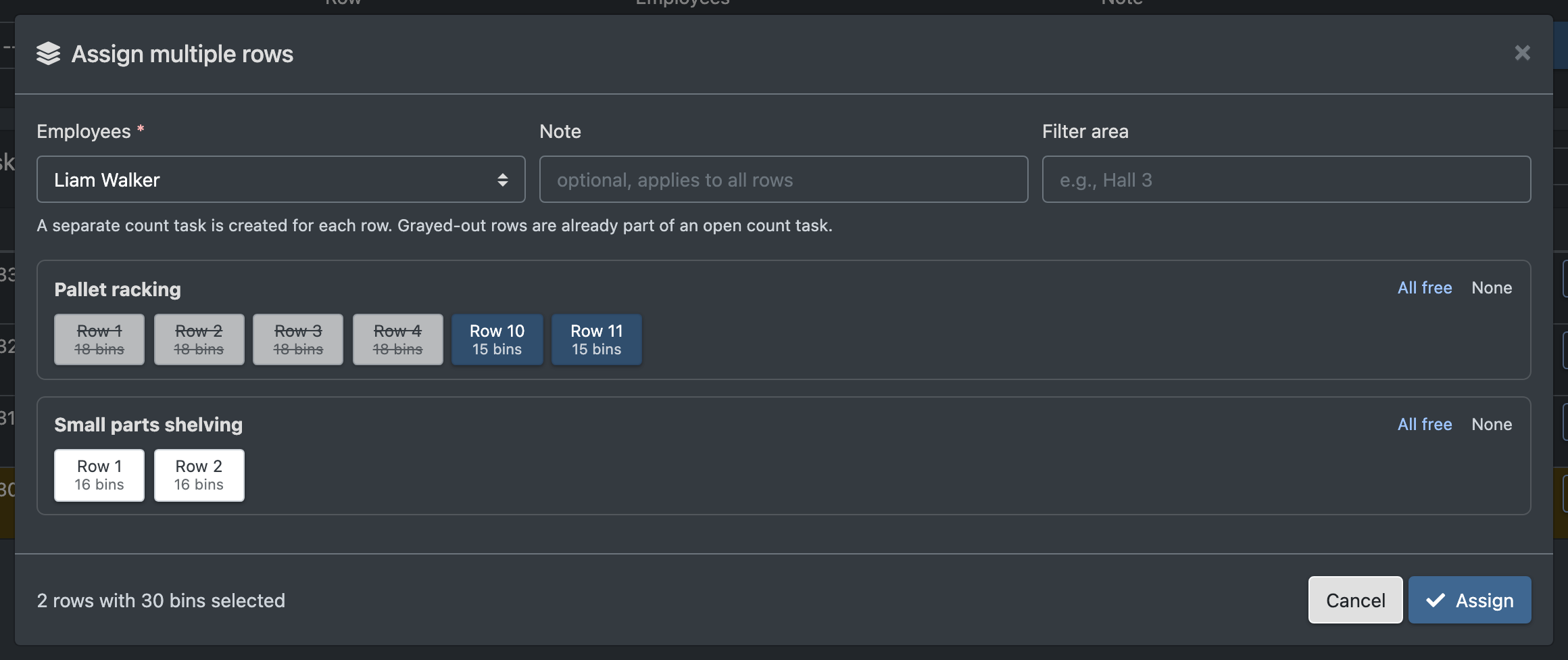
- Click Assign multiple rows (Mehrere Reihen zuweisen) in the box New count task.
- Choose the Employee (Mitarbeiter, required) and optionally a Note (Notiz) that applies to all rows.
- The dialog lists every area with its rows and the number of places per row (e.g. "18 bins"). Click the rows you want to assign. All free (Alle freien) selects every free row of an area, None (Keine) clears the selection. Filter area (Bereich filtern) narrows the list, e.g. to "Hall 3".
- Grayed-out rows are already part of an open count task; hover over them to see who counts them.
- Below the list you see how many rows and places you selected. Click Assign (Zuweisen). X-Sitter creates a separate count task for each row: "3 count tasks with a total of 54 bins created" (3 Zählaufträge mit zusammen 54 Plätzen angelegt). If one of the rows cannot be assigned, nothing is created.
Follow the counting
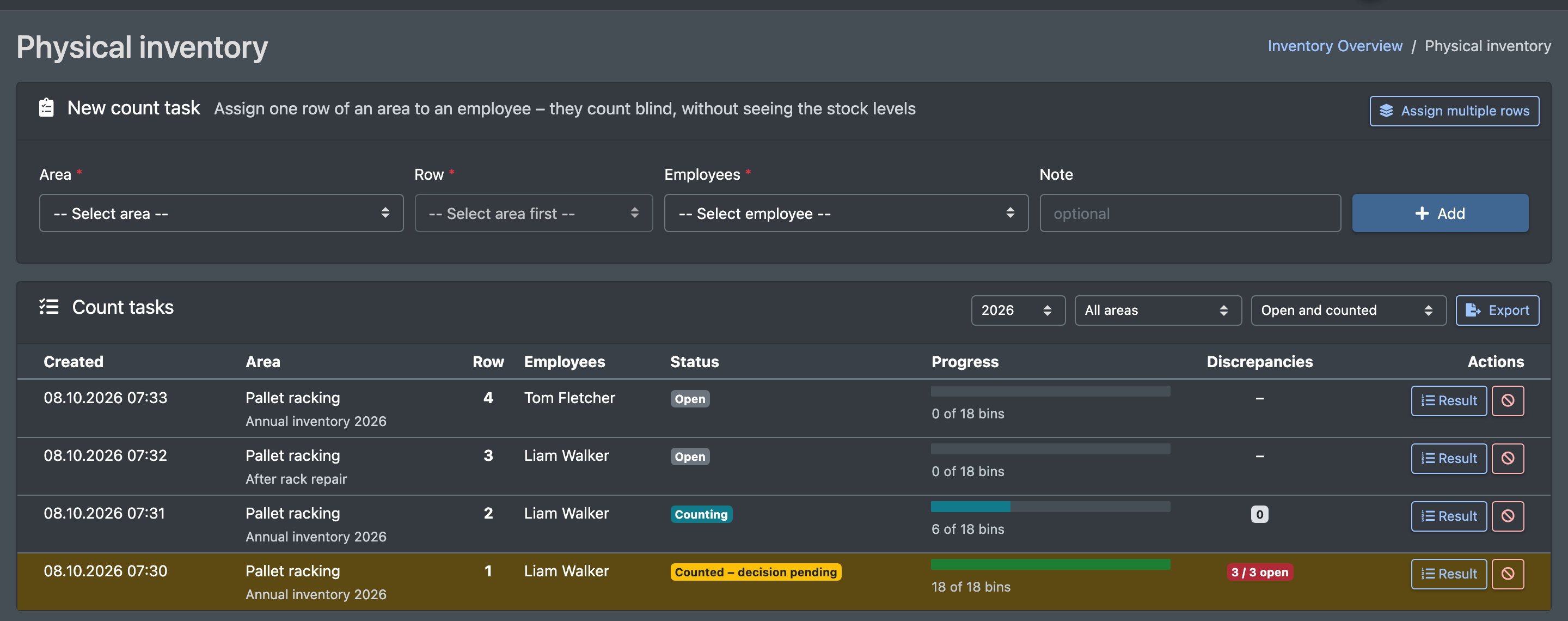
The list Count tasks (Zählaufträge) shows per task when it was created, the area (with the note), the row (with the compartments, if restricted), the employee, the status, the progress ("6 of 18 bins") and the discrepancies.
- The list updates itself while the employees count: progress, status and discrepancies change live, the changed cells light up briefly.
- Filter with the year (Jahr) and the area (Bereich). Without a choice, X-Sitter shows the newest year. The status filter offers Open and counted (Offen und gezählt, default), With open discrepancies (Mit offenen Abweichungen), Completed (Abgeschlossen), Cancelled (Storniert) and All (Alle). Your browser remembers the status filter.
- Tasks with open discrepancies are highlighted in yellow.
Decide on the discrepancies
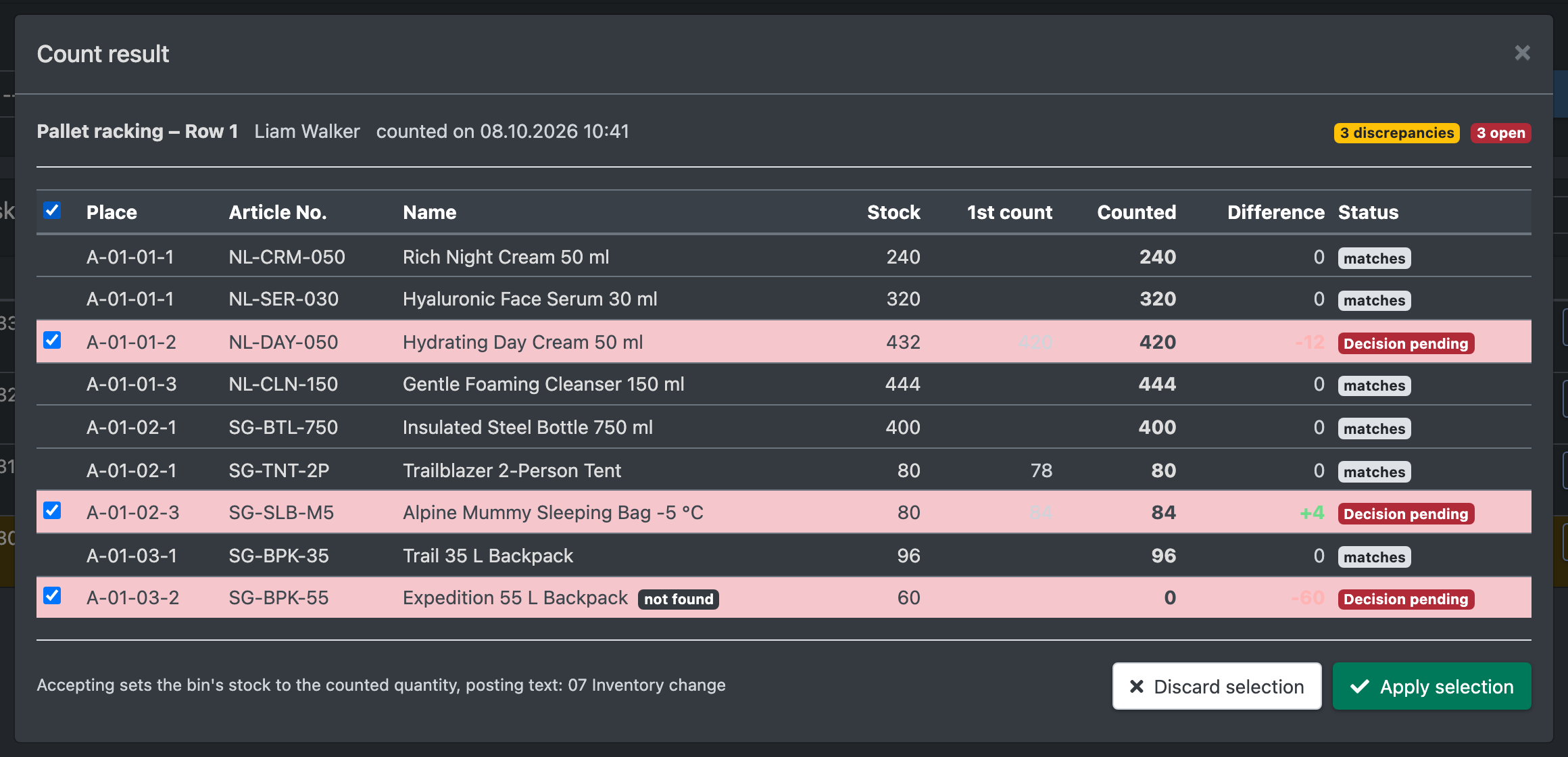
- Click Result (Ergebnis) in the row of the task. The dialog Count result (Ergebnis der Zählung) opens.
- At the top you see area, row, employee, the time of the count and the number of discrepancies and open decisions.
- The table shows every counted article per place: Stock (Bestand, at the time of the count), 1st count (1. Zählung, only if the employee had to count again), Counted (Gezählt, the final quantity) and Difference (Differenz). Lines with an open decision are red, decided discrepancies yellow. An article that was on the place according to the system but was not scanned is marked not found (nicht gefunden) and counted as 0.
- As long as the task is still being counted, X-Sitter only shows the result: "The task is still being counted (6 of 18 bins). You can decide as soon as all bins have been counted." (Der Auftrag wird noch gezählt …)
- Once all places are counted, tick the lines you want to decide – or tick the box in the header for all open discrepancies.
- Click Apply selection (Auswahl übernehmen) and confirm "Yes, accept" (Ja, übernehmen). X-Sitter sets the stock of each place to the counted quantity and books the change: "2 discrepancy(ies) accepted and booked" (2 Abweichung(en) übernommen und gebucht).
- Or click Discard selection (Auswahl verwerfen) and confirm "Yes, discard" (Ja, verwerfen). The stock remains unchanged.
When no open discrepancy is left, the task is Completed (Abgeschlossen). A task without any discrepancy is completed automatically as soon as the last place is counted.
Cancel a count task
Click the red cancel button in the row of an open, running or counted task and confirm "Yes, cancel" (Ja, stornieren). Counts recorded so far remain saved, nothing is booked. The rows are free again for a new count task. Completed or cancelled tasks cannot be cancelled.
Export the counts
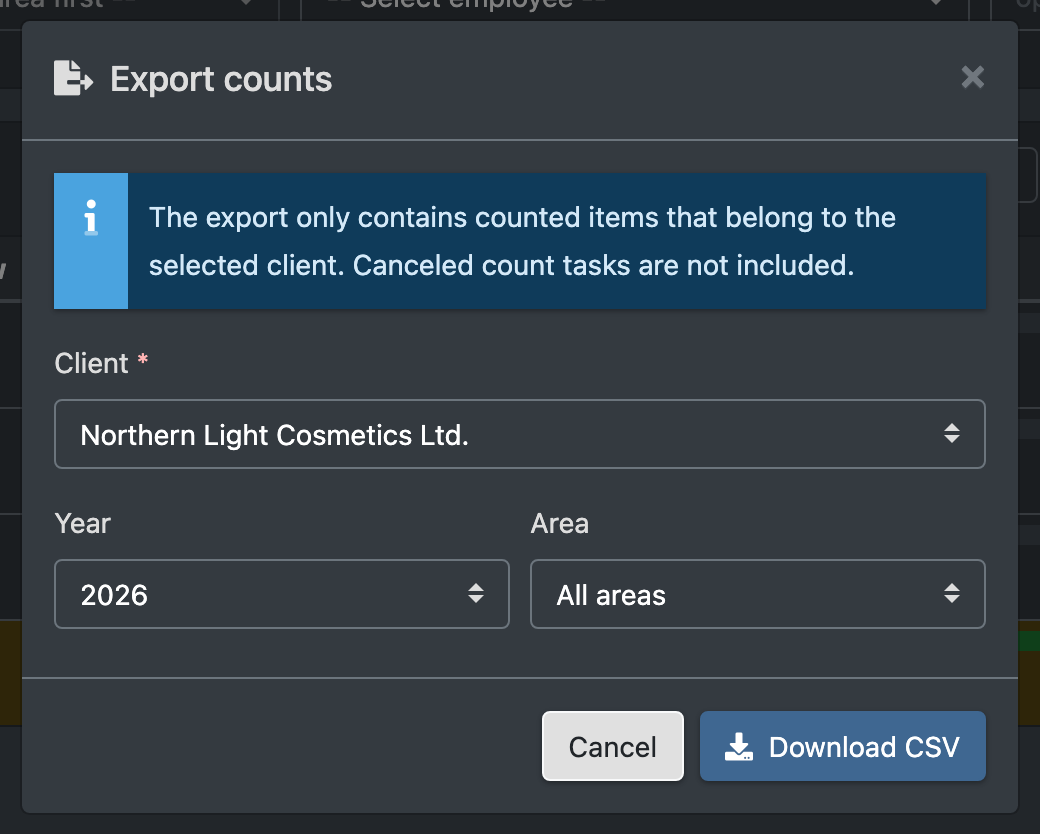
- Click Export in the header of the list.
- Choose the Client (Mandant, required) – your own company or one of your clients. The export only contains the counted articles that belong to this client. Cancelled count tasks are not included.
- Optionally narrow it down by Year (Jahr) and Area (Bereich); the filters of the list are preset.
- Click Download CSV (CSV herunterladen).
The CSV file (semicolon-separated, UTF-8 for Excel) contains one line per counted article and place: area, row, place, article number, name, stock, counted, difference, status of the line, booked quantity, counted by, counted on and the status of the count task.
Fields and options
Status of a count task
Status of a line in the result
How the stock is booked
When you accept a discrepancy, X-Sitter sets the total stock of the article on this place to the counted quantity:
- A shortage is taken from the stock lines of the place in best-before order (earliest best-before date first, then the oldest stock line).
- A surplus is added to the first stock line of the place. Only a place without any stock line of the article gets a new one (without batch).
- A stock line that becomes empty loses its pallet label, and the place is released.
- Every changed stock line gets an entry in the article history with the booking reason that the warehouse settings define for Inventory change (Inventuränderung), e.g. "07 Inventurdifferenz", and the note "Stock count Pallet racking, row 1, bin A-01-01-2: stock set from 432 to 420." (Inventur …, Reihe …, Platz …: Bestand von … auf … gesetzt.). The reason is also shown in the confirmation.
- Afterwards X-Sitter recalculates the available stock, see Stock overview.
Unlike the cycle count, the inventory counts the article per place, not per batch.
Good to know / Troubleshooting
- Keep the rows still. The stock in the result is the stock at the moment of the first count of the article. Accepting sets the place to the counted quantity, regardless of what was booked on the place in the meantime. Do not pick, put away or relocate in the counted rows until you have decided.
- A place can only be in one active count task at a time.
- The employee never sees the stock – neither on the counting screen nor in the requests. Only you see count and stock side by side.