
Pallet account

Keep track of load carriers such as Euro, CHEP and one-way pallets or mesh boxes per client and location, with average price and total value

The pallet account keeps track of your load carriers – Euro, CHEP and one-way pallets as well as mesh boxes – per client, location, pallet type and status (empty, full, at the customer). For each combination it shows the count, the average price and the total value. You book additions and removals by hand, and every booking is logged.

The pallet account is independent of the article stock and of the pallet labels. Putaway or loading do not book anything here automatically.
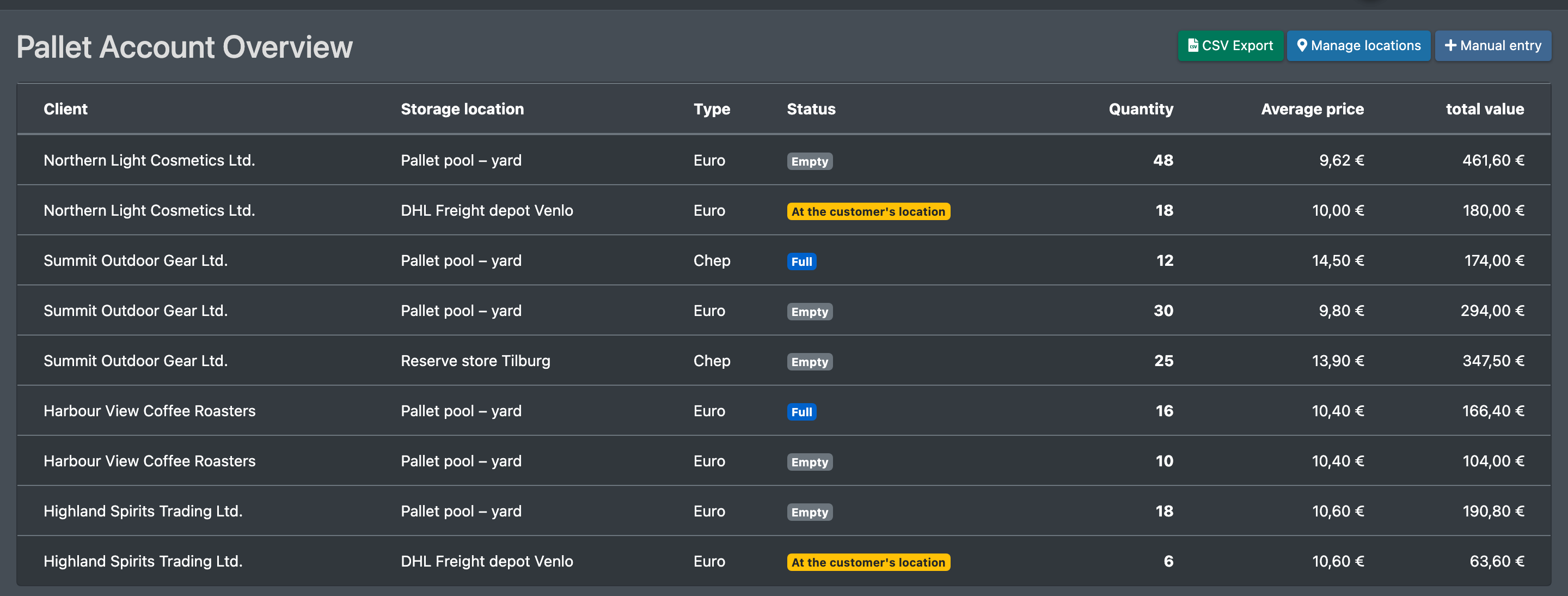
Screenshot: Pallet Account Overview table with client, location, type, status, quantity, average price and total value

Before you start

  • Your user needs the permission for Pallet Account (Paletten-Konto). Ask your administrator if the menu entry is missing.
  • Your active clients exist, see Clients.
  • Locations: the storage locations of the current warehouse, see Storage places, or additional locations that you create under Manage locations (for example an external store or a carrier).

Step by step

Open the pallet account

Open WMS › Pallet Account (WMS › Paletten-Konto). The Pallet Account Overview (Paletten-Konto Übersicht) shows Client (Mandant), Storage location (Lagerort), Type (Art), Status, Quantity (Anzahl), Average price (Ø Preis) and total value (Gesamtwert).

Manage additional locations

  1. Click Manage locations (Orte verwalten). The dialog Manage additional storage locations (Zusätzliche Lagerorte verwalten) opens.
  2. Enter a name, e.g. "Reserve store" or "DHL", and click Add (Hinzufügen). X-Sitter confirms with "Storage location successfully added."
  3. To deactivate a location, click the action in its row and confirm "Are you sure you want to disable this?".
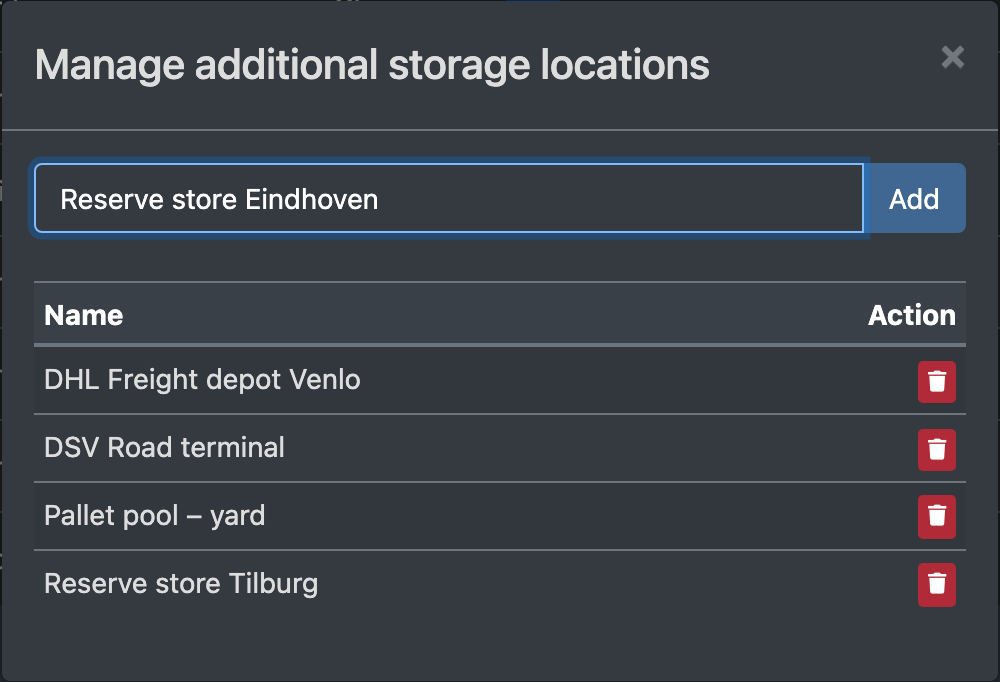
Screenshot: Manage additional storage locations dialog with a name field and the list of locations

Book pallets by hand

  1. Click Manual entry (Manuelle Buchung). The dialog Manual pallet posting (Manuelle Paletten-Buchung) opens.
  2. Fill in the fields (see below).
  3. Click Book (Buchen). X-Sitter confirms with "Booking successfully saved."
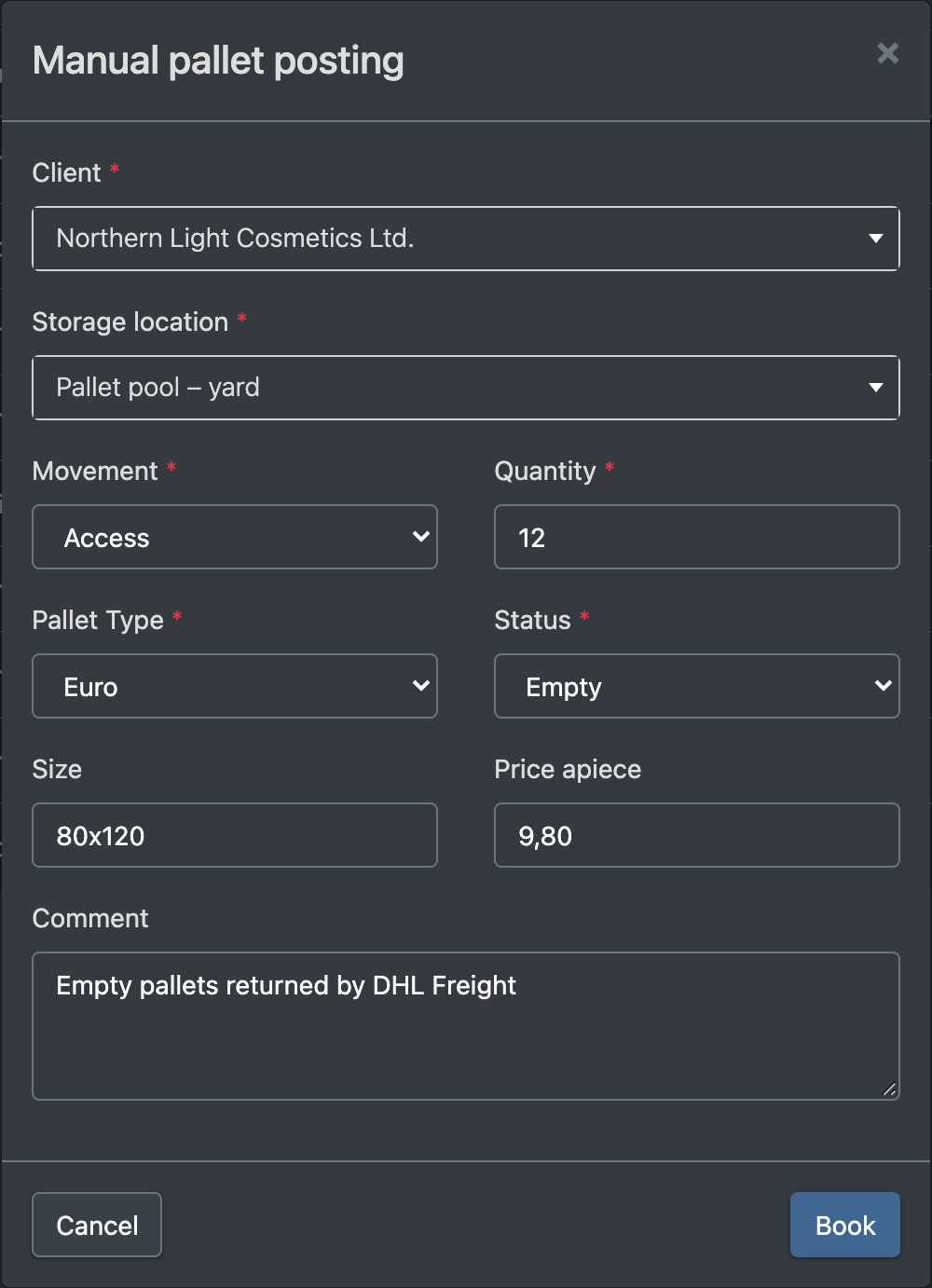
Screenshot: Manual pallet posting dialog with client, location, movement, pallet type, status, quantity, size, price and comment

Export

CSV Export downloads the current balances as a CSV file.

Fields and options

Field Meaning Required
Client (Mandant) Owner of the load carriers. yes
Storage location (Lagerort) A storage location or an additional location. yes
Movement (Bewegung) Addition (Zugang, +) or removal (Abgang, −). yes
Pallet Type (Paletten-Art) Euro, CHEP, one-way (Einweg) or mesh box (Gitterbox). yes
Status Empty (Leer), Full (Voll) or At the customer's location (Beim Kunden). yes
Quantity (Anzahl) Number of load carriers, greater than 0. yes
Size (Größe) Size of the load carrier. no
Price apiece (Preis pro Stück) Used to calculate the average price. no
Comment (Bemerkung) Free text. no

Troubleshooting

Message Cause Solution
Please fill in all required fields correctly. (Bitte fülle alle Pflichtfelder korrekt aus.) A required field is missing or the quantity is 0 or less. Fill in the fields.
The name field cannot be left blank. (Name darf nicht leer sein.) Location without a name. Enter a name.
Systemfehler beim Speichern der Buchung. (system error while saving) Technical error. Try again.
No results found. (Keine Bestände gefunden.) No bookings yet. Make a first booking.