sevDesk
sevDesk is an accounting software in which you write your invoices. Once X-Sitter knows your sevDesk account, you transfer the statement of a client billing to sevDesk with one click: it appears there as a draft invoice with all lines – nothing to type twice.
On the page Accounting › sevDesk (Buchhaltung › sevDesk) you store the API token of your sevDesk account, choose the defaults for the invoices and assign each client its contact in sevDesk.
Before you start
- Your user needs the permissions Accounting (Buchhaltung) and sevDesk in the area Accounting of the rights tree. Users who already had the permission sevDesk export (sevDesk-Export) of the client billing got it automatically – otherwise ask your administrator.
- You need a sevDesk account and its API token: in sevDesk under Einstellungen › Benutzer, at the user, field API-Token (32 characters).
- Your clients exist as contacts in sevDesk. It is easiest if the sevDesk customer number of a contact is the customer number of the client in X-Sitter – then X-Sitter assigns them for you.
Step by step
1. Connect sevDesk
- Open Accounting › sevDesk (Buchhaltung › sevDesk).
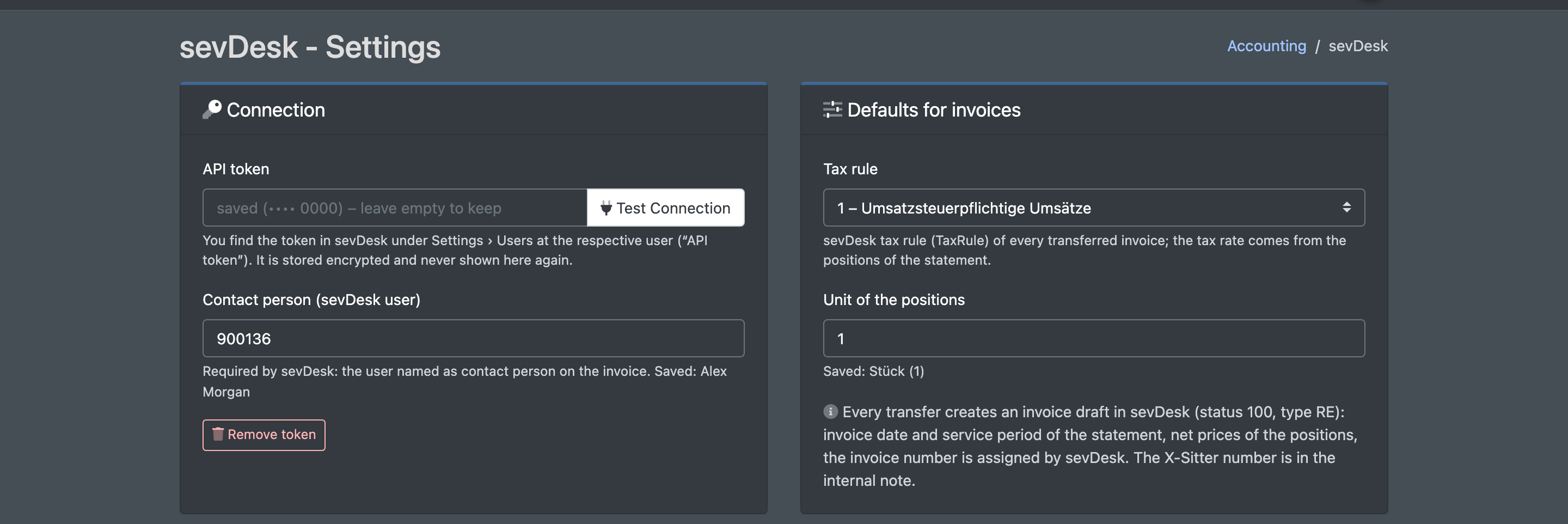
- In the card Connection (Verbindung), enter the API token (API-Token).
- Click Test Connection (Verbindung testen). If the token works, you see "Connection OK: n users, n units, n contacts" (Verbindung steht: … Benutzer, … Einheiten, … Kontakte).
- Click Save (Speichern) at the bottom of the page. The token is stored encrypted and never shown again; the field then shows "saved (•••• last 4 characters)". Leave the field empty to keep the stored token.
After saving, the selection fields are filled from your sevDesk account.
2. Set the defaults for invoices
- In the card Connection, choose the Contact person (sevDesk user) (Ansprechpartner (sevDesk-Benutzer)). sevDesk needs this field – the user is named on the invoice as contact person.
- In the card Defaults for invoices (Vorgaben für Rechnungen), choose the Tax rule (Steuerregel) of your invoices, e.g. 1 – Umsatzsteuerpflichtige Umsätze. The tax rate of every line comes from the statement.
- Choose the Unit of the positions (Einheit der Positionen), e.g. Stück.
- Click Save.
3. Assign the sevDesk contacts
The card Clients → sevDesk contacts (Mandanten → sevDesk-Kontakte) lists all your active clients with their customer number.
- Click Assign by customer number (Per Kundennummer zuordnen). Every client without a contact gets the sevDesk contact with the same customer number. You see "n clients have been assigned by customer number." (… Mandanten wurden über die Kundennummer zugeordnet.). A number that exists more than once in sevDesk stays open.
- For the remaining clients, choose the sevDesk contact (sevDesk-Kontakt) in the list. not mapped (nicht zugeordnet) removes the assignment.
- Click Save. You see "The settings have been saved" (Die Einstellungen wurden gespeichert).
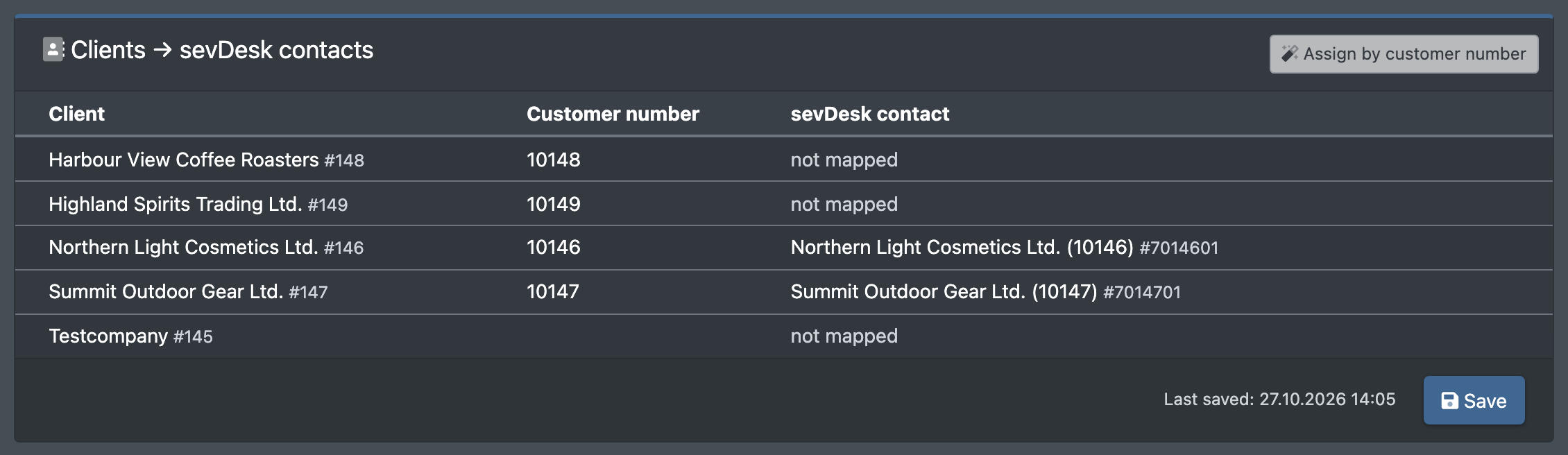
Only clients with a sevDesk contact get the sevDesk buttons on their billing. Clients you do not invoice via sevDesk simply stay not mapped.
4. Transfer statements
Open the client billing of the client, load the statement and click Transfer to sevDesk (An sevDesk übertragen). The draft invoice is created in sevDesk; you check, finalize and send it there.
The card Latest transfers (Letzte Übertragungen) lists the last 20 transfers with date, client, the number of the statement in X-Sitter and a link to the invoice in sevDesk.

Fields and options
What the draft invoice contains
- Invoice type RE (normal invoice), status draft, currency EUR.
- Invoice date = date of the statement, delivery period = service period of the statement; header text "Leistungszeitraum DD.MM.YYYY - DD.MM.YYYY".
- One line per line of the statement with net price and its tax rate.
- sevDesk assigns the invoice number. The number of the statement and the customer number in X-Sitter are in the internal note of the invoice.
- Sending and finalizing happens in sevDesk.
Good to know / Troubleshooting
- The lists of users, units and contacts are read live from sevDesk every time you open the page. A contact you create in sevDesk is available after reloading the page.
- A statement is only transferred again after you confirm it, so no invoice is created twice by accident.