Shipcloud API status

Check whether the ShipCloud interface is reachable – response times, availability, outages and failed checks.

The Shipcloud API Status page shows whether the ShipCloud interface is reachable and how fast it responds. X-Sitter checks ShipCloud regularly in the background and records every result. When labels fail at the packing station, this page tells you quickly whether the problem is on ShipCloud's side.
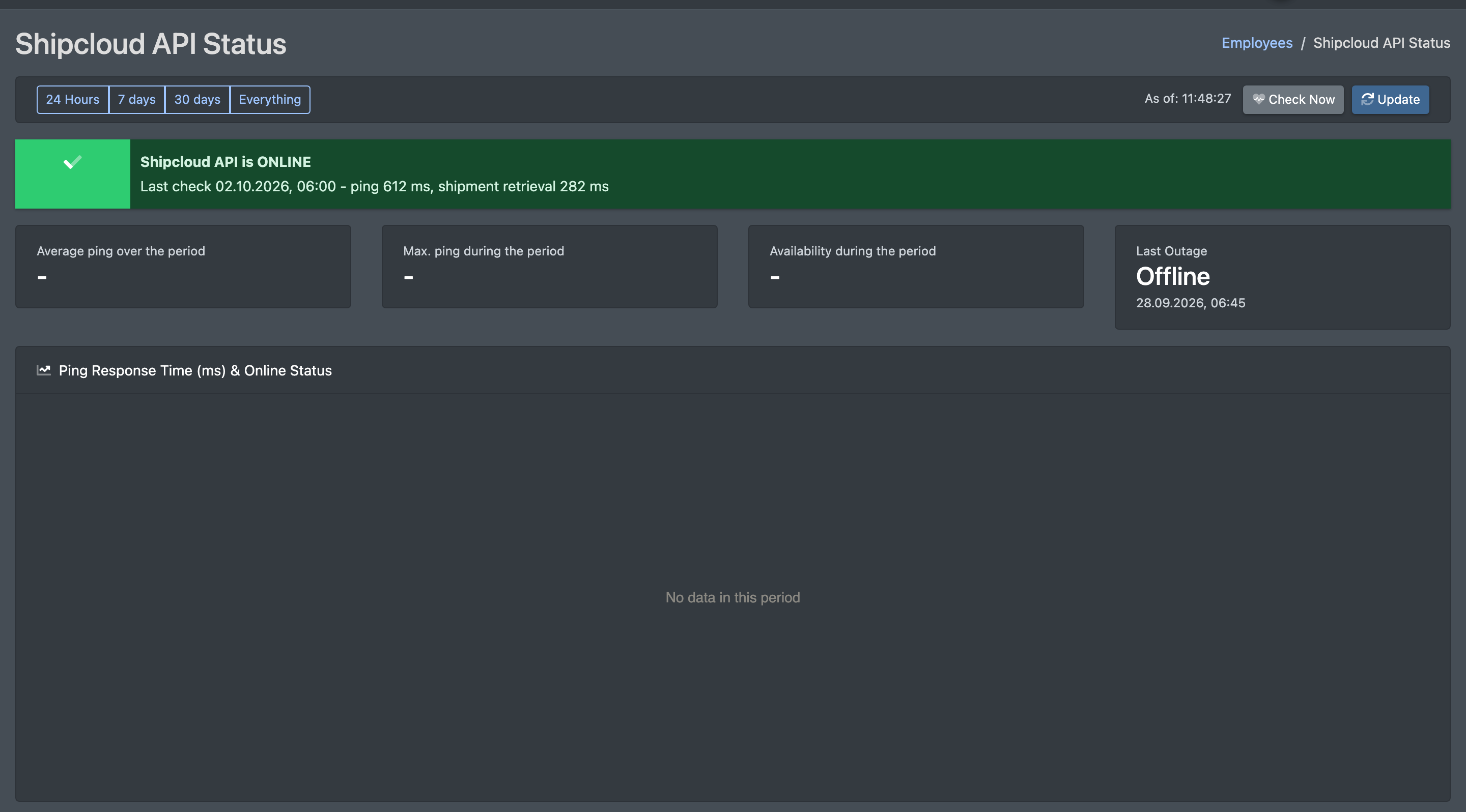
Screenshot: Shipcloud API Status page with the period buttons, the four key figures and the ping chart

Before you start

  • Your user needs the permission Shipcloud API Status in the Administration area of the permissions tree. Ask your administrator.
  • You use ShipCloud for your labels (see ShipCloud accounts).

Step by step

  1. Open Administration › Shipcloud API Status.
  2. Choose the period: 24 Hours, 7 days, 30 days or Everything (24 Stunden / 7 Tage / 30 Tage / Alles).
  3. Click Update (Aktualisieren) to reload the figures.
  4. Click Check now (Jetzt prüfen) to run a check immediately instead of waiting for the next automatic one.

Each check logs in to ShipCloud with a real request and additionally fetches the most recently created shipment, so it tests the same way your labels are created.

Screenshot: Period selection with "7 days" active and the buttons Update and Check now

What the page shows

Element Meaning
Average ping over the period (Ø Ping im Zeitraum) Average response time of ShipCloud in milliseconds.
Max. ping during the period (Max. Ping im Zeitraum) Slowest response in the period.
Availability during the period (Verfügbarkeit im Zeitraum) Share of successful checks in percent.
Last Outage (Letzter Ausfall) When ShipCloud was last unreachable.
Ping response time (ms) & online status (Ping-Antwortzeit (ms) & Online-Status) Chart of the response times with the online/offline status over time.
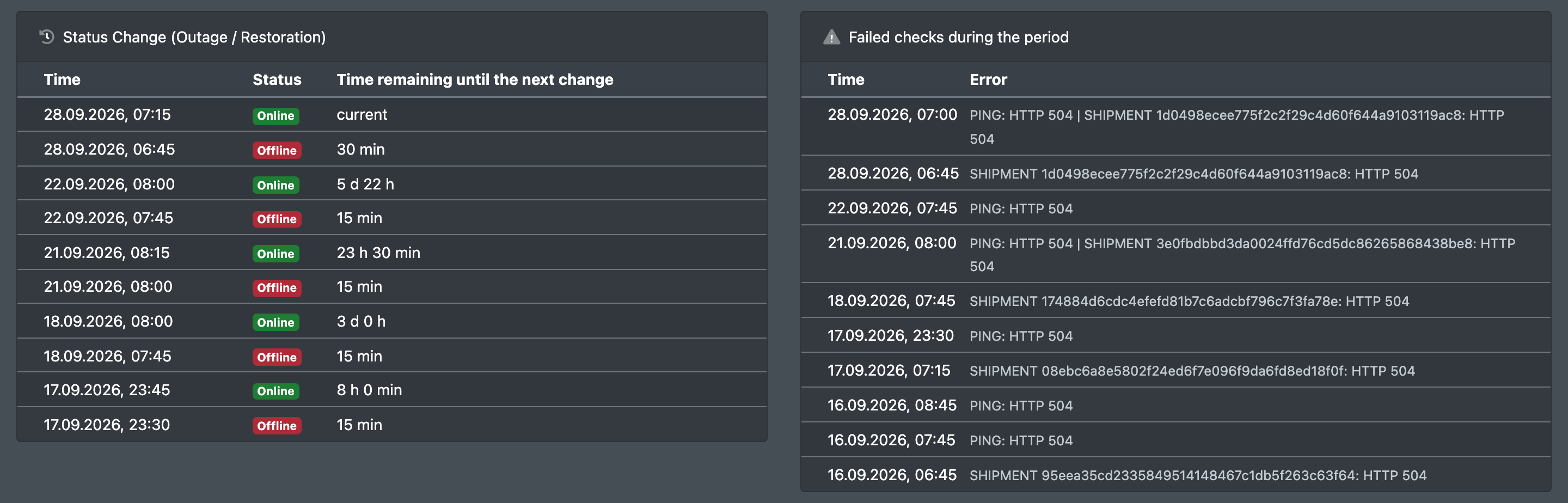
Status change (outage / recovery) (Status-Wechsel (Ausfall / Wiederherstellung)) Every switch between online and offline, with time and how long the status lasted until the next change.
Failed checks during the period (Fehlgeschlagene Prüfungen im Zeitraum) Each failed check with time and error message.
Screenshot: Status change table and failed checks table with example entries

Good to know / Troubleshooting

Message / situation Cause Solution
No Data (Keine Daten) No check has been recorded in the chosen period yet. Click Check now or choose a longer period. If it stays empty, contact X-Sitter support.
"Unauthorized access" (Unbefugter Zugang) The permission is missing. Ask your administrator.
Availability is fine, but labels still fail The problem lies in the order data or the account (e.g. address, weight, API key). Check the error at the packing station and the ShipCloud account.
ShipCloud is offline Outage at ShipCloud. Wait for the recovery, or temporarily ship with a direct carrier account via Shipping providers.