
JTL settings
Under Company Settings › JTL (Firmen Einstellungen › JTL) you maintain the basics of your JTL connection:
- the SQL access to your JTL-Wawi,
- which JTL platforms are imported and which JTL user is entered as the editor,
- which X-Sitter sales channel belongs to which JTL platform,
- which JTL price group belongs to which sales channel.
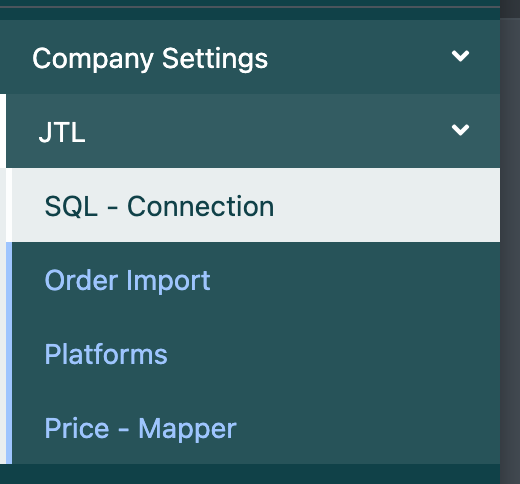
Before you start
- The menu item JTL only appears once a JTL connection exists for your company. How to create it: Connect JTL-Wawi.
- Order Import, Platforms and Price - Mapper read their choices live from your JTL-Wawi. The SQL server must be reachable.
- Your user needs the JTL permissions in the company settings (one per menu item). Ask your administrator.
Step by step
SQL - Connection
- Open Company Settings › JTL › SQL - Connection (SQL - Verbindung). The page is titled "JTL - SQL-Verbindung".
- Enter or correct host, port, instance, User (Benutzer), Password (Passwort), Database Name (Datenbank Name), JTL Version, kBenutzer, kWarenlager and nPlattform. The fields are explained in Connect JTL-Wawi.
- Click Save (Speichern). You see Data was stored (Daten wurden gespeichert).
Order Import
- Open Company Settings › JTL › Order Import (Bestell Import).
- Under From which platform should orders be imported? (Von welcher Plattform sollen Bestellungen importiert werden?) tick the JTL platforms whose orders X-Sitter should import.
- Under Which user is specified as the editor? (Welcher Benutzer wird als Bearbeiter angegeben?) choose the JTL user.
- Click Save. You see The settings have been saved (Die Einstellungen wurden gespeichert).
The choices are used by the job that imports orders from JTL.
Platforms
The page Platforms - Editor (Plattformen - Editor) has three areas.
Create a new platform (Neue Plattform anlegen) Order imports in JTL can be assigned to a platform for later evaluation. The default is always "XML-Import". Here you create your own platform name:
- Enter the Name of the new platform (Name der neuen Plattform).
- Click Save. The platform is created directly in your JTL-Wawi.
Map X-Sitter sales channel with JTL platform (Worker Portal mit JTL Plattform mappen)
- In each row, choose an X-Sitter sales channel on the left and the matching JTL platform on the right.
- Click Save.
Orders that X-Sitter hands over to JTL then carry the right platform. Without a mapping they land in JTL under the default platform.
Edit platform (Plattform bearbeiten) Here you can rename existing JTL platforms. The page warns: only change something if you know what you are doing – the name is changed directly in JTL.
Price - Mapper
- Open Company Settings › JTL › Price - Mapper (Preis - Mapper). The page is titled "Preisgruppen - Mapper".
- In each row, choose the X-Sitter sales channel, the JTL price group (customer group) and the price type (Preistyp):
- B2B - business customers (B2B - Gewerblich)
- B2C - end customers (B2C - Endkunden)
- Click Save. You see Mapping has been saved (Mapping wurde gespeichert).
The mapping is used when prices are taken over from JTL price groups.
Fields and options
Good to know / Troubleshooting
For clients of a logistician, the platform mapping of the logistician is used when orders are handed over to the logistician's JTL.