
Report: Single article
The Single article report (einzel Artikel) evaluates the sales of one article over a date range you choose. You see its base data, the units sold and the revenue per calendar week, the totals per sales channel and a chart of the monthly sales. A second function lists the calendar weeks of the range with units and revenue side by side.
Before you start
- Your user needs the permissions for Reports and Reports › Single article (Reporte › einzel Artikel). Ask your administrator if the menu entry is missing.
- The report is based on the order statistics of your company. They are imported with an import template of the type Bestell-Statistik (order statistics), see Import templates.
Step by step
- Open Reports › Single article (Reporte › einzel Artikel) in the top menu. Alternatively, click the chart icon in front of an SKU in the Article list – the report then opens with this article and period already selected.
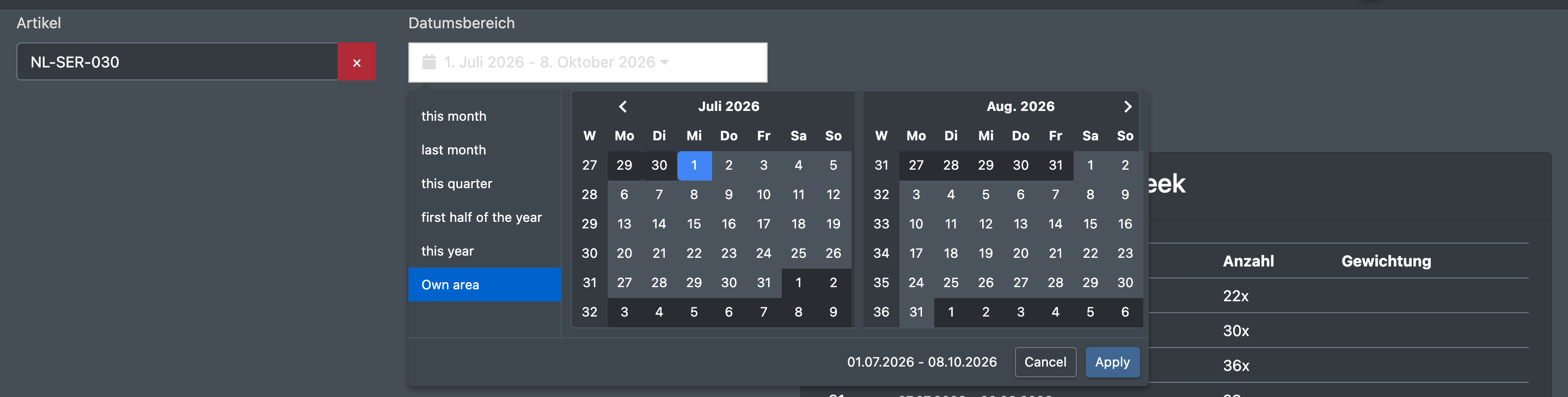
- In the field Item (Artikel), type part of the SKU or the article name and choose a match from the list. No matches (Kein Treffer) means the article does not appear in the statistics. Click × next to the field to clear your selection.
- Choose the Date range (Datumsbereich).
- Choose the Function (Funktion): Item values (Artikelwerte) or Calendar weeks (Kalenderwochen).
- The result appears below the selection. To evaluate another article or period, change the selection and choose the function again.
Fields and options
Function "Item values"
Shows several boxes:
Weighted weekly average
As in the Article list, the last four completed weeks of the range are weighted from newest to oldest with 55 %, 30 %, 10 % and 5 %. A week that has not ended yet is not included, and weeks without sales are left out. The column Weighting (Gewichtung) shows which weight a week received.
Function "Calendar weeks"
Shows one column per calendar week of the date range with the date range of the week, the units sold (Sales) and the revenue (Sum). This view is handy to compare many weeks at a glance, for example before and after a promotion.

Good to know / Troubleshooting
To count the orders of a company per sales channel and day, month or year, use the report By company.