
Basic settings
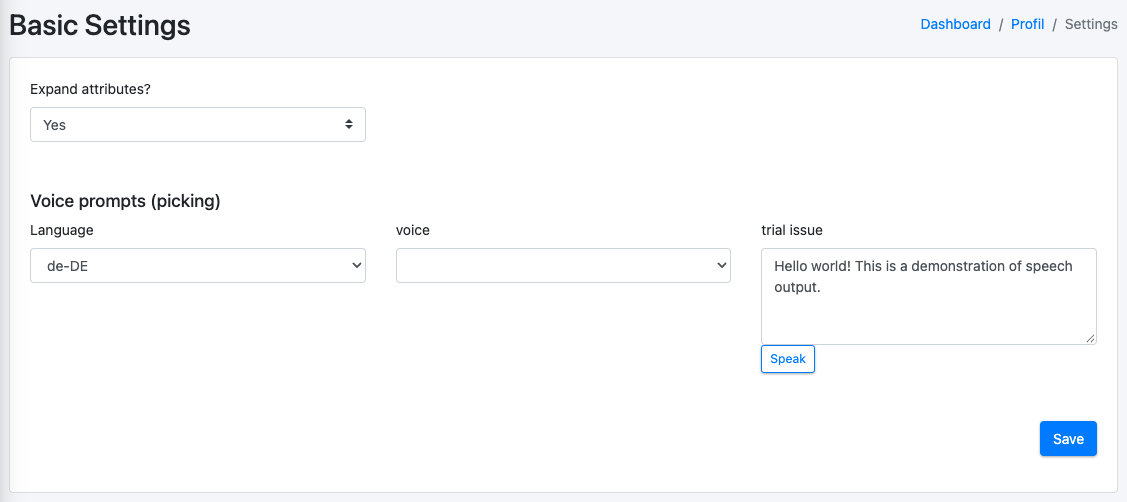
Personal settings for the article form and for the voice prompts during picking.
The basic settings are your personal preferences. They only apply to your own user:
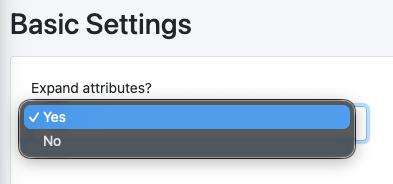
- whether the attribute groups are expanded when you edit an article, and
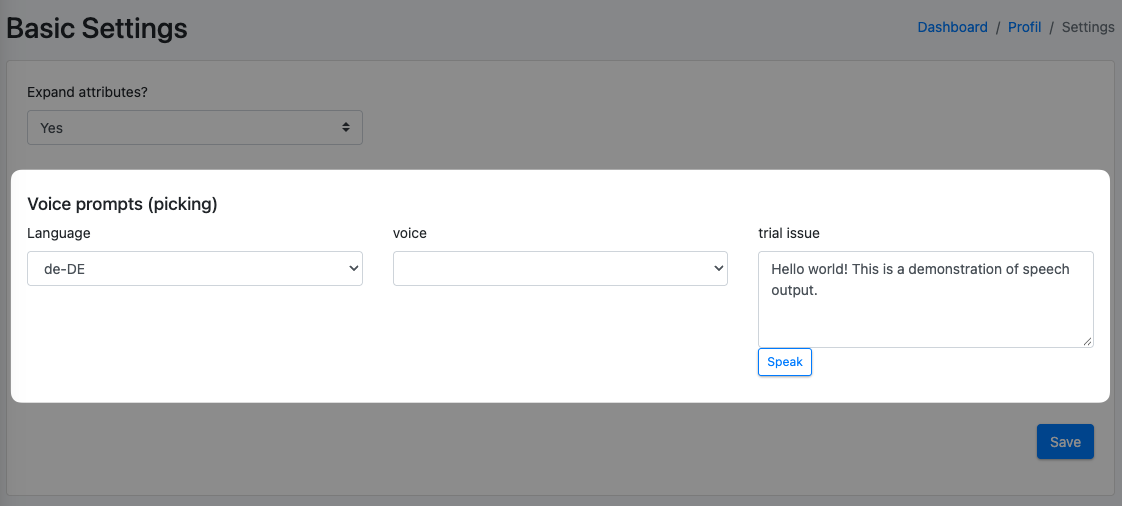
- which language and voice X-Sitter uses for the voice prompts during picking.
Before you start
- You are logged in. No extra permission is needed for the page itself.
- The section Voice prompts (picking) (Sprachansagen (Kommissionierung)) is only shown if you have access to the warehouse (WMS).
Step by step
- Click your name in the top right corner, then Settings (Einstellungen).
- Choose Basic Settings (Grund - Einstellungen) in the menu on the left.
- Under Expand attributes? (Attribute aufklappen?) choose Yes (Ja) or No (Nein).
- If you pick in the warehouse: under Voice prompts (picking) choose the Language (Sprache) and the Voice (Stimme).
- Optional: check the voice. Enter any text in Test output (Testausgabe) and click Speak (Sprechen).
- Click Save (Speichern). X-Sitter confirms with All values have been saved (Alle Werte wurden gespeichert).
Fields and options
Good to know / Troubleshooting
The voices come from your browser and operating system, not from X-Sitter. On a different device or in a different browser the list can look different. Choose and save the voice on the device you actually pick with, e.g. the handheld scanner.