
Staff utilization
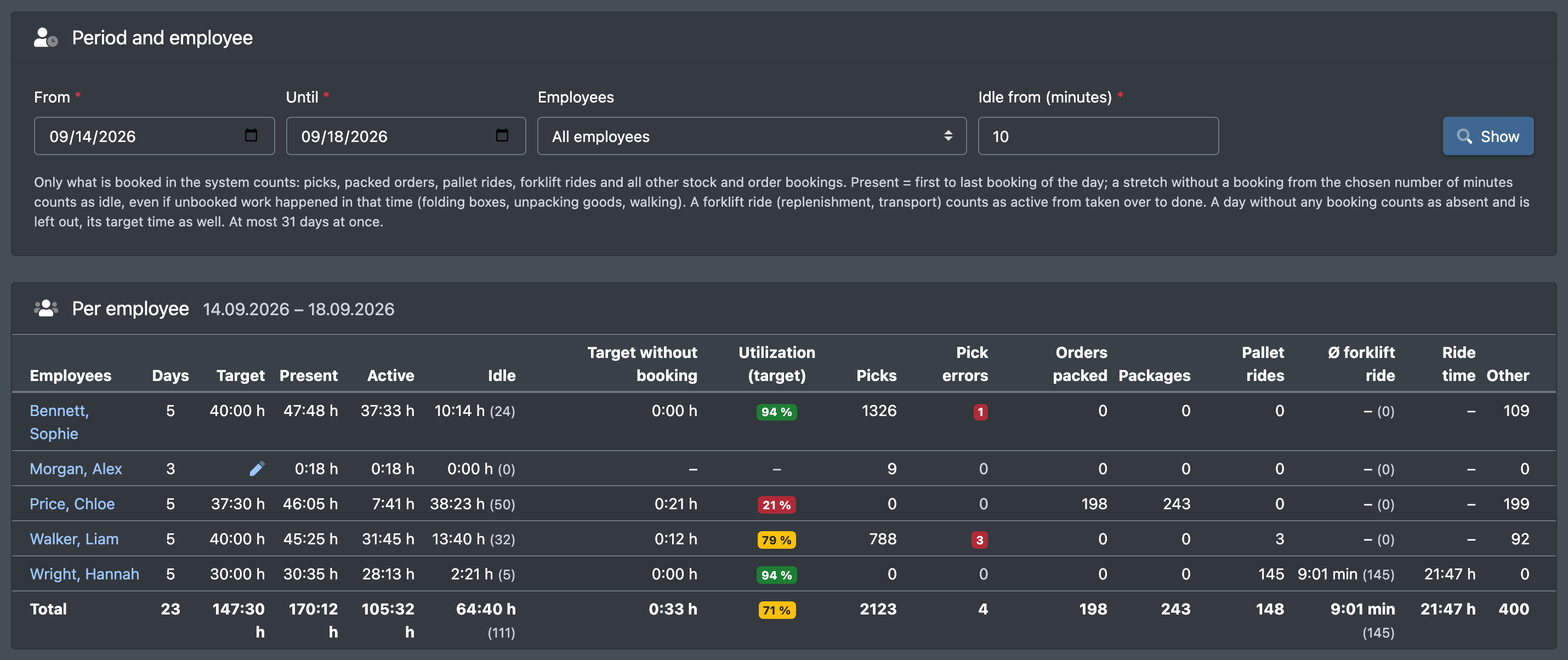
The staff utilization shows you per employee and working day what the system booked of their work and puts it next to their daily target time: picks, packed orders, pallet rides, forklift rides with ride time and the gaps in which nothing was booked. You see at a glance who books little compared to their target time – and you can ask specifically what happened in a gap.
warning Only what is booked counts
Work without a booking – folding boxes, unpacking goods, walking, tidying up – shows as idle. The figures show how much booked work there is, not what someone did all day. Talk anything unusual through with the employee before you draw conclusions.
Before you start
- Maintain the Daily target time (Tagessollzeit) of your employees per weekday – see Employee assignment. Without a target time the page shows the bookings but no utilization.
- Your user needs the permission Staff utilization (Mitarbeiter-Auslastung, WMS › Warehouse) – ask your administrator. Whoever may edit employee assignments has it automatically.
- The page is there for the logistician only; clients see no employees.
Step by step
- Open WMS › Warehouse › Staff utilization (WMS › Lager › Mitarbeiter-Auslastung) – or click Staff utilization in the employee assignments.
- Under Period and employee (Zeitraum und Mitarbeiter) choose the period with From and Until (default: the last 7 days, at most 31 days), an Employee or All employees (Alle Mitarbeiter) and Idle from (minutes) (Leerlauf ab (Minuten), default: 10).
- Click Show (Anzeigen).
- The table Per employee (Je Mitarbeiter) shows the sums of the period. Clicking a name jumps to the working days of that employee.
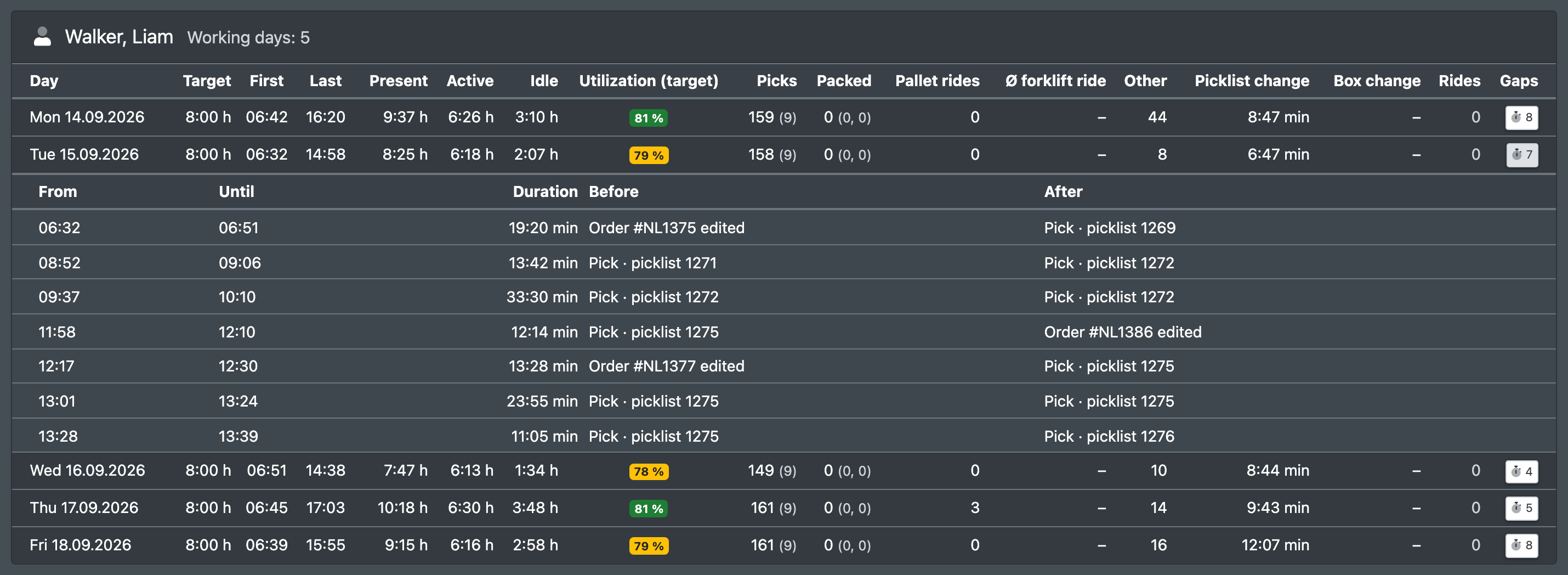
- In the table of an employee, Rides (Fahrten) expands the forklift rides of the day, Gaps (Lücken) the stretches without a booking with what was booked before and after.
What the columns mean
Pick errors
The column Pick errors (Pickfehler) counts per employee the pick errors reported at the packing table for articles they picked (see Report pick errors). The card Pick errors lists every report of the period: Reported on, Picker, Type, Quantity, Item, Order, Picklist / box, Bin location, Reported by and Packing Table. If you choose one employee at the top, you only see their reports.

warning A report is no proof
A report reflects what the packer clicked – they may have miscounted as well. The list records specific incidents with date, order and article and is never changed afterwards. Before using it for talks or employment-law steps, clear its introduction with the works council and data protection.
Forklift rides
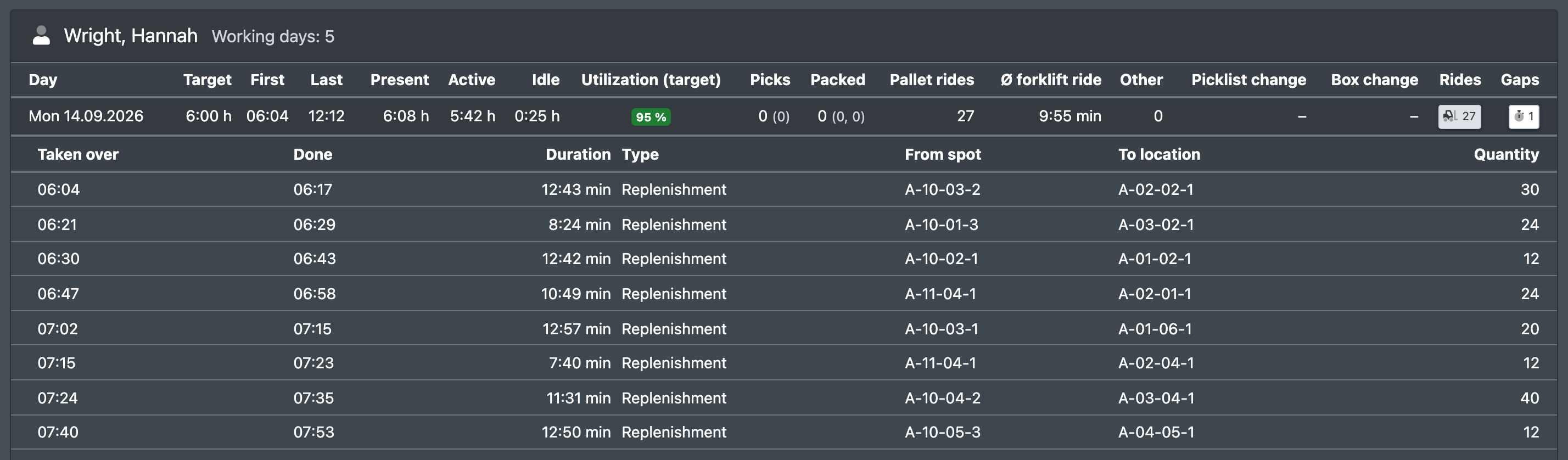
A click on Rides (Fahrten) shows every ride of the day with Taken over (Übernommen), Done (Erledigt), Duration (Dauer), Type (Art, replenishment or transport), From spot (Von Platz), To location (Nach Platz) and Quantity (Menge). The times come from the log of the pallet rides.
Good to know / Troubleshooting
- No utilization, just a dash? No daily target time is maintained for the employee – the pen in the column Target leads straight to the assignment.
- A forklift ride without duration? The ride was completed without being taken over first.
- Other hours than in the dashboard or the monthly report? Those count clock hours with at least one booking; this page measures the time between the bookings.
- Night shift? A day ends at midnight – a shift across midnight shows as two working days.