
Connect JTL Fulfillment Network (FFN)
With the JTL Fulfillment Network (FFN) connection, X-Sitter works as a fulfiller for merchants in the JTL network. After you have connected your JTL account, X-Sitter reads the merchants, their products, their inbound deliveries (as advance notices) and their outbound orders (as orders), and reports shipments, goods receipts and stock back to FFN.
This page covers the connection itself. Afterwards you assign the merchants to your clients (FFN merchants) and switch on the order processing (FFN order processing).
Before you start
- You need a JTL account that is registered as a fulfiller in the JTL Fulfillment Network.
- Your user needs the permission JTL › FFN Connection – ask your administrator. If the menu is missing for your company, contact X-Sitter support to activate the JTL module.
- You do not need any API keys. X-Sitter's access to JTL is already set up; you only confirm it in your JTL account.
Step by step
1. Connect
- In the sidebar open ERP Systems › JTL › FFN Connection (ERP-Systeme › JTL › FFN Verbindung). The page is titled Fulfillment - Connection (Fulfillment - Verbindung).
- Click Request all permissions & connect now (Jetzt alle Rechte anfordern & verbinden).
- You are redirected to JTL. Log in with your JTL account and confirm the access for X-Sitter.
- Back in X-Sitter you see The connection was successfully established (Die Verbindung wurde erfolgreich hergestellt).
2. Check the connection status
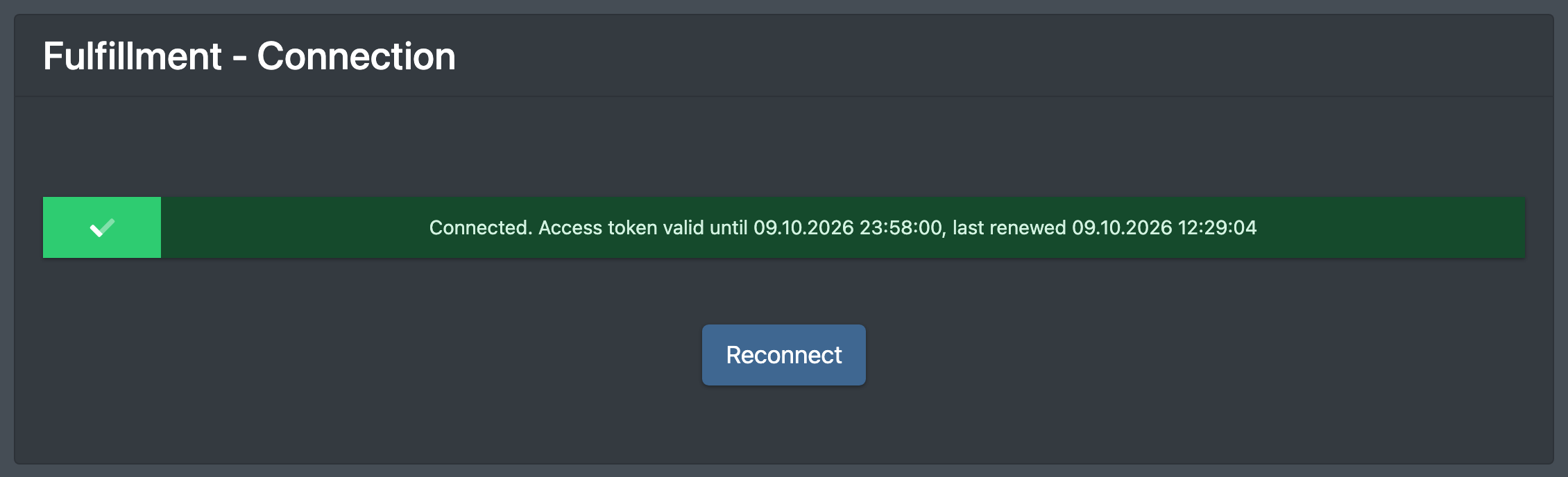
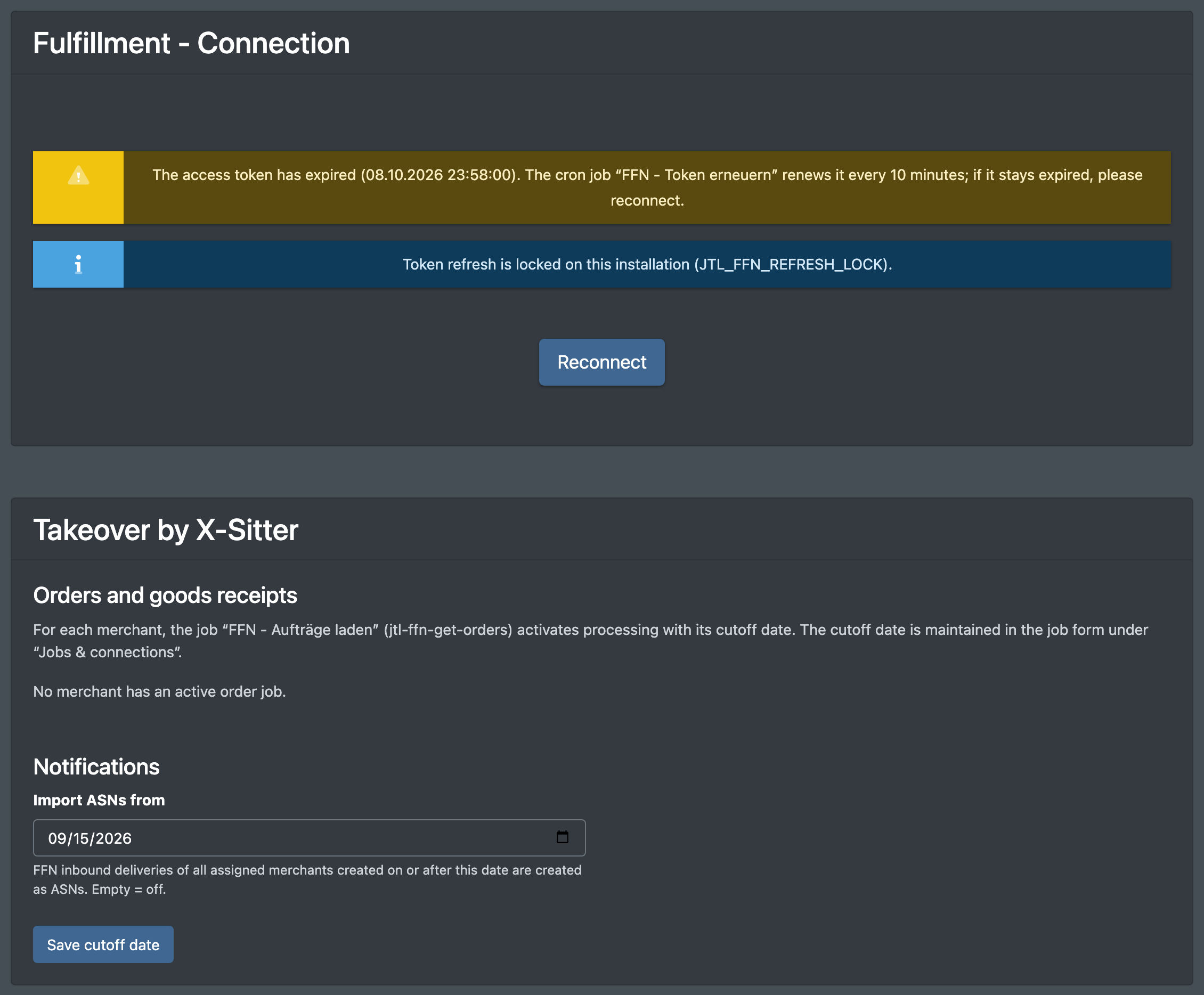
When you open the page again, it shows the status of the connection at the top:
X-Sitter keeps the connection alive automatically. You only have to reconnect if one of the warnings above stays.
3. Assign merchants and switch on processing
- Assign each FFN merchant to a client: FFN merchants.
- Create the FFN jobs for the client in Administration › Jobs & connections (Administration › Jobs & Verbindungen), see Jobs & connections:
- FFN orders (FFN - Aufträge laden) – orders, goods receipts and stock, see FFN order processing,
- FFN products (FFN-Produkte laden) – first import of the merchant's products, with the fields Can view the item (Darf Artikel sehen), Owner (Eigentümer) and category,
- FFN product updates (FFN - Produkt Updates) – keeps the products up to date, with the field Owner.
- Set the cut-off dates in the Takeover by X-Sitter card (see below).
4. The "Takeover by X-Sitter" card
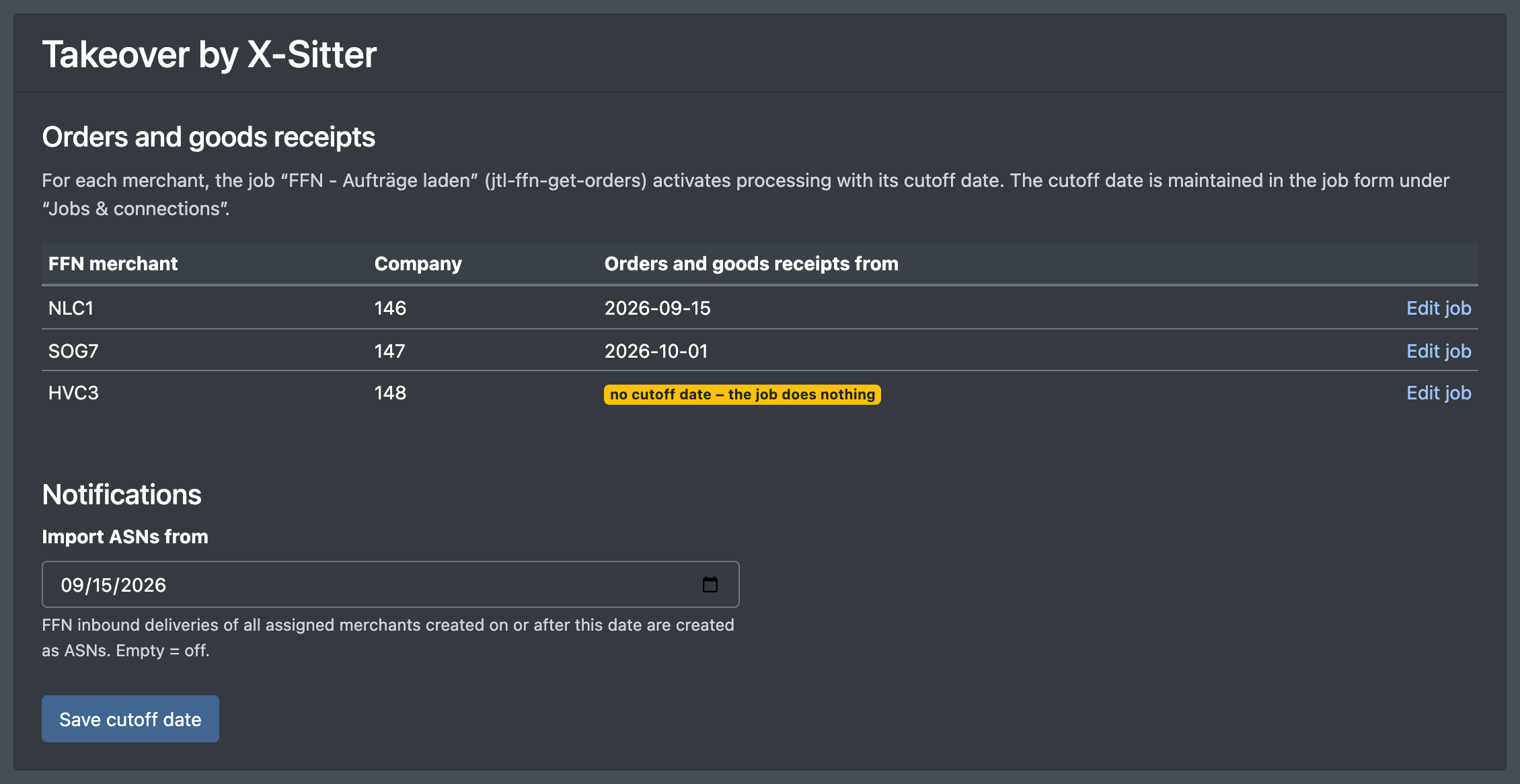
As soon as the connection exists, a second card Takeover by X-Sitter (Übernahme durch X-Sitter) appears on the same page.
Orders and goods receipts (Aufträge und Wareneingänge) A table lists every merchant with an active order job: FFN merchant (FFN-Händler), Company (Firma), the cut-off date Orders and goods receipts from (Aufträge und Wareneingänge ab) and the link Edit job (Job bearbeiten). A merchant without a date shows the badge no cut-off date – the job does nothing (kein Stichtag – der Job tut nichts). The date itself is set in the job, see FFN order processing.
Notifications (Avisierungen) – the advance notice import
- Under Import ASNs from (Avise importieren ab) choose a date.
- Click Save cutoff date (Stichtag speichern).
From this date on, FFN inbound deliveries of all assigned merchants are created as advance notices in X-Sitter. Leave the field empty to switch the import off. This date applies to your whole company, not per merchant.
What is synchronised
Good to know / Troubleshooting
You can receive problems with the FFN connection (expired access, failed import of orders or advance notices) as a Telegram message. Subscribe to JTL-FFN - error (JTL-FFN - Fehler), see Telegram notifications.