
Customer groups
Customer groups (Kundengruppen) give the end customers of your clients their own prices. Every group has a price rule: it starts from a price of the article master, takes a discount or adds a surcharge and rounds the result. For single articles an article price replaces the rule – as a fixed price or with its own percentage, from a quantity on (tier) and for a period you choose. A group can apply to the end customers of all your clients or of one client.
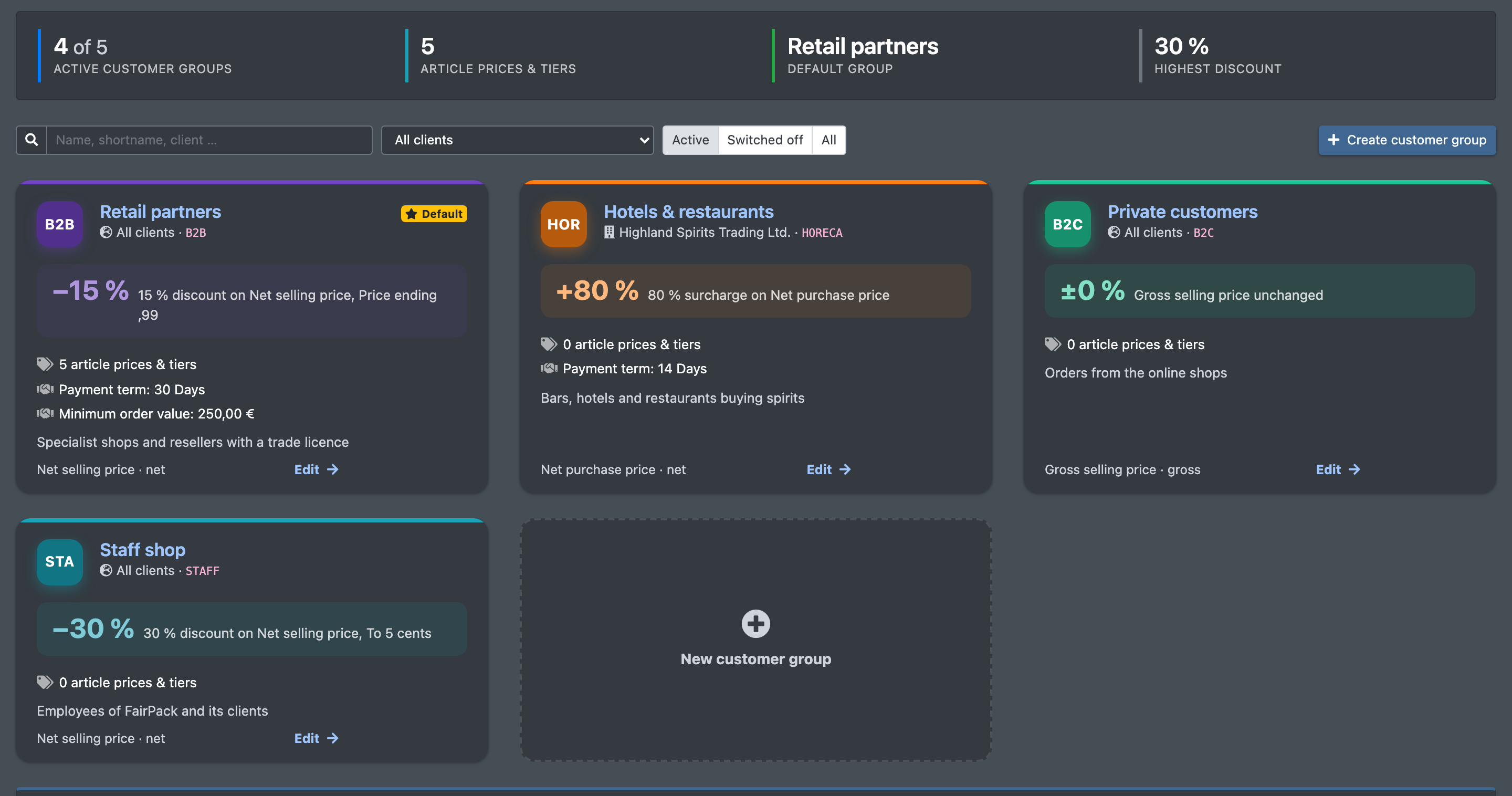
Orders use the customer groups: positions that arrive without price get the price of the group of the order – see
Before you start
- Your user needs the permission Customer groups & prices (Kundengruppen & Preise) to see the page and Create / Edit (Anlegen / Bearbeiten) to change it. Ask your administrator if the menu entry is missing.
- The articles need the prices the rule starts from – net selling price, gross selling price, net purchase price or recommended retail price. See Prices.
- A group for one client needs that client. See Clients.
Step by step
Create a customer group
- Go to Catalogue › Customer groups (Katalog › Kundengruppen) and click Create customer group (Kundengruppe anlegen).
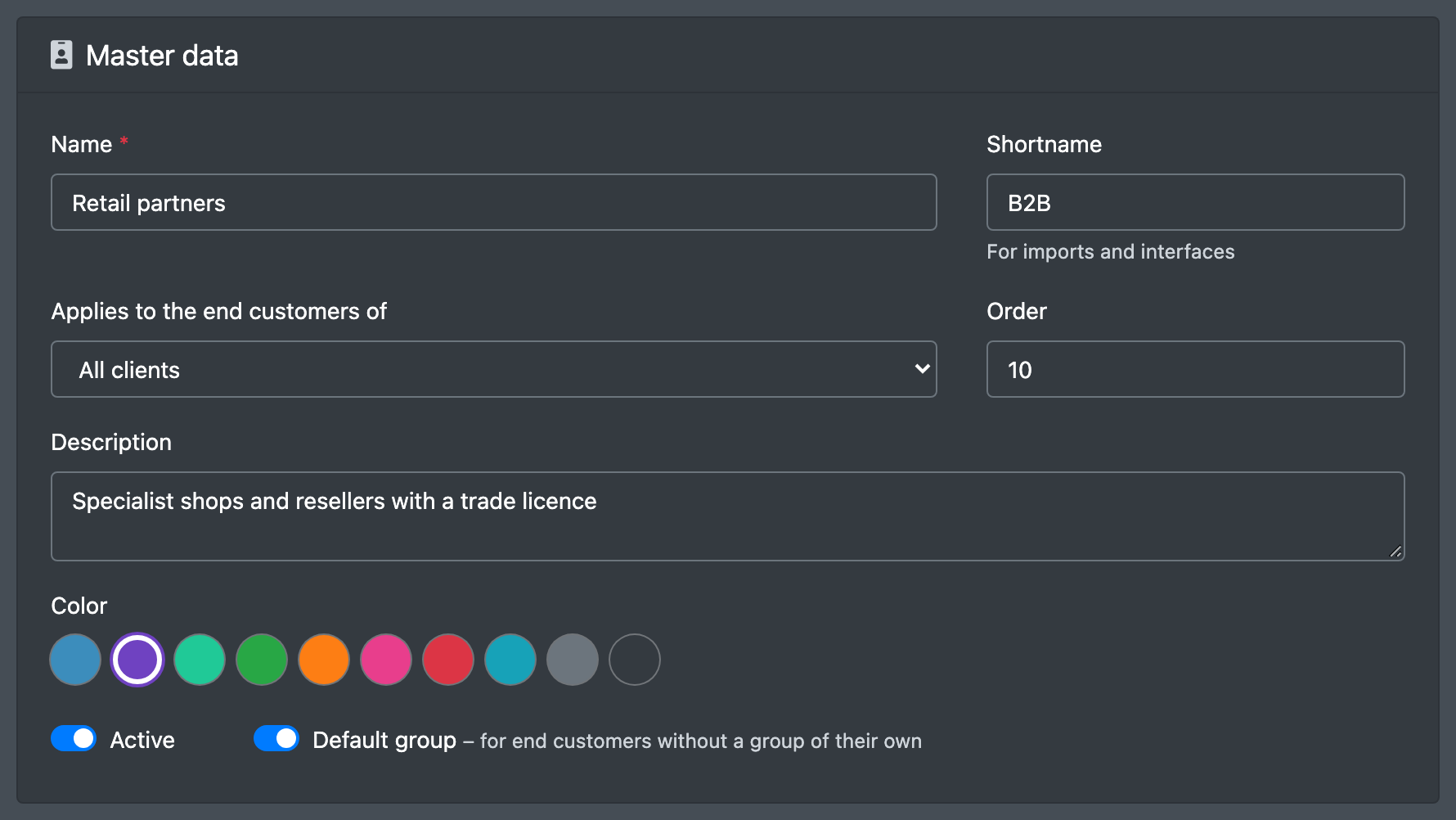
- Fill in the master data: Name, Shortname (Kürzel, e.g. B2B – for imports and interfaces), Applies to the end customers of (Gilt für die Endkunden von) – all clients or one –, Order (Reihenfolge), Description (Beschreibung) and a Color (Farbe).
- Switch on Active (Aktiv). Switch on Default group (Standardgruppe) for the group that end customers without a group of their own belong to.
- Set the price rule (see below) and the conditions.
- Click Create customer group (Kundengruppe anlegen). You see "Customer group saved" (Kundengruppe gespeichert), and the page shows the saved group with the section for article prices.
Set the price rule
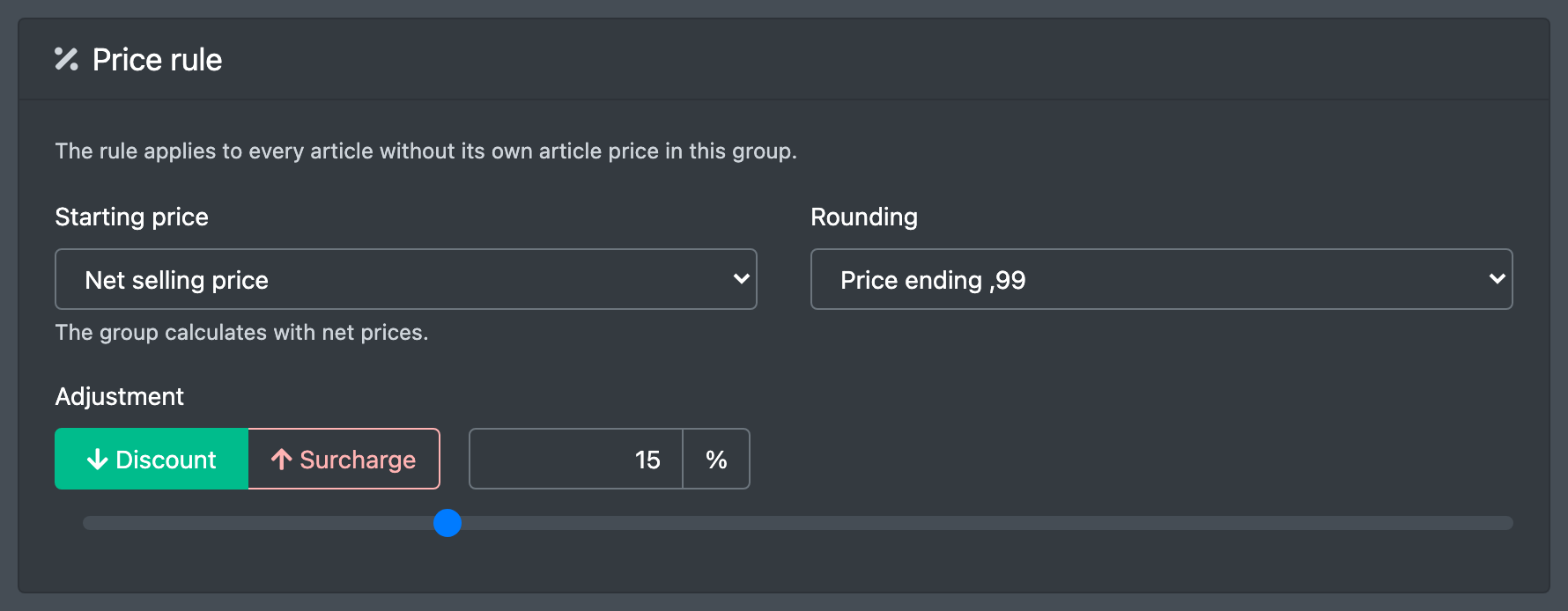
- Under Price rule (Preisregel), choose the Starting price (Ausgangspreis): Net selling price (VK netto), Gross selling price (VK brutto), Net purchase price (EK netto) or RRP (UVP). Gross selling price and RRP give gross prices, the other two net prices.
- Choose Discount (Rabatt) or Surcharge (Aufschlag) and enter the percentage – or move the slider.
- Choose the Rounding (Rundung): to the cent, to 5 cents, price ending ,90 / ,95 / ,99 or to full euros. A price ending takes the nearest price with that ending; on a tie the higher one.
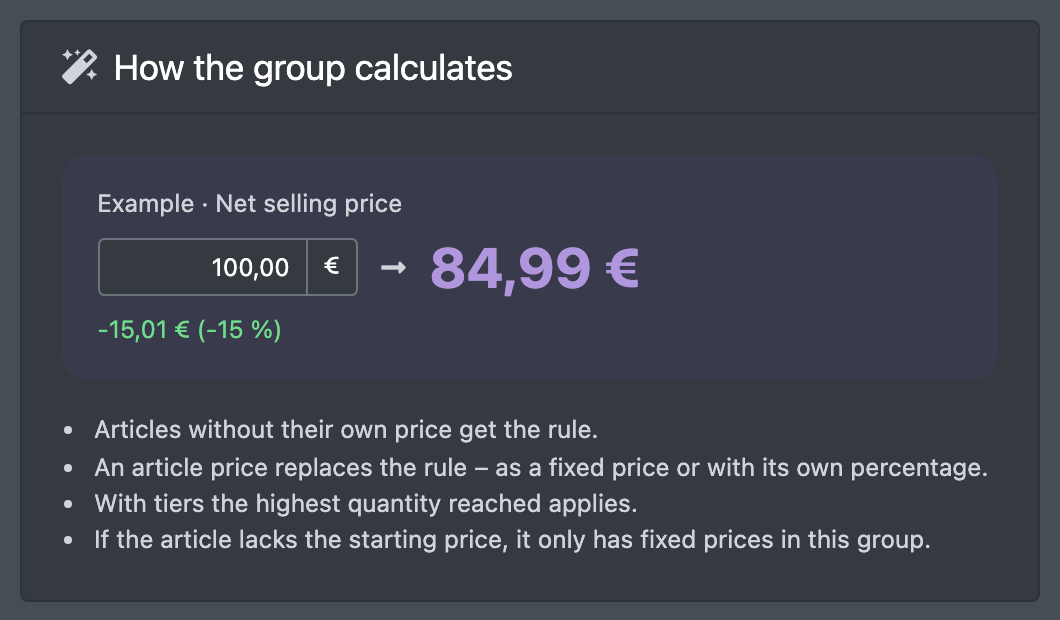
- Check the result on the right under How the group calculates (So rechnet die Gruppe). Type any amount into the example field to see the price of the group and the difference.
Add an article price or a tier
- Open the group and scroll to Article prices & tiers (Artikelpreise & Staffeln).
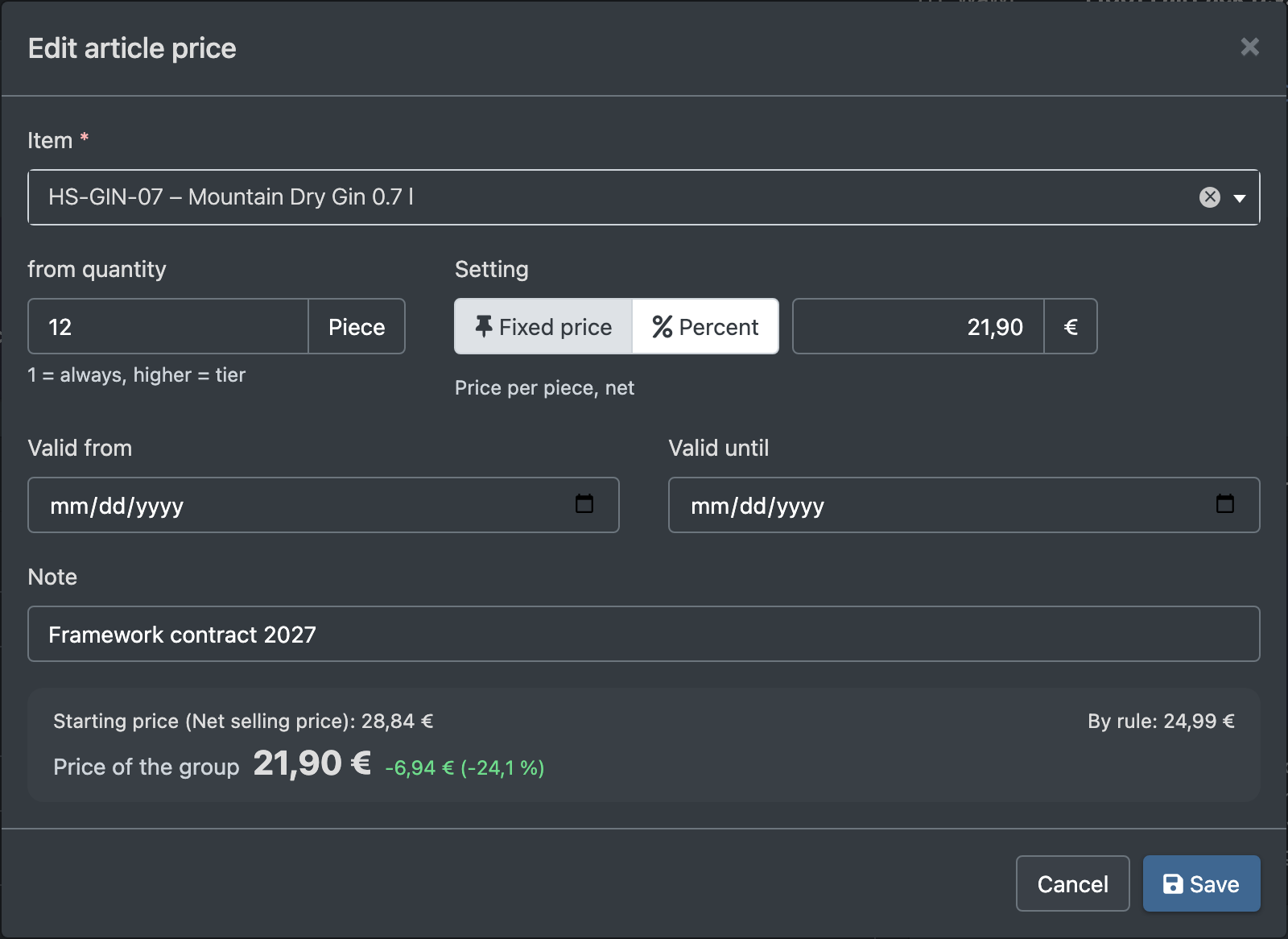
- Click Add article price (Artikelpreis anlegen).
- Search the article by article number, EAN or name.
- Enter from quantity (ab Menge): 1 means always, a higher number makes a tier.
- Choose Fixed price (Festpreis) and enter the price per piece, or Percent (Prozent) and enter a percentage on the starting price (e.g. -20 for 20 % discount).
- Optional: Valid from / Valid until (Gültig ab / Gültig bis) and a Note (Notiz).
- The box at the bottom shows the starting price, the price by rule and the Price of the group (Preis der Gruppe). Click Save (Speichern).
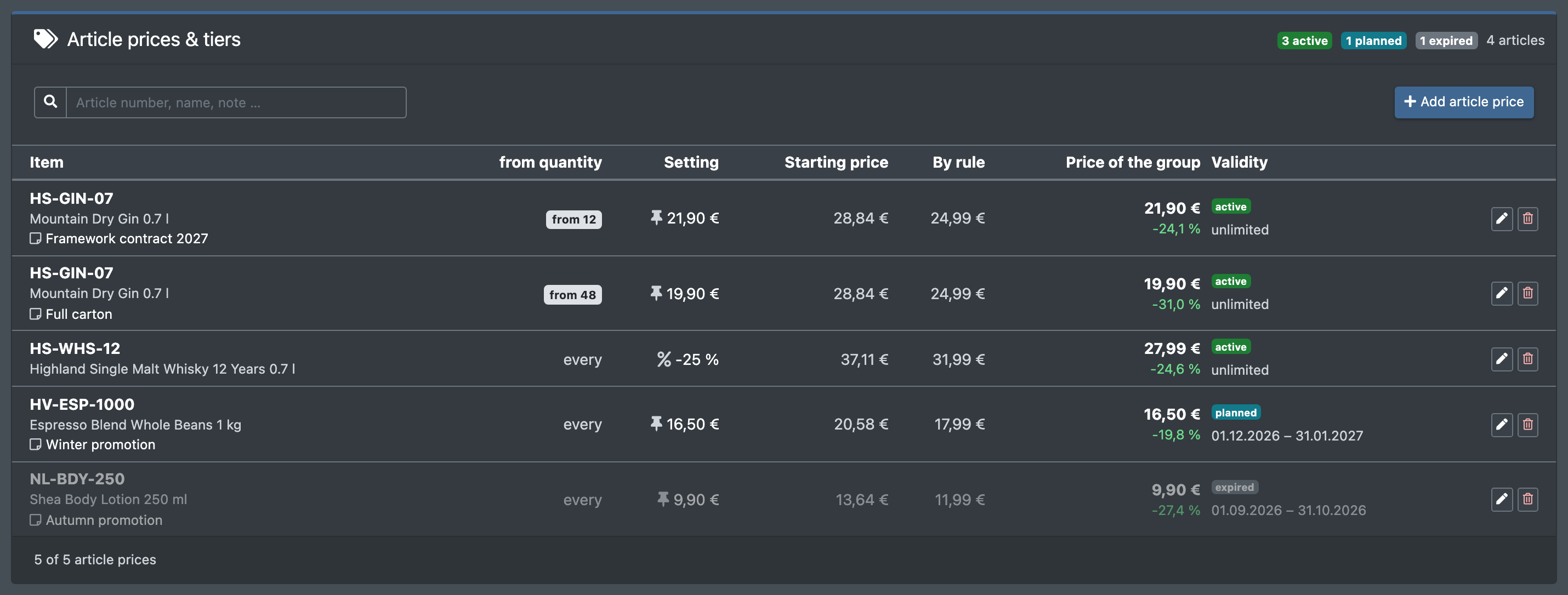
The table lists every article price with the starting price, the price by rule, the price of the group with its difference and the state active, planned or expired. Use the pencil to change an article price and the bin to delete it – the article then gets the price of the rule again.
Check the prices of an article
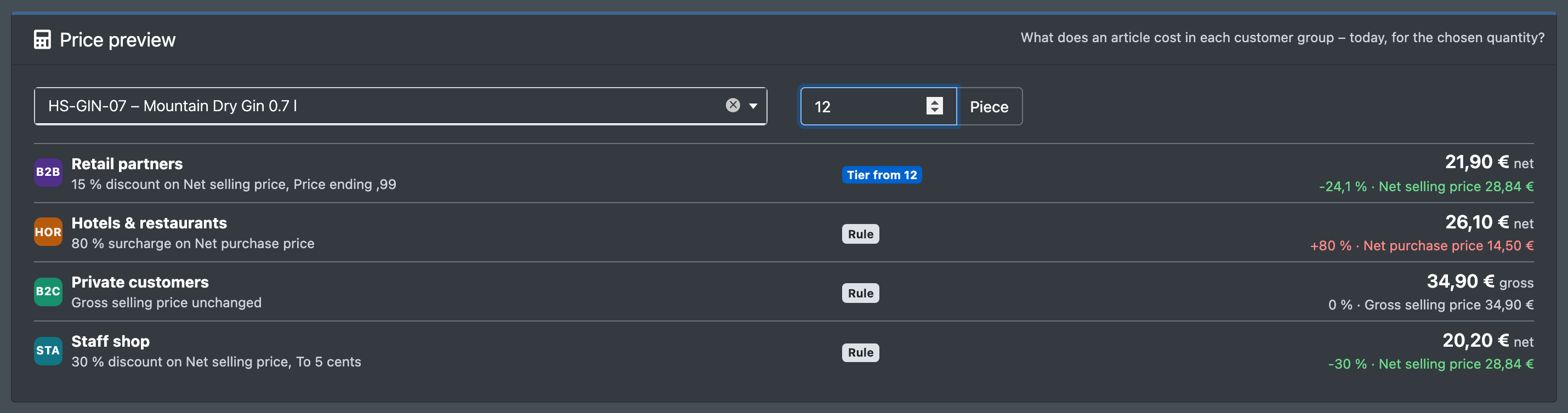
At the bottom of the overview, the Price preview (Preisvorschau) shows what one article costs today in every active customer group that applies to it. Choose the article and the quantity; each line shows the price, where it comes from (Rule or Article price / Tier from …) and the difference to the starting price.
Customer groups in orders
Every order gets a customer group. X-Sitter takes the first one that applies:
- The group chosen on the order – in the order form (Customer group, Kundengruppe) or sent through the API (field
customer_groupwith the shortname). - The group set on the connection the order came through – Customer group of the orders (Kundengruppe der Aufträge) in the settings of the import job, see Jobs and connections.
- The default group of the client, else the default group for all clients.
Switched-off groups and groups of other clients never apply. The group found is stored on the order.
What gets a price: when an order comes in – from a shop, a marketplace, an ERP system, a file, the API or the order form – every position without price gets the price of its group for the ordered quantity. Prices that came with the order (for example from the shop) stay as they are. Parts of a bill of materials and returns are left out. A net group writes the net price and the gross price with the VAT rate of the position; a gross group the other way round.
In the order form you can also take the prices of the group over on purpose: Apply customer group prices (Preise der Kundengruppe übernehmen) writes them into every position, also over existing prices.
How the price is found
- Of the article prices of the group for the article, X-Sitter takes the ones that are valid today and whose from quantity the order reaches.
- Among them, the one with the highest quantity wins.
- Without such an article price, the rule applies to the starting price.
- If the article has no starting price, it has a price in this group only through a fixed price.
A fixed price is taken as it is. A percentage article price is rounded like the rule. A group for one client only applies to the articles of that client; a group for all clients applies to every article.