Consumables
Consumables are everything that is used up when packing: cartons, labels, filling material. You keep them as ordinary articles of your catalogue – the stock lies on storage places like that of any article, and history, correction booking, inventory and export work as usual. The page Consumables (Verbrauchsmaterial) defines per warehouse which articles are consumables, which minimum stock they have and what an order uses up when it is packed. On top of that come the suppliers, the purchase orders and the reports.
The page has six tabs: Stock (Bestand), Consumption rules (Verbrauchsregeln), Postings (Buchungen), Suppliers (Lieferanten), Orders (Bestellungen) and Reports (Berichte).
Before you start
- Your user needs the permissions under WMS › Lager › Verbrauchsmaterial – ask your administrator:
- Verbrauchsmaterial (consumables) – see the page,
- Anlegen / Bearbeiten / Buchen (create / edit / book) – change consumables, rules, suppliers and purchase orders, book and reverse usage,
- Bestellungen freigeben (release purchase orders) – release a purchase order or take it back into the draft.
- A warehouse is selected at the top right. The list of consumables and the purchase orders apply per warehouse, the suppliers to your whole company.
- The material exists as an article in the catalogue – see Create an article.
- The Carton place type (Kartonagen Platztyp) is chosen in the warehouse settings. The places of this place type are your packing-material spots: the packing station books from there. If the setting is missing, the page shows a yellow note – usage is then recorded, but not taken off the stock.
- The stock of the material lies on a packing-material spot. It gets there as for any article: by goods receipt, a relocation or a correction booking in the stock overview.
Step by step
Add material (Stock tab)
- Open WMS › Storage › Consumables (WMS › Lager › Verbrauchsmaterial). You start on the tab Stock (Bestand).
- Click Add consumable (Verbrauchsmaterial hinzufügen).
- Search the Item (Artikel) by article number or name, choose the Type (Art: Packaging – Kartonage, Label – Etikett, Filling material – Füllmaterial, or Other – Sonstiges) and enter the Minimum stock (Mindestbestand). 0 means: do not monitor.
- Click Save (Speichern). You see "Consumable saved".
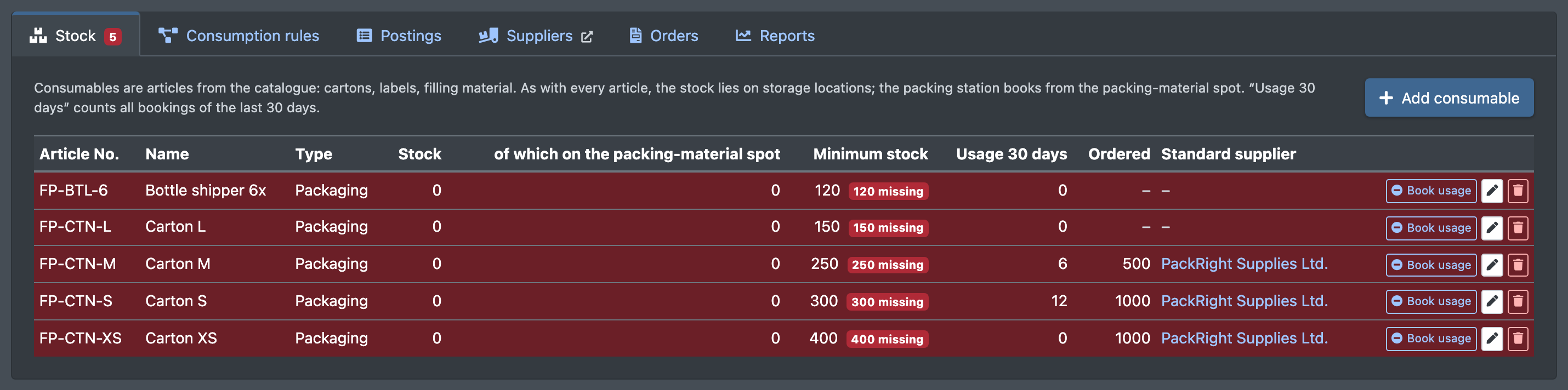
The table shows per material:
Every row offers Book usage (Verbrauch buchen), the pencil (Edit – Bearbeiten: change type and minimum stock) and the bin (Remove from the list – Aus der Liste nehmen). When you remove a material, X-Sitter asks "Remove the consumable from the list?" – the article, its stock and the booked usage stay, the consumption rules of this material are deleted.
You do not have to add cartons one by one: a carton the packing station uses for the first time is added to the list by itself.
Define what an order uses up (Consumption rules tab)
A consumption rule books material out by itself when packing and records the usage with the order and its client.
- Switch to the tab Consumption rules (Verbrauchsregeln) and click Create consumption rule (Verbrauchsregel anlegen).
- Choose the Consumables (Verbrauchsmaterial) entry and enter the Quantity (Menge).
- Under Counts (Zählt) choose how often the quantity is booked: per order (je Auftrag), per package (je Paket) or per piece (je Stück).
- Optional: narrow the rule down – with Only for article (Nur bei Artikel), the Order type (Auftragsart: Alle Aufträge – all orders, B2B orders only – Nur B2B-Aufträge, or B2C orders only – Nur B2C-Aufträge) and the Client (Mandant: All clients – Alle Mandanten, or one).
- Leave Rule is active (Regel ist aktiv) switched on and click Save (Speichern). You see "Consumption rule saved".
With Only for article, only the packages and pieces of this article count; per order then applies when the order contains the article.
Examples:
- 1 shipping label per package for all orders,
- 1 sheet of filling paper per piece of the article "wine bottle",
- 1 delivery note pouch per order, for B2B orders only.
Cartons need no rule – the packer chooses them per package at the packing station, see Packing.
Book usage by hand
- On the tab Stock, click Book usage (Verbrauch buchen) in the row of the material.
- Enter the Quantity (Menge), optionally the client, the order number and a Comment (Bemerkung).
- Click Book (Buchen). You see "Usage booked".
The quantity is taken from the packing-material spot. The booking is listed with your name and the time on the tab Postings and in the article history.
View and reverse bookings (Postings tab)
- Switch to the tab Postings (Buchungen).
- Set the filters – From (Von) and Until (Bis; prefilled: the last 30 days), Client (Mandant) and Consumables (Verbrauchsmaterial) – and click Show (Anzeigen).
The list shows Date (Datum), Consumables (Verbrauchsmaterial), Quantity (Menge), Booked out (Abgebucht), Client (Mandant), Order (Auftrag), Source (Herkunft), User (Benutzer) and Comment (Bemerkung). Booked out is red when less left the stock than was used.
You correct a booking with the source Manual or Consumption rule with Cancel (Stornieren) in its row. Confirm the question "Reverse the booking?" with Yes, cancel (Ja, stornieren). The quantity that was booked out goes back to the place it came from. Afterwards the list shows a reversal row with your name and the time, and the original booking carries cancelled (storniert).
The carton of a package is not reversed here; you change it in the package management of the order – see Packages and tracking. Shrinkage or count differences are corrected with the correction booking of the stock overview.
Create suppliers (Suppliers tab)
- Switch to the tab Suppliers (Lieferanten) and click Create supplier (Lieferant anlegen).
- Enter the Name and the E-mail for purchase orders (E-Mail für Bestellungen) and, if you like, Contact person (Ansprechpartner), Phone (Telefon), the address, Our customer number (Unsere Kundennummer), the Delivery time in days (Lieferzeit in Tagen) and a Note (internal) (Notiz (intern)).
- Leave Supplier is active (Lieferant ist aktiv) switched on and click Save. For a new supplier its articles open afterwards.
A supplier is not deleted but switched off: its purchase orders stay traceable, new ones can no longer be created, and it no longer counts as standard supplier.
Maintain the articles and prices of a supplier
- Click Articles & prices (Artikel & Preise) in the row of the supplier – or its name.
- Click Add stock item (Artikel hinzufügen).
- Choose the consumable of the warehouse and enter the Supplier’s article no. (Artikel-Nr. des Lieferanten), the Minimum order quantity (Mindestbestellmenge) and, if needed, the Delivery time in days (Lieferzeit in Tagen). Empty means the delivery time of the supplier.
- Enter the Tier prices (net per piece) (Staffelpreise (netto je Stück)): per row a quantity from which the price applies, and the price. Add further rows with Add tier (Staffel hinzufügen). Example: from 1 piece 0.05 €, from 1000 pieces 0.04 €. The purchase order takes the price of the highest tier the quantity reaches.
- Switch on Standard supplier for this article (Standardlieferant für diesen Artikel) if this supplier is the usual one, and click Save.
An article can be listed with several suppliers. Only one of them is the standard supplier – the one marked last. X-Sitter never chooses another supplier by itself.
Create, release and send a purchase order (Orders tab)
Nothing is ever ordered by itself. X-Sitter suggests quantities – you create, release and send every purchase order yourself.
- Switch to the tab Orders (Bestellungen), choose a supplier at the top right and click Create Order (Bestellung anlegen).
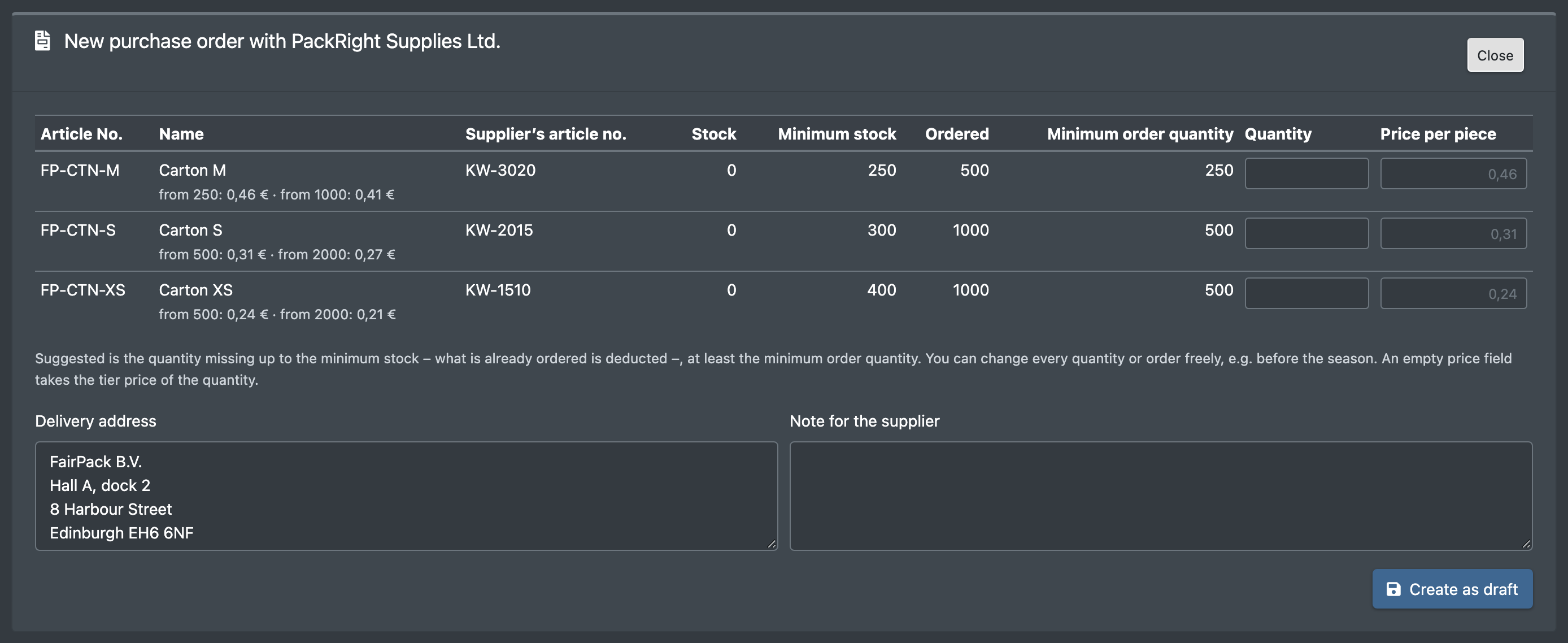
- The form shows every article of the supplier with Stock (Bestand), Minimum stock (Mindestbestand), Ordered (Bestellt) and Minimum order quantity (Mindestbestellmenge). The field Quantity (Menge) holds a suggestion: the quantity missing up to the minimum stock – what is already ordered is deducted –, at least the minimum order quantity. Rows below minimum stock are yellow.
- Change the quantities as needed. You can also order freely without a minimum stock being undercut, for example before the season. An empty field Price per piece (Preis je Stück) takes the tier price of the quantity.
- Check the Delivery address (Lieferadresse) – prefilled with the address of the last purchase order of the warehouse, otherwise your company address – and enter a Note for the supplier (Bemerkung für den Lieferanten) if needed.
- Click Create as draft (Als Entwurf anlegen). You see "Purchase order created as a draft".
- In the draft you can change the order number (External order number – Bestellnummer), the Requested delivery date (Gewünschter Liefertermin), quantities, prices, address and note and save with Save draft (Entwurf speichern). The delivery date is prefilled with today plus the longest delivery time of the positions.
- Click Release (Freigeben) and confirm with Yes, release (Ja, freigeben). You need the permission Bestellungen freigeben for this, and the purchase order needs at least one position and a delivery address. Who released it and when is shown on the purchase order afterwards.
- Click Send by e-mail (Per E-Mail senden) and confirm with Yes, send (Ja, senden). The purchase order goes to the E-mail for purchase orders of the supplier – with the supplier's article number, name, quantity, price per piece, total, order number, delivery date, delivery address and your customer number. The status changes to Sent (Gesendet). Erneut senden (resend) sends it once more.
A released purchase order can no longer be changed. Back to draft (Zurück in den Entwurf) takes it back – this also needs the permission Bestellungen freigeben.
Book the goods receipt for a purchase order
- Open the purchase order and click Book goods receipt (Wareneingang buchen).
- Per position enter the delivered quantity under Received now (Jetzt erhalten). The open quantity is prefilled – for a partial delivery you enter less.
- Under Book into stock on (In den Bestand buchen auf) choose a packing-material spot. The quantity is then booked in at once and appears in the article history as "Wareneingang Bestellung …". Or choose Do not book – the goods come in through the usual goods receipt (advice) (Nicht buchen – die Ware läuft über den normalen Wareneingang (Avisierung)): the receipt is then only noted on the purchase order.
- Click Book goods receipt.
After a partial delivery the purchase order is Partly received (Teilweise erhalten). When nothing is open any more, it is Received (Erhalten).
Cancel a purchase order
Click Cancel (Stornieren) in the purchase order and confirm the question "Cancel the purchase order?". This works as long as the purchase order has not been received completely. A cancelled purchase order stays in the list but no longer counts as ordered. You inform the supplier yourself – X-Sitter sends no reminders and escalates nothing.
Analyse (Reports tab)
- Switch to the tab Reports (Berichte).
- Set From and Until (prefilled: the last 90 days), Client and Consumables and click Analyse (Auswerten).
- Excel downloads the same analysis as a file with six sheets: usage, usage per month, stock history per day, suppliers, carton utilisation and packages.
The Excel sheet with the packages lists every package with date, order, client, carton, pieces, package weight, fill weight and utilisation by weight and volume. You maintain the Max. fill weight and the dimensions of a carton under Storage aid types.
Have the minimum stock checked every week (job)
A job checks once a week which consumables are below their minimum stock and reports them by e-mail.
- Under Jobs & connections create the job WMS: Verbrauchsmaterial – wöchentliche Mindestbestandsprüfung (weekly minimum stock check of the consumables).
- Choose the warehouses – without a selection every warehouse of your company is checked.
- Under Recipients (e-mail addresses, separated by commas) (Empfänger (E-Mail-Adressen, durch Komma getrennt)) enter who gets the e-mail, for example warehouse management and head of department.
- Under Check on (Prüfung am) choose the weekday.
- Under Monthly count (Monatliche Zählung) choose whether the first check of the month reminds you of the count: Remind with the first check of the month (with count list) (Bei der ersten Prüfung im Monat erinnern (mit Zählliste)) or Do not remind (Nicht erinnern).
- Switch the job to active and save.
Per warehouse one e-mail goes to all recipients – only when consumables are below their minimum stock. Per material it names article number, name, standard supplier, stock, minimum stock, what is already ordered and the quantity to order: what is missing up to the minimum stock, at least the minimum order quantity. If it says 0, the running purchase orders cover the demand.
With the monthly count, the first check of a month additionally contains the list of all consumables of the warehouse with the stock according to the system, the stock on the packing-material spot and an empty column for the counted quantity – even when nothing is below minimum stock. You correct deviations with the correction booking of the stock overview.
The check orders nothing. The e-mail points to the tab Orders (Bestellungen); you create the purchase order there yourself.
What happens when packing
- When a box is finished at the packing station and when the package management of an order is saved, X-Sitter applies the active consumption rules to all packages of the order packed so far. Only what a rule has not yet booked for this order is booked: finishing a box twice books nothing twice, a package added later only books the difference.
- The quantity is taken from the packing-material spot, oldest stock row first, never below 0. The article history of the material gets a goods-out row with picklist, order and the client of the order.
- If the stock on the packing-material spot is not sufficient, the usage is recorded anyway. The history then gets a row without quantity and the reason "Verbrauchsmaterial nicht abgebucht" (consumable not booked out). Shipping is never held up.
- The chosen carton of every package is listed on the tab Postings as well, with the source Packing station (carton).
- Because every goods-out row carries client and order, you can bill the usage to the client – see Material costs. A reversed booking no longer counts there.
Fields and options
Status of a purchase order
Released, sent and partly received purchase orders count as Ordered (Bestellt) with their open quantity.