
Import and export cost templates
Many of your clients get almost the same cost templates. Instead of creating every template again by hand, you export all templates of one client in the selected warehouse as an Excel or CSV file, adjust names and prices and import the file for another client. The same way you can update the templates of a client: export, change the prices in the spreadsheet and load the file back with Update (Aktualisieren).
The file contains: Storage space costs, Article costs, Order costs, Material costs, Unloading costs, Invoice items, the Shipping cost matrix, Pallet costs and VAS templates. Recorded VAS and individual positions are bookings, not templates, and are not part of the file. Templates are never deleted by an import.
Before you start
- Your user needs the permission Template import/export (Vorlagen Import/Export) in the cost settings of the rights tree. Users who already had the cost settings got it automatically – otherwise ask your administrator.
- Select the warehouse in the warehouse drop-down at the top right. Templates always belong to a warehouse; without a warehouse you see "Please select a warehouse." (Bitte wähle ein Lager aus.).
- You are logged in as the logistician. The client list shows your own company, marked "(Logistician)" ((Logistiker)), and your active clients.
Step by step
1. Export the templates of a client
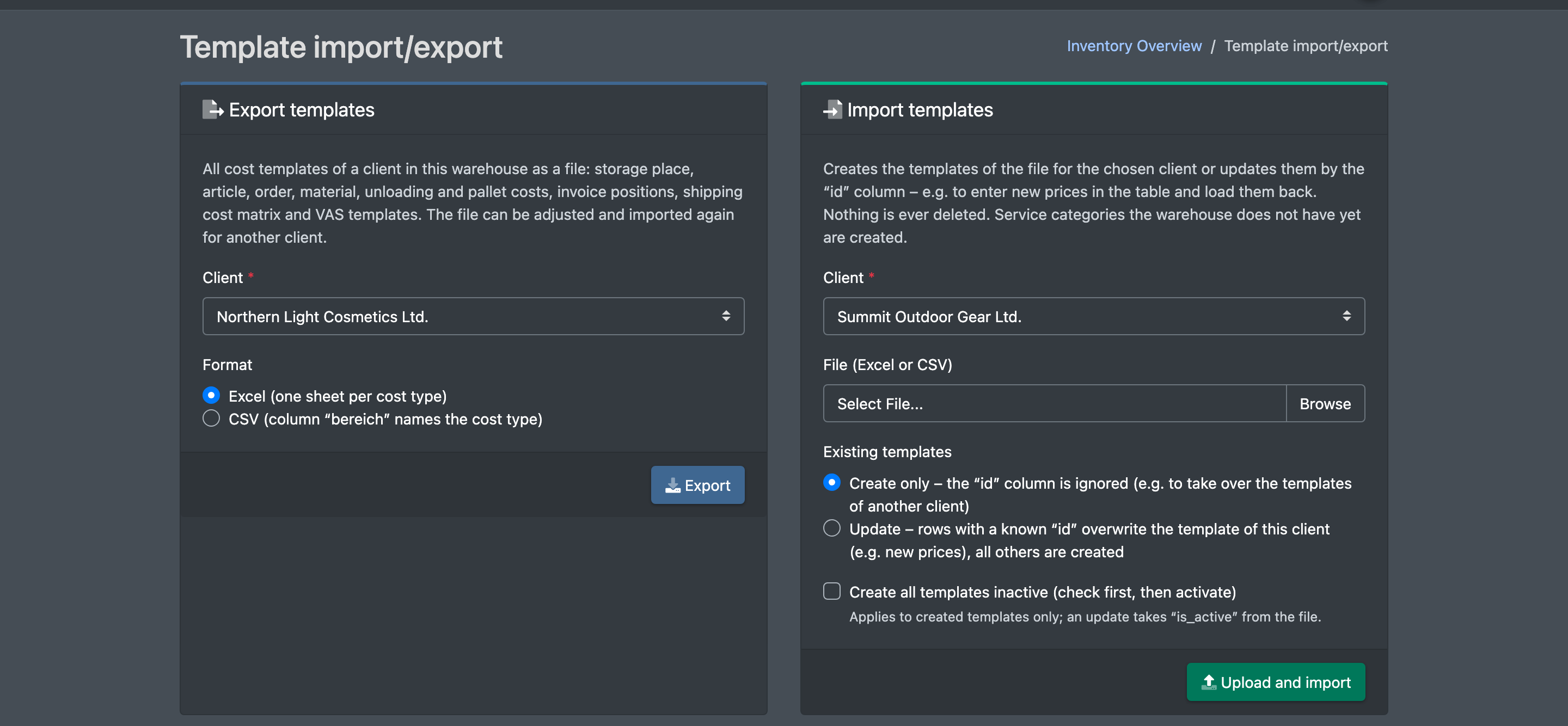
- Open WMS › Settings › Cost settings › Template import/export (WMS › Einstellungen › Kosteneinstellungen › Vorlagen Import/Export).
- In the card Export templates (Vorlagen exportieren), choose the Client (Mandant) whose templates you want to export.
- Choose the Format (Format):
- Excel (one sheet per cost type) (Excel (ein Tabellenblatt je Kostenart)) – each cost type on its own sheet, e.g. "Lagerplatzkosten".
- CSV (column "bereich" names the cost type) (CSV (Spalte „bereich“ nennt die Kostenart)) – one file, the first column names the cost type.
- Click Export (Exportieren). Your browser downloads
kostenvorlagen_<client>_<date>.xlsxor.csv.
2. Edit the file
- Change names, descriptions, prices or categories, delete rows you do not need or copy rows.
- Do not rename the column headers.
- Leave the column
idas it is if you want to update the templates later; leave it empty for new rows.
3. Import the file
- In the card Import templates (Vorlagen importieren), choose the Client (Mandant) the templates are for. The client named in the file does not matter.
- Under File (Excel or CSV) (Datei (Excel oder CSV)), select the file.
- Under Existing templates (Vorhandene Vorlagen), choose what happens with the column
id:- Create only (Nur neu anlegen) – every row becomes a new template,
idis ignored. Use this to take over the templates of another client. - Update (Aktualisieren) – a row whose
idnames a template of this client overwrites that template; all other rows are created as new templates. Use this for new prices.
- Create only (Nur neu anlegen) – every row becomes a new template,
- Optional: tick Create all templates inactive (check first, then activate) (Alle Vorlagen inaktiv anlegen (erst prüfen, dann aktivieren)). New templates then do not count on the client billing until you switch them to Active.
- Click Upload and import (Hochladen und importieren). You see e.g. "12 templates were created for Summit Outdoor Gear Ltd." (12 Vorlagen wurden für … angelegt.) or, with Update, "… created, 5 updated".
4. Check the result
The card Result (Ergebnis) shows per cost type how many templates were Created (Angelegt), Updated (Aktualisiert) and Skipped (Übersprungen), and the service categories that were newly created. The card Hints (Hinweise) lists every row X-Sitter had to adjust, e.g. an article number that does not exist.
Fields and options
Columns of the file
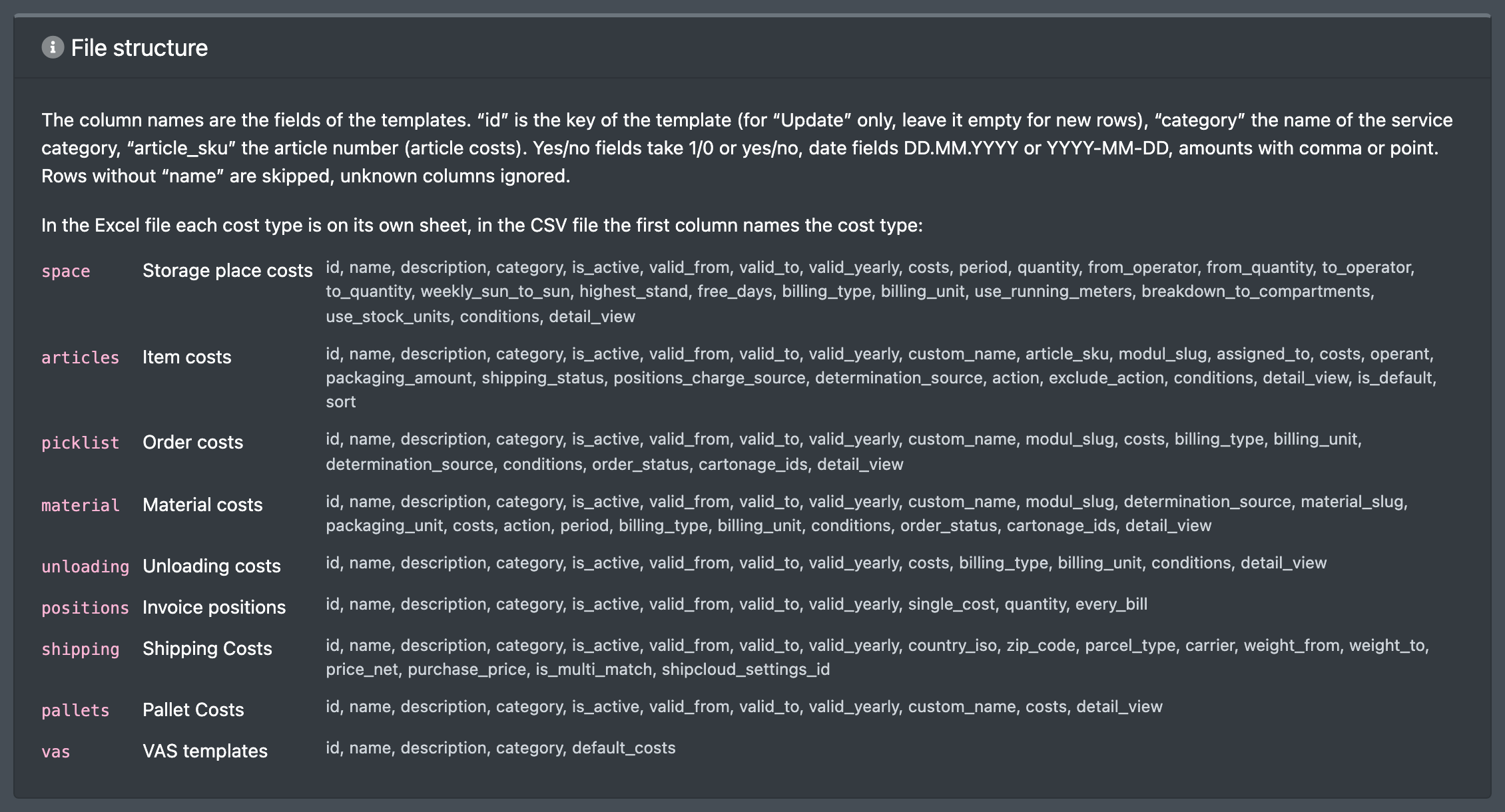
The card File structure (Aufbau der Datei) at the bottom of the page lists the columns of every cost type. They are the fields of the templates:
Values: yes/no fields take 1/0, ja/nein or x; dates DD.MM.YYYY or YYYY-MM-DD; amounts with comma or point. Unknown columns are ignored, missing columns get the default value.
Good to know / Troubleshooting
- The import runs as a whole: if a row cannot be written, nothing is saved.
- Imported active templates count on the client billing right away. Use the option Create all templates inactive if you want to check them first.
- The article of an article cost template is found by its number – preferably the article of the target client, otherwise your own. If it does not exist, the template is created without an article (with Update the previous article stays).
- For a price change at a fixed date in a single template, use Price change from a date in the template form, see Validity period.
- The cost type names (sheet names, result table, hints) are always German, e.g. Lagerplatzkosten, Auftragskosten.