
ABC analysis
The ABC analysis (ABC-Bewertung) sorts the articles of a warehouse by their access frequency: class A are the few articles that are accessed most often, class C the many that are hardly or never moved. This shows you which articles belong close to picking, where replenishment is running short and which stock is just lying there. The analysis is calculated anew every time you open it – from the bookings in X-Sitter alone.
The page only reads. It books nothing, relocates nothing and notifies nobody.

Before you start
- Your user needs the permission ABC analysis (ABC-Bewertung). It is in the permission tree under WMS › Warehouse (WMS › Lager), see Employees and Roles. Whoever was allowed to open the Warehouse dashboard got the permission automatically when the page was introduced.
- A warehouse is selected, and it contains booked picks or pallet loadings, see Picking with the cart.
- You set the measure, the period and the shares of the classes in the warehouse settings – see
Settings per warehouse . Without a setting, 80 % / 15 % / 5 % by the number of accesses of the last 3 months applies. - For the Storage location suggestions and for counting by ABC class in the physical inventory you need the stored classification – see
Store the classes and see changes of class .
Step by step
Analyse the articles
- Open WMS › Warehouse › ABC analysis (WMS › Lager › ABC-Bewertung). The page analyses at once with the period that is set for the warehouse.
- In the card Analysis by access frequency (Auswertung nach Zugriffshäufigkeit) at the top, choose what you want to see:
- Period (Zeitraum): Last 3 months (Letzte 3 Monate) or Last year (Letztes Jahr).
- Owner (Eigentümer): all or the articles of one client, see Article owner and client access.
- Storage area (Lagerbereich): all or one area, see Storage areas.
- Category (Warengruppe): all or one product group, see Product groups.
- Supplier (Lieferant): all or one supplier from your advance notices.
- Class (Klasse): all or only A, B or C.
- Click Analyse (Auswerten).
- The header of the card tells you what was used for the calculation: the measure ("Measured by: …"), the limits of the classes and the period with its dates.
The results are further down on the page:
- Three tiles Class A, Class B and Class C (Klasse A/B/C) show per class the number of articles and their share of the accesses.
- Distribution per warehouse area (Verteilung je Lagerbereich) shows how many A, B and C articles have stock in which area.
- The table Item (Artikel) lists Rank (Rang), Article No. (Artikel-Nr.), Name (Bezeichnung), Owner (Eigentümer), Category (Warengruppe), Accesses (Zugriffe), Quantity (Menge), Share % (Anteil %), Cumulative % (Kumuliert %) and Class (Klasse) – 100 articles per page.
Download the analysis as Excel
In the card Analysis by access frequency, click Download Excel (Excel herunterladen). The file contains the analysis with the chosen filters: the articles on the first sheet, the distribution per warehouse area on the second, and period, measure, limits and totals on the third.
Store the classes and see changes of class
Besides the analysis on demand, X-Sitter stores the classes of the whole warehouse. Only then can it show which articles have changed their class.
- Look at the card Stored classification (Gespeicherte Klassifizierung). The header shows the state: date, monthly job (monatlicher Job) or by hand (von Hand), number of articles, period and limits of the last update.
- Click Update now (Jetzt aktualisieren) and confirm with Yes, update (Ja, aktualisieren). X-Sitter analyses the whole warehouse with measure, limits and period from the warehouse settings and stores the classes: "Classification updated: 1240 articles, 12 changes of class" (Klassifizierung aktualisiert: … Artikel, … Klassenwechsel).
- If an article changed its class with the last update, it is in the list of the card: Before (Bisher), Now (Jetzt), Accesses (Zugriffe) and the Notice (Hinweis) "Risen: accessed more often" (Aufgestiegen: wird häufiger zugegriffen, e.g. from B to A) or "Fallen: accessed less often" (Abgestiegen: wird seltener zugegriffen). The badge in the header counts the changes of class.
If the classification is to be updated every month on its own, set up the job WMS: ABC-Bewertung monatlich aktualisieren (update the ABC analysis monthly), see Jobs & connections. In the job, select the warehouses – without a selection all warehouses of the company are updated – and enter a day from 1 to 28 under Update on day of the month (Aktualisieren am Tag des Monats). The job runs daily and updates once a month from this day on.
The filters of the analysis (owner, storage area, product group, supplier) do not affect the stored classification. It always applies to the whole warehouse. You see changes of class from the second update on.

Set the ABC zones
A articles belong close to picking, C articles further away. For this you tell X-Sitter how close each storage area is.
- In the card Storage location suggestions (Lagerplatz-Vorschläge), click Set ABC zones (ABC-Zonen einstellen). The dialog ABC zones of the warehouse areas (ABC-Zonen der Lagerbereiche) opens.
- Per storage area, choose Zone A (close to picking), Zone B, Zone C (far away) or – none – (– keine –). Areas without a zone are left out of the suggestions.
- Click Save (Speichern). X-Sitter confirms with "The ABC zones are saved" (Die ABC-Zonen sind gespeichert).
Use the storage location suggestions
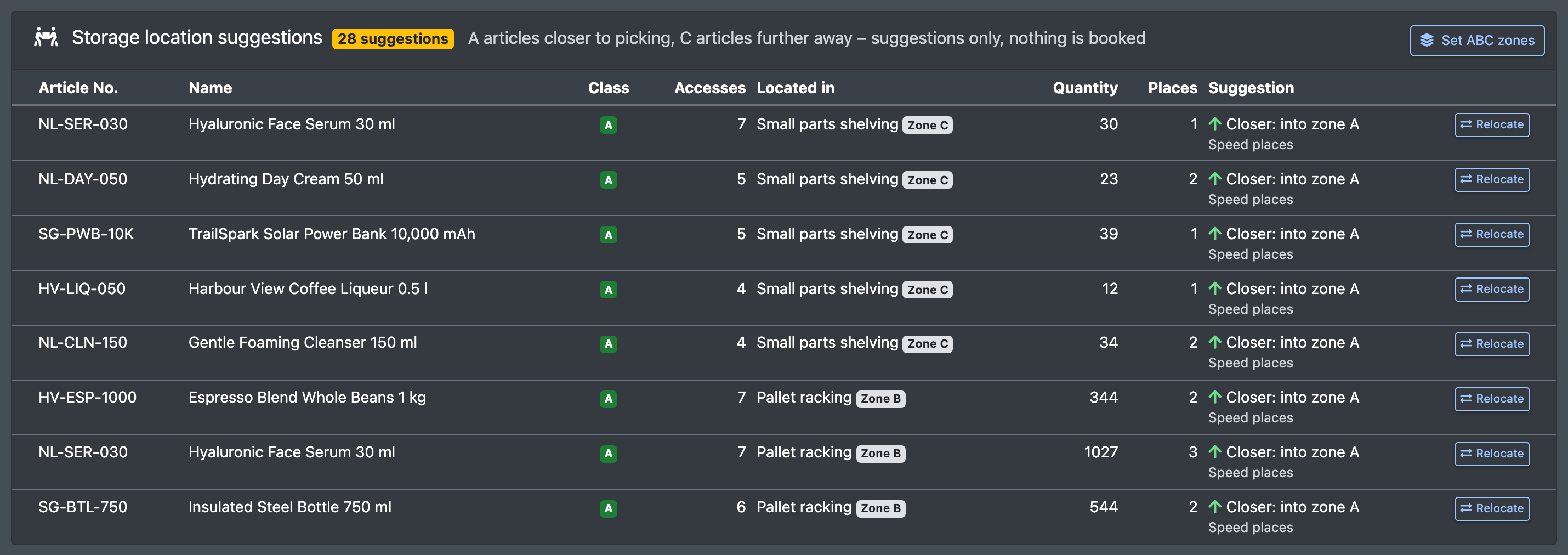
The card Storage location suggestions (Lagerplatz-Vorschläge) names every article that has stock in an area with a zone other than its class. The suggestions come from the stored classification.
- Look at the list: Article No. (Artikel-Nr.), Name (Bezeichnung), Class (Klasse), Accesses (Zugriffe), Located in (Liegt in – area and zone), Quantity (Menge), Places (Plätze) and the Suggestion (Vorschlag).
- The suggestion reads "Closer: into zone A" (Näher heran: in Zone A) or "Further away: into zone C" (Weiter weg: in Zone C). Below it you find the storage areas that have this zone.
- Click Relocate (Umlagern). You get to the Relocation and relocate the article there by hand. You only see the button with the permission Reallocation (Umlagerung).
At the top are the articles that are furthest off – an A article in zone C before an A article in zone B – followed by those with the most accesses. The list shows at most 200 suggestions.
The suggestions are suggestions only. X-Sitter does not book or relocate anything itself – Relocate just takes you to the relocation, too.
Check the hints for A and C articles
From the stored classification the page derives two hint lists. They are your prompt to act – X-Sitter creates nothing for them and books nothing.
A articles: check replenishment (A-Artikel: Nachschub prüfen) lists A articles whose stock on the pick locations is running short:
An A article is listed if its coverage is below the number of days that is set (default: 5) or if it has no pick location stock at all. The shortest coverage is at the top.
C articles: check stock (C-Artikel: Bestand prüfen) lists all C articles with stock in the warehouse: Accesses (Zugriffe), Stock (Bestand) and Places (Plätze) – the least moved first. A red 0 in the accesses means: no access in the period. The list helps you with the question whether you still need the stock, whether it goes back to the client, belongs further back or should be counted.
X-Sitter shows at most 200 articles per list.
Fields and options
Filters of the analysis
Settings per warehouse
You find them under WMS › Warehouse › Overview › Settings (WMS › Lager › Übersicht › Einstellungen) on the tab Configurations (Konfigurationen), section ABC analysis (ABC-Bewertung), see Warehouse settings.
A and B together may be at most 99 %. Otherwise 80 / 15 / 5 applies again.
Which places count as pick locations is defined by the setting Picking places (Pick-Plätze) on the same tab.
How it is calculated
- An access is a removal for an order: a pick or a pallet loading. Goods receipt, relocation, replenishment and corrections do not count.
- X-Sitter sorts the articles by accesses (or by quantity) in descending order and adds up their shares. As long as the share of the articles before it is below the A limit, an article is A; up to the limit of A plus B it is B; after that C. The article that crosses a limit still counts to the previous class.
- Articles with stock but without any access in the period are class C.
- With a filter (owner, storage area, product group), X-Sitter forms the classes within this selection. So an article can have another class there than in the whole warehouse.
- Supplier: articles have no supplier of their own. The filter takes the supplier from the field Supplier (Lieferant) of your advance notices. Returns do not count. The name is free text – different spellings are different suppliers.
- There are exactly three classes.
Good to know / Troubleshooting
- The stored classification is the basis for the storage location suggestions, the two hint lists and the intervals per ABC class in the physical inventory.
- Nobody is notified about a change of class. The notice is shown on this page only.